Result Details in Polyspace Platform User Interface
R2026bThe Result Details pane contains comprehensive information about a specific defect or coding rule violation. To see this information, select a defect on the Results List pane.
Results Detail Pane
Within the Result Details pane, you can assign a Severity and Status to each result. You can also enter comments to describe the results of your review. This action helps you both track the progress of your review and avoid reviewing the same check twice.
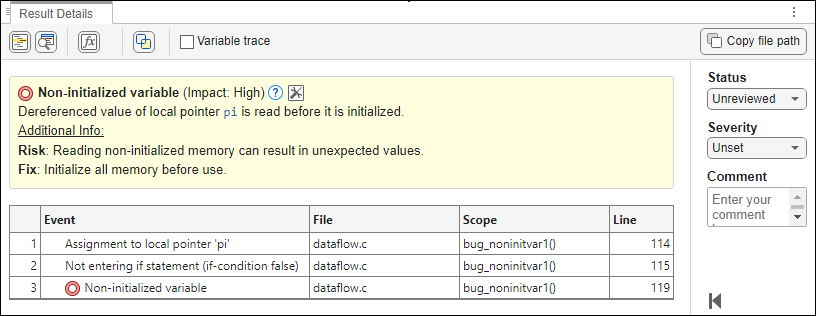
The yellow box contains the name of the defect or coding rule violation with an explanation of why the defect or violation occurs. Additional information such as a risk or fix may also appear in this box. Click the
 icon to open documentation for the result. If a proposed fix is available, click the icon to read the documentation about a potential fix.
The Result Details pane contains a table showing information about the result. If the table contains multiple nodes, you can right-click the table to expand or collapse all nodes. Information in this table includes:
The Event column lists the sequence of code instructions causing the defect or coding rule violation.
The File column displays the file containing the defect or coding rule violation.
The Scope column lists the function containing the instructions. If the instructions are not in a function, the column lists the file containing the instructions.
The Line column lists the line number in the file where the instructions are.
Select Variable trace to see an additional set of instructions that are related to the defect.
For results that you open from Polyspace® Access, you can also:
Assign a reviewer to the result. A reviewer can filter the Results List to show only results that are assigned to them.
Create a ticket in a bug tracking tool (BTT) such as JIRA. Once you create the ticket, the Results Details for this defect or coding rule violation shows the ticket ID. Click the ID to open the ticket in the BTT interface.
See Export Results from Polyspace Access (Polyspace Access).
Polyspace keyword in Results Details
In some cases, the Result Details pane displays Polyspace specific keywords to describe the result. For example, the keyword
?exterm appears when a variable is declared as
extern in the analyzed file, but the file that defines the variable is
not included in the current analysis. This situation commonly occurs when you use the option
Verify files independently
          (-unit-by-unit)
to analyze each file independently. The
?exterm keyword acts as a placeholder for the missing definition,
allowing the analysis to proceed.
See Also
Verify files independently (-unit-by-unit)
Topics
- Export Results from Polyspace Access (Polyspace Access)

