Hardware Setup for Infineon AURIX Microcontrollers
R2026bHardware boards and devices supported by MathWorks® require additional configuration and setup steps to connect to MATLAB® and Simulink®. Each support package provides a hardware setup process that guides you through registering, configuring, and connecting to your hardware board.
Required Third-Party Tools
The third party tools in the hardware setup provides the following capabilities.
Green Hills® Software for TriCore®, GCC for AURIX™ TriCore based on AURIX Development Studio, and HighTec LLVM TriCore Development Platform - To compile the generated code and create executables (Build, PIL, and Monitor & Tune) for TriCore processing units.
Synopsys® MetaWare - To compile the generated code and create executables for parallel processing unit.
TASKING® SmartCode - To compile the generated code and create executables for the parallel processing unit and the TriCore processing units.
Infineon® TAS/DAS - To download and deploy the generated code and executables to your hardware board.
Synopsys Virtualizer Development Kit - To simulate all the processing units, memories and peripherals available in Infineon AURIX microcontroller. You can build and test your model on virtual prototyping without the hardware board.
Hardware Setup
To utilize the complete capabilities of Embedded Coder® Support Package for Infineon AURIX TC4x Microcontrollers, run the hardware setup. Follow one of the steps to launch the hardware setup.
After completion of support package installation, click Setup Now.
If you have already installed the support package and chose to setup later, open the Add-Ons panel by clicking Add-Ons > Manage Add-Ons in Environment section of the Home tab.
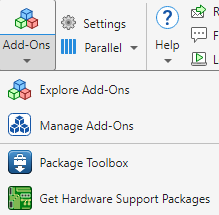
In the Add-Ons panel, go to Installed tab and check for Embedded Coder Support Package for Infineon AURIX TC4x Microcontrollers. Start the hardware setup process by clicking the Options button
 next to the installed support package, and then
click Setup
next to the installed support package, and then
click Setup
 .
.Select third party tools for Infineon AURIX microcontrollers. Select compilers as per your requirement and click Next.
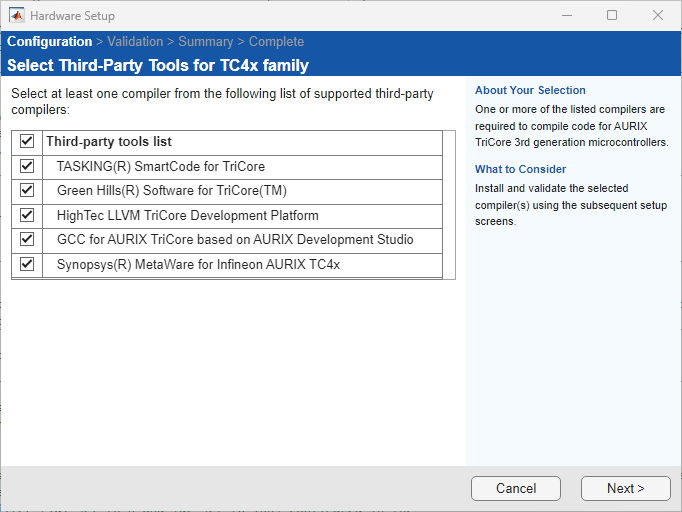
Select the optional third-party tools and click Next.

Manually download and install the listed third-party software using the installation links provided in the hardware setup screen. Click Next.
Click Next to validate the installed third-party software tools along with iLLD software.
For example, this figure shows the iLLD installation setup screen of MATLAB 26.1 (R2026a).
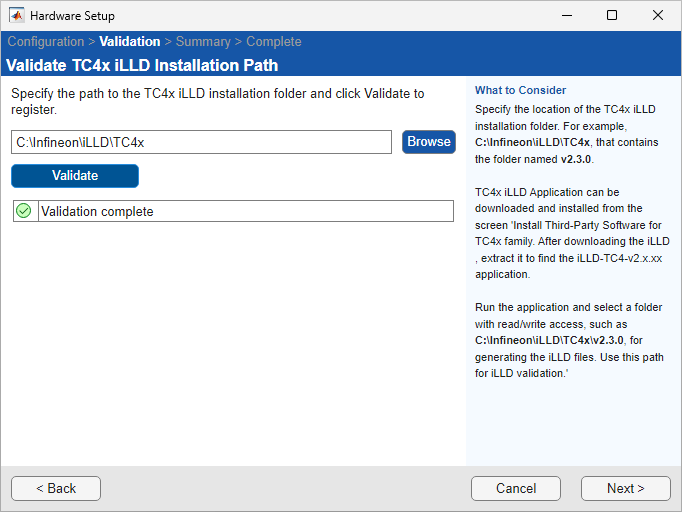
Validate the installed third-party software tools and iLLD by specifying the path to the software installation folder.
For example, click Browse button in the
Validate TC4x iLLD Installation
                     Path
window to located the path of the Tc4x iLLD folder and click Validate. Similarly, validate all the selected third-party tools and complete the hardware setup.Note
You must have a valid Infineon license to download the iLLD software for Infineon AURIX microcontrollers.
The downloaded iLLD installation zip file contains multiple zip folders. Extract only the root folder, leaving the internal zip folders untouched. Avoid extracting the iLLD folder to the path
C:\Program Files, as access to this location requires administrator rights.
For example, this figure shows the iLLD validation window of MATLAB 26.1 (R2026a).
When the hardware setup process completes, you can open the examples to get familiar with the product and its features.

