Add Predefined and Custom Fault Behaviors
R2026bFault behaviors are the behaviors you assign to the faults into your model. When you enable fault injection for your model, activate the fault, and simulate the model, the fault injects the behavior into the assigned model element if the fault triggers. For more information on defining faults and fault triggers, see Define and Model Faults and Trigger type.
You can use predefined or custom fault behaviors by modeling the behavior inside a Fault Subsystem block. You store fault behaviors in a fault model. You can simulate faults in a model that has a different solver type than the fault model (since R2026a). If you want to reuse your custom fault behaviors, you can create libraries to store the new behaviors.
Add Predefined Fault Behaviors
You can assign fault behaviors to faults when you create them or add them to existing
faults. Simulink®
Fault Analyzer™ comes with a built-in list of example fault behaviors that you can select and
stores the predefined behaviors in a library file, mwfaultlib.slx. You can
use these fault behaviors as-is for scalar double signals.
Inspect the Default Fault Behavior Library
To open the library that stores the predefined fault behaviors, navigate to
\matlab\toolbox\safety\block_libraries and open the default fault
behavior library, mwfaultlib.slx.
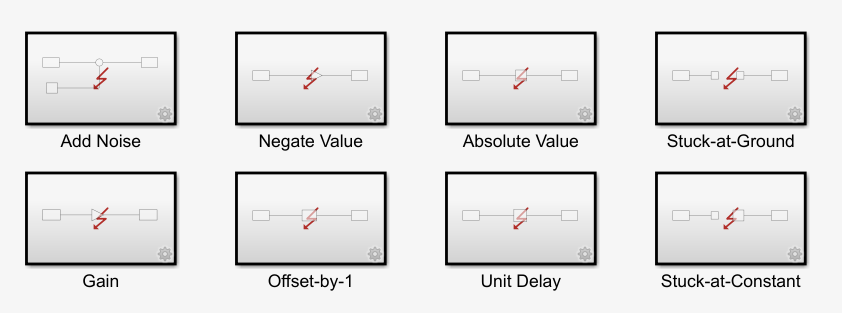
You cannot modify this library.
Add Built-In Behaviors to Faults
To create a fault and assign fault behavior to it:
Select the signal.
In the Apps tab, select Fault Analyzer.
In the Fault Analyzer tab, in the Prepare Faults section, click Add Fault.
In the Create Fault window, select Add fault behavior.
Set the Fault library property to
mwfaultlib.Select the fault behavior from the Fault behavior property and click OK.
To add behavior to existing faults that do not have assigned behavior:
Click the fault badge where the fault is added.
Click the Add fault behavior icon in the preview window.
In the Add Fault Behavior window, set the Fault library property to
mwfaultliband select the fault behavior from the Fault behavior property. Click OK.
You can also create fault behaviors from the Fault Table pane:
Open the Fault Table pane. In the Fault Analyzer tab, in the View section, click Fault Table.
Select the fault and click the Property Inspector button .
In the Property Inspector, click Add fault behavior.
You cannot add fault behavior to a fault that already has fault behavior.
Open Assigned Fault Behaviors
Simulink Fault Analyzer maintains the models for fault behaviors in Fault Subsystem blocks. When you assign behavior to a fault from the default library, Simulink Fault Analyzer creates a unique copy of the subsystem from the default library and stores it in another file called the fault model. You can modify the behaviors without affecting the default library.
To view the assigned fault behaviors of your faults, open the fault model by using one of these approaches:
Click the fault badge , then click the fault behavior preview window. When the fault model is not loaded, the preview window displays the Open fault behavior icon for each fault behavior.
Open the Fault Table pane. Expand the model elements in the Name column to see the faults. Right-click the fault and select Open fault behavior.
For example, add a fault to a model, use the mwfaultlib
built-in library, and set Select fault behavior to Add
Noise. This fault behavior adds noise to the signal. Open the Fault
Subsystem block to inspect the blocks that model the fault behavior. Fault
Subsystem blocks include one Fault Inport and Fault
Outport block that indicate where the signal enters and exits the subsystem,
respectively.
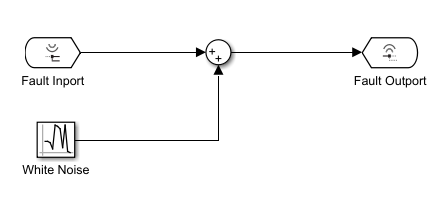
After creating a behavior, you can modify the blocks in the Fault
Subsystem block. If you set Fault behavior to
Custom fault behavior, the Fault Subsystem block
contains only the Fault Inport and Fault Outport
blocks.
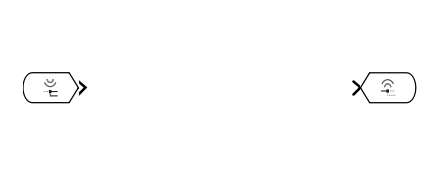
You must add blocks and signals to model the custom behavior.
Note
The blocks in the behavior must use the data type of the behavior data source. See Match Data Types of Fault Behaviors to Data Source.
Fault Subsystem blocks must have only one Fault Inport and one Fault Outport block. You can specify additional fault behavior data sources by adding a Fault Data Inport block to the behavior (since R2024b). To add this block to your behavior, follow one of these approaches:
Manually add the block to your fault behavior by using the Library Browser or the
add_blockfunction.Add the block when you add new behavior to a fault. In the Create Fault or Add Fault Behavior window, in the Fault behavior property, select
Custom fault behaviorand select Add Fault Data Inport block to behavior. By default, this property is cleared. The Fault Subsystem block that models the fault behavior contains a Fault Data Inport, Fault Inport, and Fault Outport block.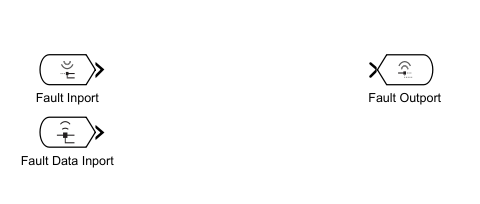
You then can map a specified model signal into your fault behavior. For more information, see Access Model Output Data in Fault Behaviors.
Trace Fault Behaviors to Assigned Faults
You can trace fault behaviors to their assigned faults. When you trace fault behaviors, the model highlights the associated model element and affected signals.
To trace fault behavior, use one of these approaches:
In the fault model, click the Fault Subsystem block. In the Fault Subsystem tab, in the Fault section, click Trace to Fault Source.
Open the Fault Subsystem block. Select either the Fault Inport or Fault Outport block. In the Fault Port tab, in the Fault section, click Trace to Fault Source.
In the fault model, on the block mask of a Fault Subsystem block, double-click the Fault properties button
 . In the Property Inspector, click Trace to
Fault Source.
. In the Property Inspector, click Trace to
Fault Source.
Multiple models can use the same fault model. To trace fault behaviors from a different model, load each model that contains the faults.
Create and Reuse Custom Fault Behaviors by Using Libraries
You can create custom fault behaviors and save them in a library for reuse. After creating the library, you register the library to your session of Simulink. When you add behavior to a fault, you can then select the library in the Fault library property and select the behaviors in the Fault behavior property.
If you assign behavior from a custom library to a fault, Simulink Fault Analyzer creates a linked copy of the subsystem in the fault model that you can only modify in the library. Faults that use the same custom behavior therefore share the behavior.
Create Custom Fault Behavior Libraries
To create a custom library that contains fault behaviors:
Create an empty Simulink model or library and save it on the path.
In the model or library, add at least one Fault Subsystem block. Only include Fault Subsystem blocks in the model or library.
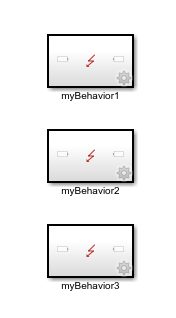
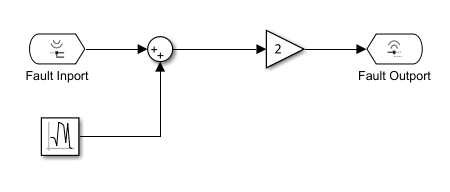
Open each Fault Subsystem block and add blocks that model your desired fault behavior.
Save the model or library.
To define compatible block names, you must use the allowable characters for subsystem names. See jc_0231: Usable characters for block names and jc_0243: Length restriction for subsystem names.
Register Fault Behavior Libraries with Functions
After creating the fault behavior library, you must register the library to access the
behaviors. You can register the library by using the Simulink.fault.libraries function. For example, to register a library named
myLibrary in the working folder, enter this command in the Command
Window:
Simulink.fault.libraries("myLibrary");You must register the library in each new MATLAB® session. If you close MATLAB, you must run the function again.
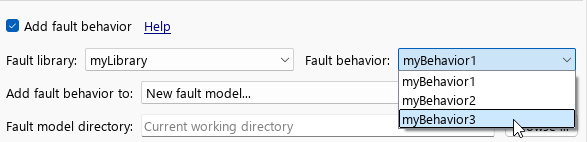
When you register the library, select the library in the Fault library property, and select the behaviors in the Fault behavior property. The name you assign to each Fault Subsystem block in the custom library is the name that appears in the Fault behavior property.
To unregister the custom library, use the Simulink.fault.unregisterLibrary
function.
Simulink.fault.unregisterLibrary("myLibrary");Register Libraries with sl_customization Functions
You can also register custom libraries by using an sl_customization
function. The sl_customization function runs when you load MATLAB or enter sl_refresh_customizations in the Command Window.
For more information, see Register Customizations with Simulink.
To register custom libraries with sl_customization, save the library
and create an sl_customization.m file on the same path. For example, to
register a library named myLibrary, create a function named
sl_customization.m that includes this code:
function sl_customization(cm)
  cObj = cm.SimulinkFaultCustomizer;
  cObj.clearCustomFaultLibraries;
  cObj.addCustomFaultLibrary("myLibrary");
In this example, the code unregisters the custom libraries with the
clearCustomFaultLibraries function, and then registers the
customFaultLib library with addCustomFaultLibrary
function. The input argument of addCustomFaultLibrary must be a string
scalar or character vector that contains the name of your library.
To unregister specific libraries, use the removeCustomFaultLibrary
function. For example, to unregister myLibrary, enter this code into the
sl_customization
function:
function sl_customization(cm)
  cObj = cm.SimulinkFaultCustomizer;
  cObj.removeCustomFaultLibrary("myLibrary");
See Also
Fault Inport | Fault Outport | Fault Subsystem

