Segment Image Using Find Circles in Image Segmenter
R2026bThis example shows how to use the Find Circles option in the Image Segmenter app to segment an image. The Find Circles option is an automatic segmentation technique that you can use to segment an image into foreground and background elements. The Find Circles option does not require initialization.
Load Image into the Image Segmenter App
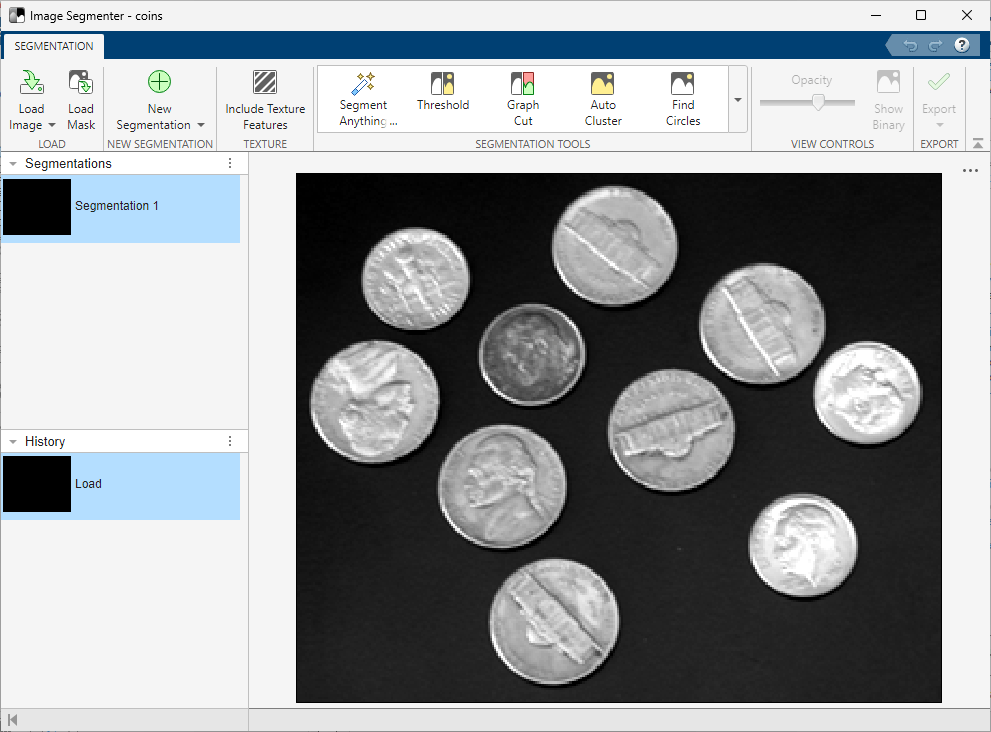
Read an image to segment into the workspace.
coins = imread("coins.png");Open the app using the imageSegmenter command, specifying the image.
imageSegmenter(coins);
Use Find Circles to Segment the Image
On the Image Segmenter app toolstrip, expand the Create Mask section and select Find Circles.
The Image Segmenter app opens a new tab for the Find Circles segmentation option.
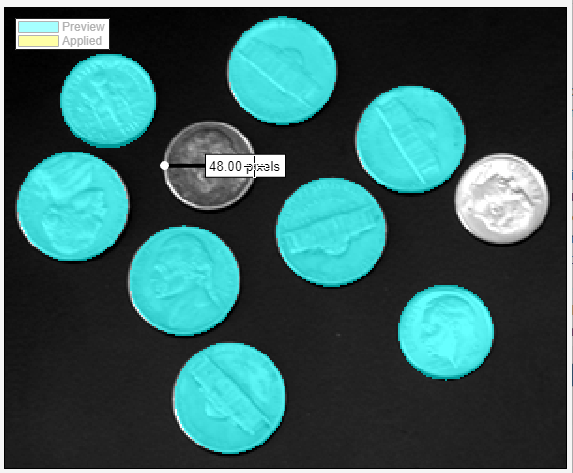
In the Find Circles tab, first click Ruler and measure the diameters of some representative circles in the image to determine the range of sizes. To find circles, you must specify the lower and upper bounds on the diameters. Set the values in the Min. Diameter and Max. Diameter fields to values that you think include all the objects, 50 and 150.
On the Find Circles tab, click Find Circles. The Image Segmenter app fills the circles it finds. However, find circles does not find two of the circles. Examining the image more closely, you discover that the diameter of these coins are slightly smaller than the specified minimum diameter.
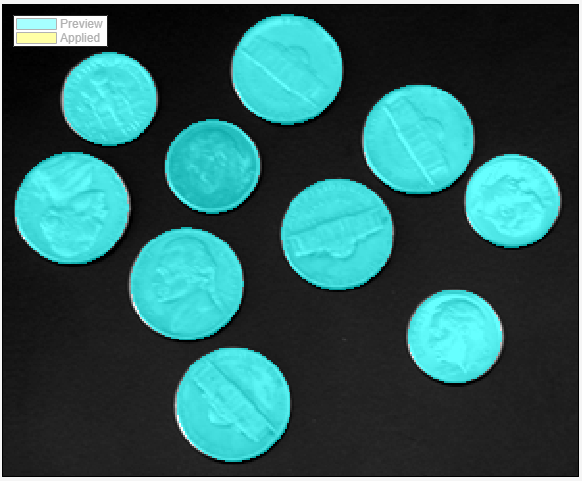
Change the minimum value to accommodate the sizes of the objects that were not segmented and run the find circles segmentation operation again. This time, Find Circles segments all the objects in the image.
Save the Mask Image to the Workspace
When you are satisfied with the segmentation, click Create Mask on the Find Circles tab toolstrip and create the mask image. The Image Segmenter app closes the Find Circles tab and returns to the Segmentation tab. The color of the segmented circles changes to yellow. To view the mask image, click Show Binary.
When you are done segmenting the image, save the mask image by using the Export option. You can also obtain the code used for the segmentation.
See Also
Image Segmenter | imfindcircles | circles2mask

