Generate C/C++ Tests to Diagnose or Guard Against Input Related Defects
R2026bPolyspace® Bug Finder™ can find defects in C/C++ code originating from system inputs to a function. For this class of defects, Bug Finder can show one set of example input values causing the defect. You can then use Polyspace Test™ to generate C/C++ tests from the example input values, and run these tests in debug mode to understand how the input values lead to the defect or retain these tests in your project as non-regression tests against further recurrence of the defect (static-analysis-guided test generation).
This topic shows how to generate test cases from Polyspace Bug Finder results.
Example Files
This tutorial uses the files in the folder <polyspaceroot>\polyspace\examples\doc_pstest\defect_tests\src. Here, <polyspaceroot> is the Polyspace installation folder, for instance, C:\Program Files\Polyspace\R2026b. To continue with this tutorial:
Create a new Polyspace Platform project and add the folder to the project. Save the project with the name
defect_Tests.Select Parse Code on the toolstrip to analyze the files in the folder.
The source file example.c in the folder defines a function getRatio() with a division operation that is not protected against a division by zero. A second function checkRatio() calls getRatio() with inputs that do not preempt a possible division by zero in getRatio().
#include "decls.h"
double getRatio(double x, double y, int32_t z) {
    if  ((y > -100 && y < 100) && (z > 0 && z < 100))
    {
        return x/(y + z);
    } else {
        return 0;
    }
}

bool checkRatio(double x, int32_t y, int32_t z) {
    double ratio = 0.0;
    if (x > 0 && x < 1)  {
        ratio = getRatio(x, y / 10, z);
    }
    if (ratio < 0.5) {
        return 0;
    }
    return 1;
}
Run Bug Finder
Run Polyspace Bug Finder on the example considering all values of system inputs.
Open the project configuration. On the Static Analysis tab, select Defects and Coding Standards > Checkers Behavior. Set these options:
Select Run stricter checks considering all values of system inputs.
Select
customfor the option Consider inputs to these functions and entercheckRatio.
These options ensure that the function
checkRatio()is analyzed for all values of function inputs. Any defect that occurs is shown along with a set of input values leading to the defect (counterexample).On the Polyspace Platform toolstrip, select Find Issues to start a Polyspace Bug Finder analysis.
Once the analysis is completed, the Results pane on the lower left contains an Issues node. Right-click this node and select Open Review to open the list of Polyspace Bug Finder results. You see the following:
The Results List pane shows a Float division by zero defect.
If you select this defect, the Result Details pane shows one possible set of input values to the function
getRatio()that lead to the defect.
Generate Test
Generate a test from the defect that Polyspace Bug Finder detected in the previous section.
If you are reviewing results, on the Polyspace Platform toolstrip, select Project to return to the project perspective.
On the Results pane, right-click the Issues node corresponding to the Bug Finder run and select Create Tests for Defects with Counter Examples.
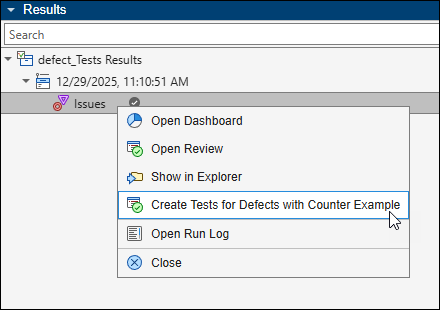
Once the test generation is completed, on the Projects pane, you see a test below the Tests node of your project. The test is named starting with Bug Finder Test to indicate that the test was generated from a Bug Finder result.
Double-click the test to see the test details:
The Description field in the test shows the file, function, line and column number of the defect along with the defect acronym.
The Step Body of the test contains a script that calls the function
checkRatio()with values that lead to the defect. For more information on scripted tests, see Test C/C++ Functions by Using Scripts in Graphical Tests.
Move Test to Specific Suite
For better management of tests created from Bug Finder defects, you can optionally move them to a specific test suite. You will have to run these tests with code sanitizer profiling enabled (see next section). Moving the tests to a specific suite helps keep track of this requirement.
To create a new test suite, right-click the Tests node of the project and select Add Test Suite.
To move a test to the new suite, right-click the test and select Move Test.
For more information on working with test suites, see Organize Graphical Tests in Polyspace Platform Project Using Test Suites.
Enable Code Sanitizer Profiling
If you run the test at this point, you see a failed test result. The failure message indicates that a defect has occurred. The test passes when you fix the defect. Therefore, the test can potentially act as a non-regression test against recurrence of the defect.
However, if the defect recurs later on a different line, the test failure no longer occurs. To treat the tests as effective non-regression tests, you must run the tests with code sanitizer profiling enabled. In this case, the code instrumentation required for catching the defect will no longer be limited to the line where the defect occurred previously.
To enable code sanitizer profiling, in the Profiling section of the toolstrip, instead of No Profiling, select Sanitizer.
For more information on the code sanitizer, see Run C/C++ Code Sanitizer and Review Results in Polyspace Platform User Interface.
Run Test and Review Results
Run the test generated in the previous step to see failing test results.
On the Projects pane, right-click the generated test and select Build Test.
Once the build is completed, right-click the test again and select Run Test.
Once the run is completed, the Results pane shows a Tests node with a failed status corresponding to this run.
If you enabled sanitizer profiling, you also see a Sanitizer Profiling node. Both types of results provide the same information for tests generated from defects: the test results show information per test, and the sanitizer profiling results show the same information per expression that was instrumented for possible issues.
Right-click the Tests node and select Open Review.
On the Results List pane, select the test name. The Result Details pane shows a message indicating that the test failed because a defect has occurred.
If you have a supported debugger installed, you can also build the test in debug mode. You can then run the test to open the source file in your debugger, place breakpoints, and see run-time values leading to the defect. For more information on running tests in debug mode, see Debug Test Failures from Polyspace Platform User Interface.
Once you fix the defect, you can rebuild the project and rerun the test to see passing test results.
Generate Test on Command Line
You can also generate tests based on Bug Finder results and add them to a Polyspace Platform project at the command line.
To generate a Bug Finder launching script using the above project, open a terminal, navigate to the folder containing the project file
defect_Tests.psprjx, and run the following command:This command generates a script to run Bug Finder in thepolyspace-project -generate-launching-script-for defect_Tests.psprjx -output-dir scripts -product bug-finderscriptssubfolder. Open the fileoptions_command.txtin thescriptssubfolder and note the options that will be used in a Bug Finder analysis. In particular, note these command-line options that you previously set in the Polyspace Platform user interface:-checks-using-system-input-values -system-inputs-from custom=checkRatioNavigate to the
scriptssubfolder and launch the script to run a Bug Finder analysis at the command line. For instance, on Windows®, you can launch the generated scriptlaunchingCommand.batas follows:The script runs Bug Finder on the sources in the filecd scripts .\launchingCommand.batsource_command.txtusing the options in the fileoptions_command.txtand generates results in a fileps_results.psbfin aresultssubfolder.To generate non-regression tests from the defects in the file
results\ps_results.psbfand add them to the project, enter the following:polyspace-test -create-defect-tests -project ..\defect_Tests.psprjx -results-file results\ps_results.psbf
Limitations
Tests generated from Bug Finder defects are not supported for execution or stack profiling.
See Also
Run stricter checks considering all values of system inputs (-checks-using-system-input-values) (Polyspace Bug Finder)

