Main Content

Read Occupancy Grid

Read occupancy grid data from ROS message structure

Since R2026a

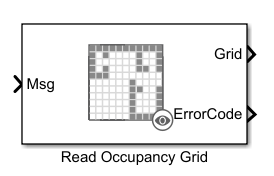
  • ROS Read Occupancy Grid Block Icon

Libraries:
ROS Toolbox / ROS

Description

The Read Occupancy Grid block extracts map data from a ROS occupancy grid message. It accepts a nav_msgs/OccupancyGrid message at the Msg input port and outputs the grid as a matrix. Based on the selected output type, the Grid port returns a probability occupancy grid with values in the range [0 1] or a binary occupancy grid with cell values of 0 and 1.

The block can also output an ErrorCode that indicates the conversion status, including whether the message is truncated or the occupancy map is empty. Use block parameters to specify the maximum expected grid size, set replacement values for unknown cells, and define the threshold for binary conversion.

You can enable variable-size signals when the map dimensions change at run time. To configure grid size and message details automatically, use the Configure using ROS option with an active topic on a ROS network.

The ROS Read Occupancy Grid block follows the same workflow as the ROS 2 Read Occupancy Grid block. For reference, see Visualize Occupancy Grid in Simulink from ROS 2 Message.

Ports

Input

expand all

ROS message of the nav_msgs/OccupancyGrid type, specified as a message structure. You can use the Subscribe block to get a message from an active ROS network.

Data Types: bus

Output

expand all

Extracted grid data signal from a ROS message of the nav_msgs/OccupancyGrid type, returned as an M-by-N matrix. Each cell in the output matrix represents whether an obstacle is present at that location.

Data Types: single | double | int8 | int16 | int32 | uint8 | uint16

Status code for grid data conversion, returned as a scalar.

  • 0 — The conversion of the grid data is successful.

  • 1 — The dimensions of the grid data message exceed the limits specified in the Maximum Grid Size parameter.

  • 2 — The Data field of the incoming message is truncated. For information on increasing the maximum length of the array, see Manage Array Sizes for ROS Messages in Simulink.

  • 3 — The received map is empty.

Dependencies

To enable this parameter at the output port, select Show ErrorCode output port under Output settings.

Data Types: uint8

Parameters

expand all

To edit block parameters interactively, use the Property Inspector. From the Simulink® Toolstrip, on the Simulation tab, in the Prepare gallery, select Property Inspector.

Occupancy Grid Settings

Occupancy grid type, specified as one of the following options:

  • Occupancy grid — Each cell in the occupancy grid has a value representing the probability of the occupancy of that cell. Values close to 1 represent a high certainty that the cell contains an obstacle. Values close to 0 represent certainty that the cell is not occupied and obstacle free.

  • Binary occupancy grid — Each cell in the occupancy grid has a value, either 0 or 1. Values of 1 indicate the occupied workspace (obstacles) and values of 0 indicate the free workspace.

Select Configure using ROS to set this parameter automatically using an active topic on a ROS network. You must be connected to the ROS network.

Maximum occupancy grid size, specified as a two-element [height width] vector.

Select Configure using ROS to set this parameter automatically using an active topic on a ROS network. You must be connected to the ROS network.

Value to replace unknown message values, specified in the range of [0 1]. The block replaces unknown message values, specified as -1 with the specified value of the parameter.

Threshold for occupied values, specified as a scalar. Any value greater than or equal to the threshold is set to occupied, 1. All other values are set to unoccupied, 0.

Dependencies

To enable this parameter, select Binary occupancy grid in the Occupancy grid type parameter under Output settings.

Output settings

Select this parameter to enable ErrorCode at output port.

Select this parameter to output a variable-size signal. Use variable-size signals only if you expect the image size to change over time. For more information about variable-size signals, see Variable-Size Signal Basics (Simulink).

Extended Capabilities

expand all

C/C++ Code Generation
Generate C and C++ code using Simulink® Coder™.

Version History

Introduced in R2026a