Create HTML Table with Multilevel Collapsible Rows
R2026bThis example shows how to create HTML tables with collapsible rows or with multilevel collapsible rows. You can use collapsible parent rows to hide or show the content in the children rows associated with each parent row. Children rows can also be parent rows and have their own associated children allowing you to create multilevel collapsible table sections.
Create Table with Collapsible Rows
Import the mlreportgen.report and mlreportgen.dom namespaces so that you do not have to include the fully qualified names for the object constructors and methods.
import mlreportgen.report.*
import mlreportgen.dom.*
Create an HTML document.
rpt = Report("myCollapsibleTables","html");
open(rpt);
Create a chapter for a table with collapsible rows.
chap1 = Chapter("Table with collapsible rows");Specify the table data as a cell array of strings. Each string in the array contains the text for a row of the table.
collapsibleTableData = { ...
    "Parent Row: Click to expand next 2 rows"; ...
    "  Collapsible Content for Parent Row"; ...
    "  More Collapsible Content for Parent Row"; ...
    "Static Row" ...
    };
Create the table and define basic styling. To keep the leading whitespaces, use WhiteSpace("preserve") in the second and third rows.
tbl = Table(collapsibleTableData);
tbl.Border = "solid";
tbl.RowSep = "solid";
tbl.ColSep = "solid";
tbl.Style = [tbl.Style {WhiteSpace("preserve")}];
Make the first row of the table collapsible, so that clicking on it collapses the two rows below it. The value specified by the Collapsible object defines which rows will be the children rows of the parent row. In this case, the first row is the parent row and rows two and three are the children rows.
row1 = tbl.row(1);
row1.Style = [row1.Style {Collapsible(2)}];
Append the table to the chapter and the chapter to the report.
append(chap1,tbl);
append(rpt,chap1);
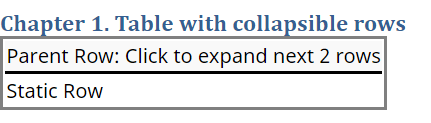
This image shows the table fully expanded and with the children rows collapsed. To expand children rows, click again on the parent row.
|
Table with all rows fully expanded |
Table with the second row collapsed |

Create Table with Multiple Levels of Collapsible Rows
Create another chapter for a table with two levels of collapsible rows.
chap2 = Chapter("Table with nested collapsible rows");Specify the table data for a table with seven rows.
collapsiblenestedTableData = { ...
    "Parent Row: Click to expand next 3 rows"; ...
    "  Collapsible Content for Parent Row"; ...
    "  More Collapsible Content for Parent Row"; ...
    "  Sub-Parent Row: : Click to expand next 2 rows"
    "     Nested Collapsible Content for Sub-Parent Row"; ...
    "     Nested More Collapsible Content for Sub-Parent Row"; ...
    "Static Row" ...
    };
Create the table.
tbl2 = Table(collapsiblenestedTableData);
tbl2.Border = "solid";
tbl2.RowSep = "solid";
tbl2.ColSep = "solid";
tbl2.Style = [tbl2.Style {WhiteSpace("preserve")}];
Make the fourth row collapsible, so that clicking on it collapses the two rows below it.
row4 = tbl2.row(4);
row4.Style = [row4.Style {Collapsible(2)}];
Make the first row of the table collapsible, so that clicking on it collapses the five rows below it, including the two rows that collapse with the fourth row.
row1 = tbl2.row(1);
row1.Style = [row1.Style {Collapsible(5)}];
Append the table to the chapter and the chapter to the report.
append(chap2,tbl2);
append(rpt,chap2);
Close and view the report.
close(rpt);
rptview(rpt);
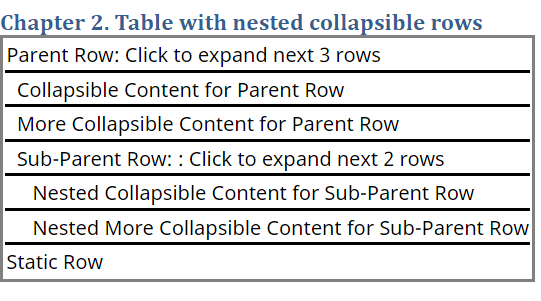
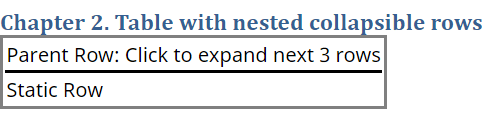
To expand or collapse a group of collapsible rows, click the parent row. When you point to a collapsed row, the row has light gray highlighting. Collapsing a top level parent row will hide all the children rows. If any of those children rows are also parent rows, their children rows will also be hidden. When a parent row is expanded all levels under that parent row will also be expanded.
This image shows the table in the second chapter fully expanded, with the fourth row collapsed, and with the second row collapsed.
|
Table with all rows fully expanded |
Table with the fourth row collapsed |
Table with the second and fourth row collapsed |