Simscape Component
Deploy Simscape language component as block
Libraries:
Simscape /
Utilities
Description
The Simscape Component block lets you generate a Simscape™ block directly from a textual component file, skipping the library build process.
You can use the sscbuild command to generate a custom block library
from all the Simscape component files located in a namespace. However, you can also do on-the-fly
conversion of a component file directly into a custom block in your model by using a
Simscape Component block.
To deploy a component file directly into a block diagram:
Open the Simscape > Utilities library and add the Simscape Component block to your model. By default, the block does not point to a component file.

Double-click the block to open the dialog box.

Click the Select component file button
 to open the browser. The browser opens in the current
working directory and lists only the files with the
to open the browser. The browser opens in the current
working directory and lists only the files with the .sscor.sscpextension.Browse to the Simscape language component file. The file does not have to be in a namespace. However, the folder where the file resides must be on the MATLAB® path. If the file is in a namespace, then the namespace parent folder must be on the MATLAB path.
Select the source file and click Open. The name of the source file appears in the text field of the dialog box, and the block name, description, and a link to source code appear in the Description tab.
The source component selection immediately applies to the block, regardless of whether the Auto Apply check box is selected. The block icon changes, and the block acquires the ports, parameters, and variables from the selected source component.
How to Select or Change the Source File
When a Simscape Component block points to a valid Simscape language component file, its dialog box has the name, description, parameters, and variables defined by that source file. The Description tab also has the source selector field that displays the name of the current source file and lets you point the block to a different component file.
A source component file can be located:
In the current working directory
In a directory on the MATLAB path
In a namespace, with the namespace parent directory being on the MATLAB path
To specify the source file, you can either browse to it or type its name directly into the source selector field in the dialog box:
If you type the name of the file, it must satisfy the location requirements, listed above. If the file resides in a namespace, you must provide the file name relative to the namespace root. If these conditions are not met when you type the file name, the source location cannot be resolved, and you get an error message.
If you browse to the source file, you can select any Simscape source or protected file (that is, any file with the
.sscor.sscpextension). However, if the selected file does not satisfy the location requirements, a File Not On Path dialog opens. Click Add to add the folder to the MATLAB path and resolve the source location. If you click Cancel, the source location cannot be resolved and the source selection process is cancelled.
The buttons next to the source selector text field perform these actions:
| Opens a file browser, to let you select the source component file. By default,
the browser displays only the files with the .ssc or
.sscp extensions. If the Simscape Component
block currently points to a source file, and the source location is successfully
resolved, the browser opens in the directory where that source file resides.
Otherwise, the browser opens in the current working directory. |
 | Refreshes the block. If you edit the source component file, click this button to have the block icon and dialog box reflect these changes. |
Block Icon Appearance
The Simscape Component block icon appearance changes depending on the block state.
 | Simscape Component block in the Library Browser or block library. |
| Simscape Component block added to the model, when it does not point to a source component. |
 | Simscape Component block that points to a valid component file.
The block ports are defined by the underlying component. By default, the block icon
displays the component name (for example, my_resistor). For more
information, see Customizing the Block Icon. |
 | Simscape Component block that points to an unresolved component file. This can happen if the source component file got moved, or if it is no longer on the path. The Add button adds the folder to the path only for the duration of the current MATLAB session. If you do not save the path and then open the model in a subsequent session, the Simscape Component block becomes unresolved. If the source component is located in the current working directory, then there is no requirement for it to be on the path. However, if you later try to open the model from another directory, the Simscape Component block also becomes unresolved. |
Examples
This example shows how you can quickly transform a Simscape component file into a block in your model, without building a custom library.
Suppose you have a Simscape component file, named my_resistor, in your working
folder.
To deploy this component as a block in your model:
Open or create a model.
Open the Simscape > Utilities library and add the Simscape
Component block to your model. At first, the block does not point to any
component file. Therefore, it does not have ports, and the block icon states it is
Unspecified.
Double-click the block to open the dialog box.
Click the Select component file button to open the browser. The browser opens in the current
working folder and lists only the files with the .ssc or
.sscp extensions. Select the my_resistor.ssc
file and click Open. The name of the source file appears in the
text field of the dialog box, and the block name, description, and a link to source code
appear in the Description pane.
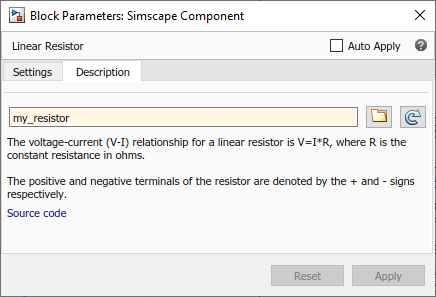
The source component selection immediately applies to the block, regardless of whether the Auto Apply check box is selected. The block icon changes, and the block acquires the ports, parameters, and variables from the selected source component. For more information, see Deploy a Component File in Block Diagram.
Extended Capabilities
Version History
Introduced in R2016a

