Reference Published Models
R2026bTo speed up simulation and code generation, you can reference published models. These ready-to-run versions of Simulink® models contain build artifacts that Simulink unpacks and uses as needed. Simulink skips rebuild checks for published models, reducing model compilation and build overhead.
With published models, you can:
Log signals that the author configured for logging.
Tune parameters.
Unpack the original data sources, such as data dictionaries.
Provide an alternate value source for external parameters.
Unpack supplemental files included by the author, such as instructions, test results, and code coverage reports.
You can also link to published models from System Composer™ architectures. For more information, see Implement Component Behavior Using Simulink (System Composer).
Note
While using a published model typically requires only a Simulink license, creating a published model requires a Simulink Coder™ license. For more information, see Publish Models to Speed Up Simulation and Code Generation (Simulink Coder).
Identify Published Models
To find published models, look for:
Files in the MATLAB® Files panel with a published model icon
 and a
and a .slxpfile extension. The Files panel registers the file type asSimulink Published Model.Model blocks in the Simulink Editor with the published model icon at the lower left corner. For these Model blocks, the Model type block parameter returns
Published model.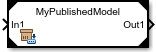
Protected models also have a .slxp file extension. To reference a
protected model, see Reference Protected Models from Third
Parties.
When a Model block specifies a filename without an extension, and both
a published model (.slxp) and the original model
(.slx) with that name are in the same folder, the
Model block references the published model instead of the original
model.
View Published Model Report and Supplemental Files
To view information about a published model, double-click the
.slxp file in the Files panel.
The report shows:
Supported functionalities, such as model reference simulation and code generation
Environment information, such as the platform, compiler, and release
Tunable parameters for simulation
Supplemental files, such as instructions, test results, and code coverage reports
To get the same information programmatically, use the slxpinfo
function.
Supplemental files are not unpacked automatically during simulation or code
generation. To unpack these files, use the unpackPublishedModelSupplementalFiles function.
Check Requirements for Supported Functionality
For each supported functionality, the published model contains the relevant build
artifacts and dependencies. Simulink unpacks these build artifacts and does not rebuild them. To identify how
you can use these artifacts, use the published model report or slxpinfo
function and this table.
| Supported Functionality | Requirement |
|---|---|
| Model reference simulation — Simulate a model that references the published model in normal, accelerator, or rapid accelerator mode | Use the same:
The current release must be the same or after the release in which the published model was created. |
| Model reference code generation — Generate C and C++ code for a model that references the published model | Use the same:
|
To display or change your default compiler, in the MATLAB Command Window, enter mex -setup. For more information,
see mex.
When you simulate or generate code for a model that references the published model, the software stores the published model as a compiled MEX binary.
Reference a Published Model
To reference a published model in your model hierarchy:
Check that the published model is on the MATLAB path.
Add a Model block.
In the Property Inspector, with the new Model block selected:
Set Model file to the published model filename.
Under Instance Parameters, specify instance-specific values for the parameters. For more information, see Configure Instance-Specific Values for Block Parameters in a Referenced Model.
Under External Parameters, optionally provide an alternate value source for external parameters. By default, simulations use values from the original data sources. An alternate value source lets you specify a predefined set of parameter values instead of individually modifying values in the original data sources. To provide an alternate value source, use one of these options:
Specify a data dictionary that contains alternate values for the external parameters. Next to Alternate value source, click Browse.
Create a data dictionary that uses the parameter values captured when the published model was created. Next to Alternate value source, click Create.
Connect signal lines to the Model block that match its input and output port requirements. For more information, see Define Model Reference Interfaces.
To unpack data sources used by the published model, such as data dictionaries, use the
unpackPublishedModelDataSourcesfunction.
Use Published Models
When you simulate or generate code for a model that references a published model, Simulink unpacks and uses the relevant build artifacts and dependencies. Simulink skips rebuild checks for published models, which reduces model compilation and build overhead. The unpacked build artifacts and dependencies remain on disk after use.
For more information about the build artifacts, see Manage Simulation Targets for Referenced Models and Generate Code for Model Reference Hierarchy (Simulink Coder).

