View the Simulink Design Verifier Report
R2026bAfter Simulink® Design Verifier™ completes an analysis, it generates detailed reports to help you review and document the results. These reports offer insights into model behavior, coverage, and verification objectives.
You can generate reports by using Simulink Design Verifier:
Start Simulink and open a model.
Navigate to Design Verifier tab and run the analysis.
After analysis is complete, the Simulink Design Verifier Results Summary window opens, showing different ways you can use the results. See Explore Results.
On the Design Verifier tab, click Results Summary to view the Results Summary window. The Results Summary window reopens with the latest analysis results for your model.
Each report is different and organized into different sections for easy navigation. Some of the most commonly included sections are:
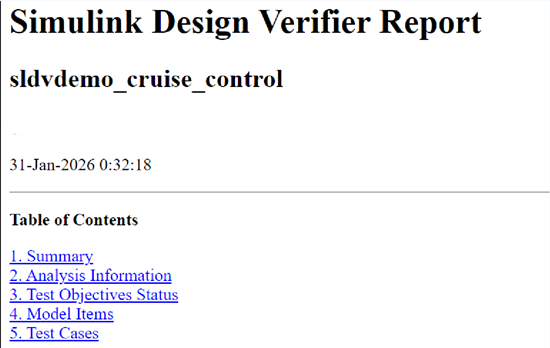
Summary - Overview of analysis objectives and key results.
Objectives and Results - Detailed status of each verification objective. For more information on various objective statuses, see Understanding Objective Statuses.
Test Cases - List of generated test cases, inputs, and expected outputs.
Coverage - Model coverage metrics, such as Condition, Decision, and MCDC.
Analysis Information - Analysis settings and configuration details.
Errors and Warnings - Issues encountered during analysis with diagnostic information.
Traceability - Links between requirements, model elements, and verification results.
For more details on these sections, see Review Results from Analysis Report.
Simulink Design Verifier generates report in several formats for different use cases:
HTML — View an interactive report in a web browser.
PDF — Create PDF version of the report to use with any PDF reader.
Simulink Report Viewer — Review analysis results in an integrated Simulink environment.
See Also
Review Results from Analysis Report

