Get Started with STMicroelectronics Discovery Boards
R2026bThis example demonstrates how to use the STM32 (TM) Microcontroller Blockset to run a Simulink® model on an STMicroelectronics STM32F746G-Discovery or STM32F769I-Discovery board.
Introduction
STM32 (TM) Microcontroller Blockset enables you to create and run Simulink models on STM32F746G-Discovery board, and STM32F769I-Discovery board. The STM32 (TM) Microcontroller Blockset includes a library of Simulink blocks for configuring and accessing STMicroelectronics STM32F746G-Discovery and STM32F769I-Discovery peripherals and communication interfaces.
In this example you will learn how to configure a simple Simulink model to generate code for STMicroelectronics STM32F746G-Discovery board and run the generated code on the board to periodically turn an LED on and off.
Available versions of this example:
STM32F746G-Discovery: stm32f746gdiscovery_gettingstarted.slx.
Prerequisites
If you are new to Simulink, we recommend completing the Interactive Simulink Tutorial.
If you are new to Embedded Coder, visit the Embedded Coder product page for an overview and tutorials.
If you have not yet installed ST-Link/V2 USB drivers, follow the steps as described in Install Drivers for STMicroelectronics STM32 Boards.
Required Hardware
To run this example you will need the following hardware:
STMicroelectronics STM32F746G-Discovery board
USB type A to Mini-B cable
Configure the Model for Automatic Load and Run of the Generated Code on STM32F746G-Discovery Board
In this task, you will configure a simple model to run on the STMicroelectronics STM32F746G-Discovery board automatically.
1. Open the LED model. This model has been configured for the STM32F746G-Discovery board.
2. Open the Modeling tab and press CTRL+E to open Configuration Parameters dialog box. Go to Hardware Implementation > Hardware board and select STM32F746G Discovery
3. The green LED (LD1) is driven by GPIO Pin D13 on the STM32F746G Discovery.
4. Change Build action to Build, load and run to automatically download the generated hex file, stm32f746gdiscovery_gettingstarted.hex, on to the connected STM32 Discovery board.
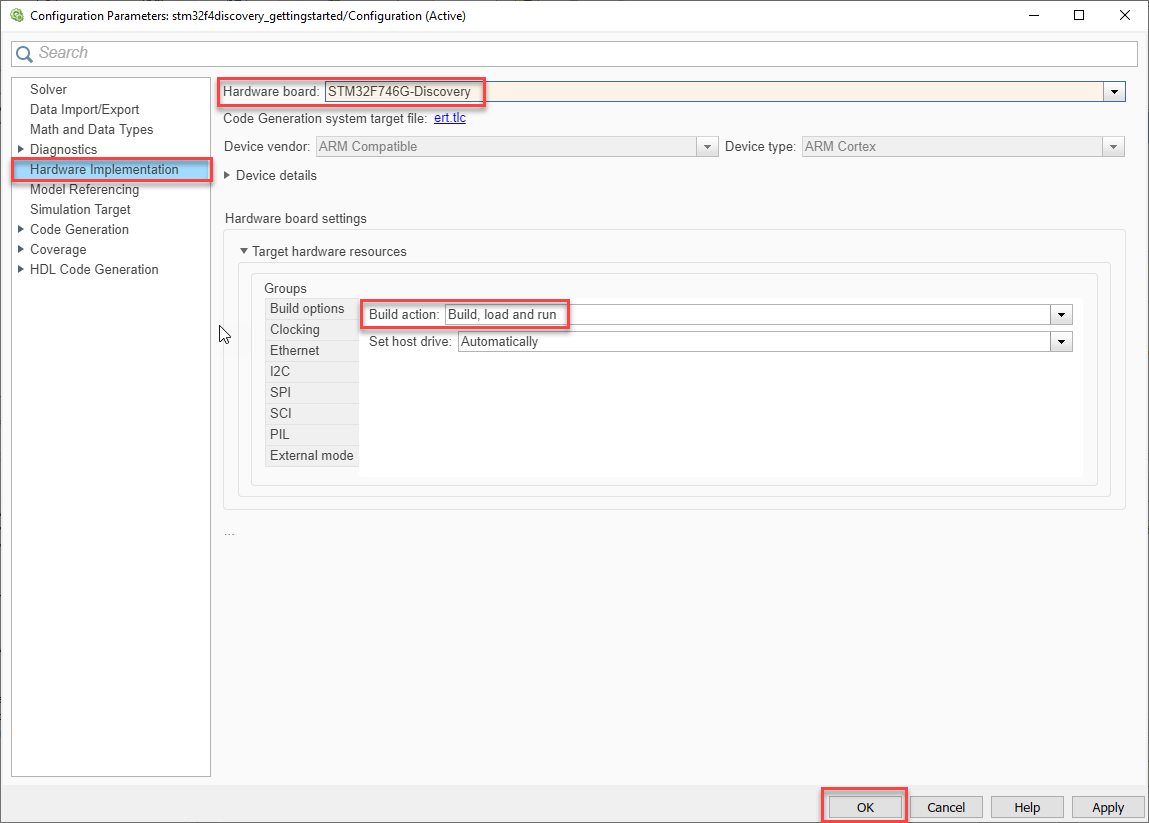
5. Go to Hardware tab and Click Build, Deploy & Start > Build Stand-Alone to generate code for the model.

6. You will see in the Diagnostic Viewer window that code is generated and downloaded on to the connected board for the model.
..
.....
......
C:/MATLAB/SUPPOR~1/R2016B~1/GCC-AR~2/bin/arm-none-eabi-objcopy -O binary ../stm32f746gdiscovery_gettingstarted.elf ../stm32f746gdiscovery_gettingstarted.bin
"### Done invoking postbuild tool."
"### Invoking postbuild tool "Hex Converter" ..." ...
C:/MATLAB/SUPPOR~1/R2016B~1/GCC-AR~2/bin/arm-none-eabi-objcopy -O ihex ../stm32f746gdiscovery_gettingstarted.elf ../stm32f746gdiscovery_gettingstarted.hex
"### Done invoking postbuild tool."
"### Invoking postbuild tool "Executable Size" ..." ...
C:/MATLAB/SUPPOR~1/R2016B~1/GCC-AR~2/bin/arm-none-eabi-size ../stm32f746gdiscovery_gettingstarted.elf
   text	   data	    bss	    dec	    hex	filename
16880	    416	    620	  17916	   45fc	../stm32f746gdiscovery_gettingstarted.elf
"### Done invoking postbuild tool."
"### Successfully generated all binary outputs."
### Successful completion of build procedure for model: stm32f746gdiscovery_gettingstarted
7. Observe that the green LED turns ON for 0.5 second and switches OFF for 0.5 second periodically.
Review Block Library for Your Board
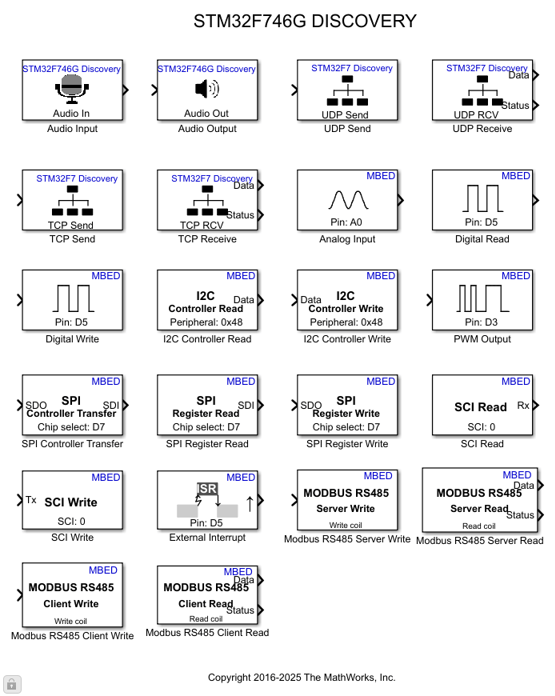
The STM32 (TM) Microcontroller Blockset provides an easy way to create algorithms that use peripherals supported with dedicated blocks that can be added to your Simulink model. Use the STM32 Discovery blocks to configure the associated sensors and actuators, read data from a peripheral or send data to a peripheral.
1. Enter slLibraryBrowser at the MATLAB® prompt. This opens the Simulink Library Browser.
2. In the Simulink Library Browser, navigate to STM32 (TM) Microcontroller Blockset and open the GPIO Write block Digital Write from STM32F746G-Discovery boards.
Review the block mask, which contains a description of the block and parameters for configuring the associated STMicroelectronics STM32 Discovery digital output pin.
Summary
This example introduced the workflow for running a Simulink model on the STMicroelectronics STM32 processors. In this example you learned that:
You can configure a Simulink model to generate code for the STMicroelectronics STM32F746G-Discovery board.
STM32 (TM) Microcontroller Blockset provides blocks for configuring, reading from and writing to STMicroelectronics STM32F746G-Discovery peripherals.
Migrate to STM32CubeMX Workflow
To migrate to the STM32CubeMX workflow for STM32 processor based boards, use the Get Started with STMicroelectronics STM32 Processor Based Boards example to implement the equivalent STM32CubeMX workflow.

