PX4 uORB Write
R2026bWrite uORB data for the specified uORB topic
PX4 uORB Write block
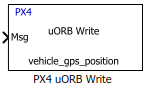
To add a block to a model, double-click the canvas and start typing the block name. Then, select the block from the list.
Libraries:
UAV Toolbox Support Package for PX4 Autopilots / PX4 uORB Read and Write Blocks
Description
Add-On Required: This feature requires the UAV Toolbox Support Package for PX4 Autopilots add-on.
The PX4 uORB Write block publishes uORB data for the specified uORB topic and instance.
The Msg block input accepts a uORB topic (non-virtual bus signal). When publishing to an existing instance, Status is 0 if the instance has been published and 1 if not.
uORB (micro Object Request Broker) is the publish-subscribe messaging mechanism in PX4 that enables decoupled communication between publishers and subscribers. uORB supports multi-instance topics, which allow multiple independent publishers of the same message type to coexist under a single topic definition. For example, multiple actuator output groups, estimator outputs, or sensor streams each publish to separate instances of the same topic.
By default, the block publishes to instance 0 of the selected topic. To publish to a different instance, use the Publish to other instances parameter to select whether to create a new instance or publish to an existing instance.
On each sample hit, the block converts the Msg input from a Simulink® bus signal to a uORB message and publishes it. The block does not distinguish
whether the input is a new message; but, merely publishes it on every sample hit.
During Connected I/O simulation, this block writes data to the peripherals of the hardware.
Note
When you add a PX4 uORB Read or PX4 uORB Write block to a
model, the block automatically creates Simulink nonvirtual bus definitions for the selected
PX4 message types. If the model is associated with a Simulink Data Dictionary
(.sldd), these bus definitions can be stored in the data dictionary.
Review and manage the generated bus definitions as needed to avoid creating unused or
duplicate bus objects.
Examples
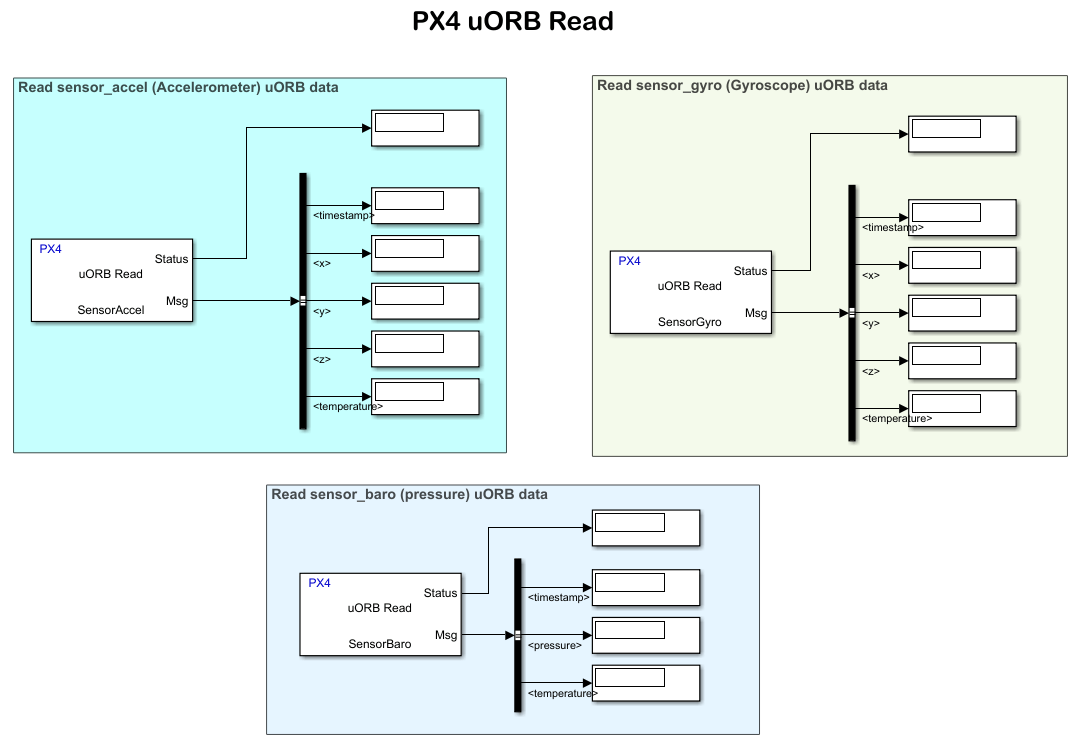
Getting Started with uORB Blocks for PX4 Autopilots Support Package
Read and write uORB messages using PX4 uORB Read and PX4 uORB Write blocks.
Ports
Input
Output
Parameters
Version History
Introduced in R2018b

