Generate Standalone C++ Code for Entry-Point Class Using MATLAB Coder App
R2026bThis example shows how to generate standalone C++ code for an entry-point class by using the MATLAB® Coder™ app. For the equivalent command line workflow, see Generate Standalone C++ Code for Entry-Point Class at the Command Line. For a detailed explanation of the steps of this workflow, including usage notes and limitations, see Code Generation for Entry-Point Classes.
Note
Using a MATLAB class as an entry point for code generation is a tech preview. This
feature is in active development and might change between the tech preview and the
general release. To enable the feature, enter
enableCodegenForEntryPointClasses at the command line before
launching the MATLAB
Coder app, calling the codegen function, or creating a coder.Type object. To provide feedback, email the
development team or participate
in a survey.
Enable Tech Preview
Enable code generation for entry-point classes.
enableCodegenForEntryPointClasses
=== Code generation for entry-point classes is ENABLED ===
Examine MATLAB Class
Examine the Rectangle class, which represents a rectangle with
dimensions specified by the properties Length and
Width. The Rectangle class has three
methods:
The
Rectangleconstructor creates the object.The
getAreamethod calculates the area of aRectangleobject.The
isEqualAreamethod uses thegetAreamethod to determine whether twoRectangleobjects have the same area.
classdef Rectangle
    properties
        Length
        Width
    end
    methods
        function obj = Rectangle(length,width)
            obj.Length = length;
            obj.Width = width;
        end
        function area = getArea(obj)
            area = obj.Length*obj.Width;
        end
        function out = isEqualArea(obj1,obj2)
            out = isequal(getArea(obj1),getArea(obj2));
        end
    end
end
Add Entry Point Class to MATLAB Coder Project
Open the MATLAB
Coder app and create a project file named MyProject.coderprj.
To learn how to open the app and create a project, see Prepare MATLAB Function for Code Generation.
To add an entry-point class:
In the MATLAB Coder tab of the toolstrip, click the Entry Points button.
The Entry Points tab opens. Enter the name of the entry-point class,
Rectangle.
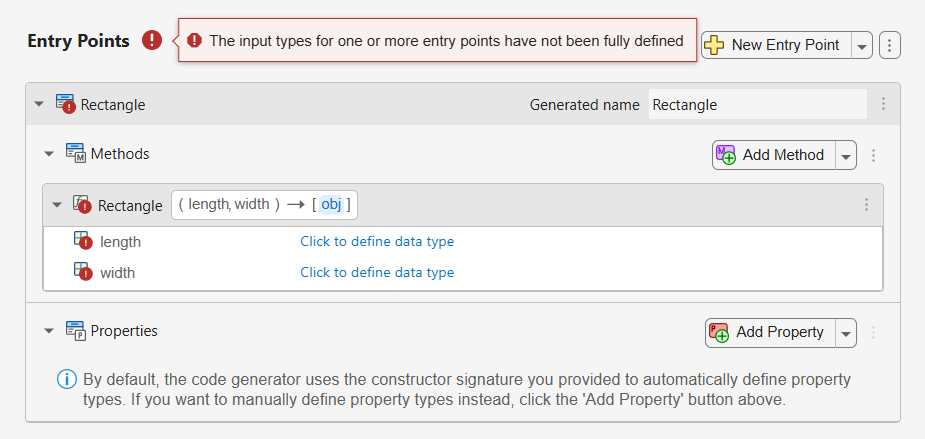
This image shows that:
The app populates the Generated name text box with the name of the MATLAB class. This name determines the name of the C++ class or C structure in the generated code.
The app automatically adds the
Rectangleconstructor to the Methods section. To add additional methods, click the Add Method button.In most situations, you do not need to add properties explicitly. The code generator uses the constructor signature to automatically define property types. To manually add property types, click the Add Property button.
Set Language to C++
By default, when you create a MATLAB Coder project, the app sets the target language to C. However, to generate idiomatic class-based code from your entry-point MATLAB class, you must generate C++.
To set the target language to C++, in the MATLAB Coder tab of the toolstrip, click Language and select C++.
Add Instance Methods
In this example, you add all instance methods of
the Rectangle class to the MATLAB
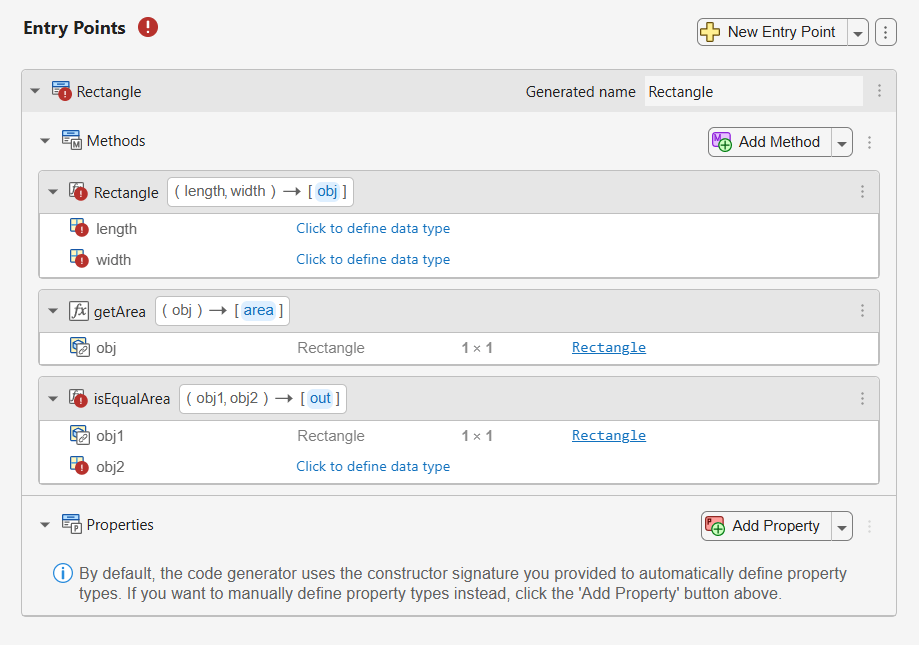
Coder project. Click Add Method > Add All Methods.
For code generation, an instance method of an entry-point class must accept an instance of the same class as the first input argument. So, the app adds the entry-point class instance as the first argument to each instance method.
This image shows the methods getArea and
isEqualArea in the Entry Points tab.
Define Input Types
To define input types, use one of these approaches:
Instruct the app to automatically determine input types by using your entry points in a test script or at the command line.
Specify input types directly in the app.
In this example, you instruct the app to automatically determine input types by running a test script that instantiates and uses your entry-point class.
Set the Automatically Define Input Types parameter
to Using Script and enter test_Rectangle as the
test script. The test_Rectangle.m file contains this code:
MyObject = Rectangle(4,3);
area = getArea(MyObject);

MyOtherObject = Rectangle(6,2);
tf = isEqualArea(MyObject,MyOtherObject);
Click the Run button. The app runs the test script and defines the types of the input arguments.
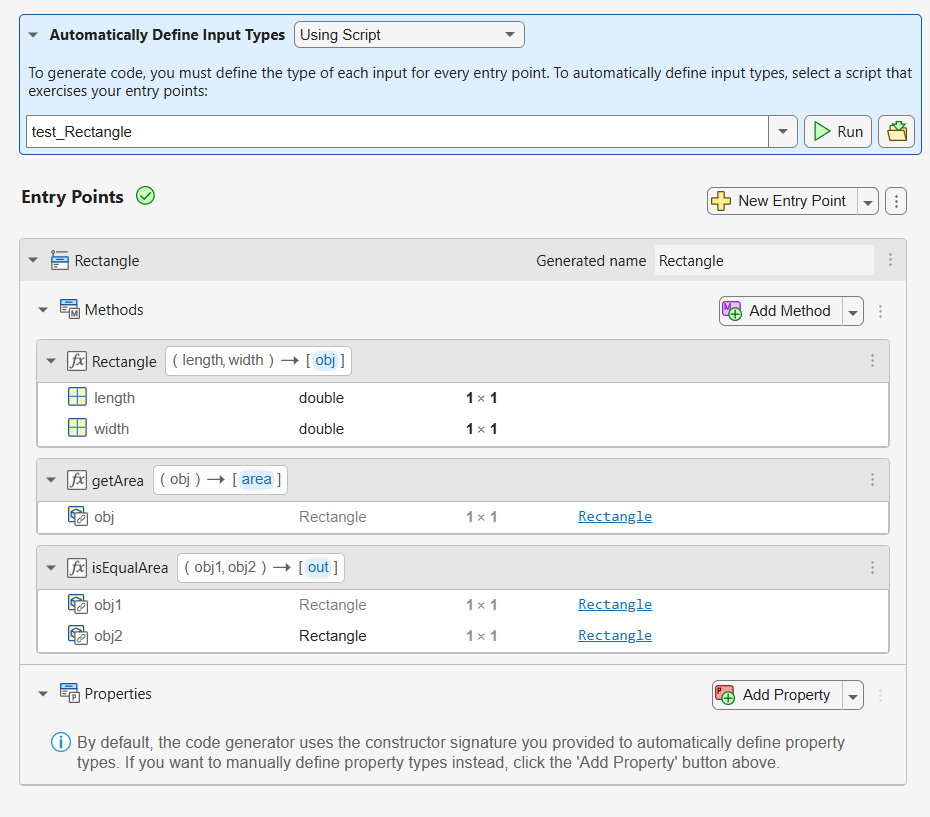
During automatic type definition, you can instruct the app to add all the methods that you use in your test script or command to the entry-point class specification. Click the Actions button next to the New Entry Point button. In the Automatic Type Definition section, select Add invoked methods.
Generate MEX Function and Test Generated Class
To generate a MEX function for the entry-point class, in the MATLAB Coder tab of the toolstrip, set Output Type to MEX. Then click Generate Code and Build.
When you generate a MEX function for an entry-point class, the generated function contains the class and method definitions. To create an instance of the generated class, invoke the class constructor by passing the name of the constructor to the MEX function, followed by the required inputs.
Construct an instance of the Rectangle class.
myMexObj = Rectangle_mex("Rectangle",3,4);The code generator creates an object that behaves like the MATLAB class but calls the MEX code.
To interact with this object, use MATLAB class syntax. For example, to verify that the getArea
method produces the same output as the getArea method of the
MATLAB class, use this command:
getArea(myMexObj)
ans =

    12
To test the isEqualArea method, create another instance of the
Rectangle MEX class.
myOtherMexObj = Rectangle_mex("Rectangle",2,6);Call the isEqualArea method using both instances of the MEX class.
The generated method produces the expected output.
isEqualArea(myMexObj,myOtherMexObj)
ans =

  logical

   1
Generate and Inspect Standalone C++ Code
To generate a C++ static library for the Rectangle class, in the
MATLAB Coder tab of the toolstrip, set Output
Type to Static Library (.lib). Then click Generate Code > Generate Code and Build. The code generator produces the C++ source code and binaries in the
workingFolder/codegen/lib/Rectangle
Inspect the definition of the Rectangle class in the generated C++
header file Rectangle.h. The Rectangle,
getArea, and isEqualArea methods are public C++
methods that your external application can use to interface with the C++ class. The
init method and non-initializing constructor are internal methods.
Do not use internal methods in your custom C++ code.
class Rectangle {
public:
  void init(double length, double width);
  double getArea() const;
  boolean_T isEqualArea(const Rectangle *obj2) const;
  Rectangle(double length, double width);
  Rectangle();
  ~Rectangle();
  double Length;
  double Width;
};
Use Entry-Point Class as Input to Entry-Point Function
You can add an entry-point function to your project that accepts an instance of the entry-point class as an input.
For example, consider this function, which takes an instance of the entry-point class
Rectangle as an input.
function tf = useRectangle(obj)
obj_squished = Rectangle(obj.Length*2,obj.Width/2);
tf = isEqualArea(obj,obj_squished);
end
Add this function entry point to MyProject.coderprj. Then, to
manually define the type of the input obj, click the Click
to define data type link.
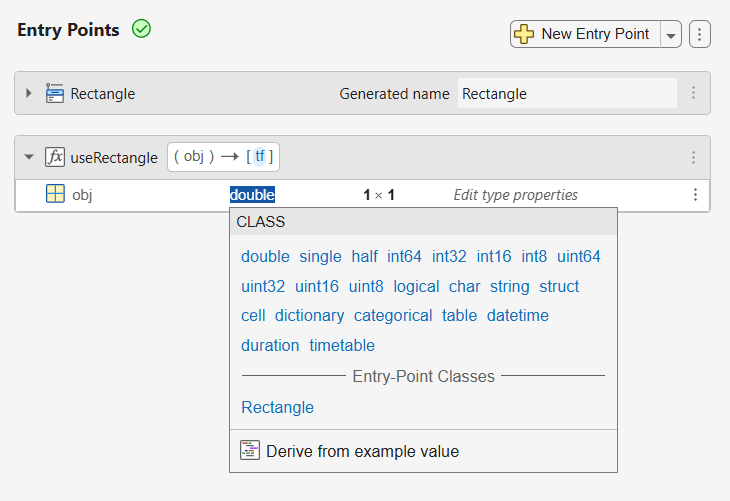
The Entry-Point Classes section of the tooltip shows the
Rectangle class. Click it to specify that the type of the
obj input argument is Rectangle.
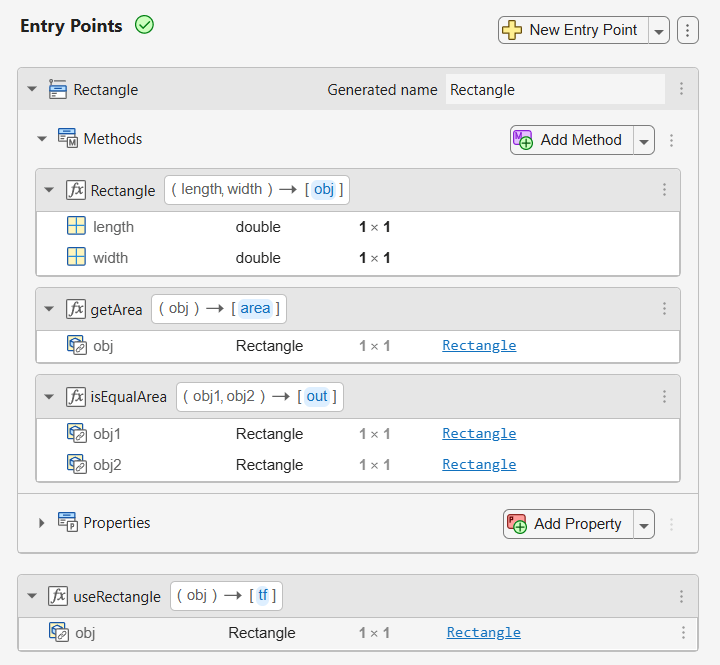
To view the definition of the entry-point class, click one of the Rectangle links.
When you generate code, the code generator treats both the
Rectangle class and the useRectangle function
as entry points.

