updateInfo
R2026bSyntax
Description
updateInfo(
updates the specified information in the Training Progress window and saves the values in
the monitor,infoName=infoValue)InfoData property of the TrainingProgressMonitor object monitor.
updateInfo(
updates the information using the values specified by the structure
monitor,infoStructure)infoStructure.
Examples
Use a TrainingProgressMonitor object to track training progress and produce training plots for custom training loops.
Create a TrainingProgressMonitor object. The monitor automatically tracks the start time and the elapsed time. The timer starts when you create the object.
Tip
To ensure that the elapsed time accurately reflects the training time, make sure you create the TrainingProgressMonitor object close to the start of your custom training loop.
monitor = trainingProgressMonitor;
Before you start the training, specify names for the information and metric values.
monitor.Info = ["LearningRate","Epoch","Iteration"];
monitor.Metrics = ["TrainingLoss","ValidationLoss","TrainingAccuracy","ValidationAccuracy"];
Specify the horizontal axis label for the training plot. Group the training and validation loss in the same subplot. Group the training and validation accuracy in the same plot.
monitor.XLabel = "Iteration";
groupSubPlot(monitor,"Loss",["TrainingLoss","ValidationLoss"]);
groupSubPlot(monitor,"Accuracy",["TrainingAccuracy","ValidationAccuracy"]);
Specify a logarithmic scale for the loss. You can also switch the y-axis scale by clicking the log scale button in the axes toolbar.
yscale(monitor,"Loss","log")
During training:
Evaluate the
Stopproperty at the start of each step in your custom training loop. When you click the Stop button in the Training Progress window, theStopproperty changes to1. Training stops if your training loop exits when theStopproperty is1.Update the information values. The updated values appear in the Training Progress window.
Record the metric values. The recorded values appear in the training plot.
Update the training progress percentage based on the fraction of iterations completed.
Note
The following example code is a template. You must edit this training loop to compute your metric and information values. For a complete example that you can run in MATLAB, see Monitor Custom Training Loop Progress During Training.
epoch = 0;
iteration = 0;

monitor.Status = "Running";

while epoch < maxEpochs && ~monitor.Stop
    epoch = epoch + 1;

    while hasData(mbq) && ~monitor.Stop
        iteration = iteration + 1;

        % Add code to calculate metric and information values.
        % lossTrain = ...

       updateInfo(monitor, ...
            LearningRate=learnRate, ...
            Epoch=string(epoch) + " of " + string(maxEpochs), ...
            Iteration=string(iteration) + " of " + string(numIterations));

       recordMetrics(monitor,iteration, ...
            TrainingLoss=lossTrain, ...
            TrainingAccuracy=accuracyTrain, ...
            ValidationLoss=lossValidation, ...
            ValidationAccuracy=accuracyValidation);

        monitor.Progress = 100*iteration/numIterations;
    end
end
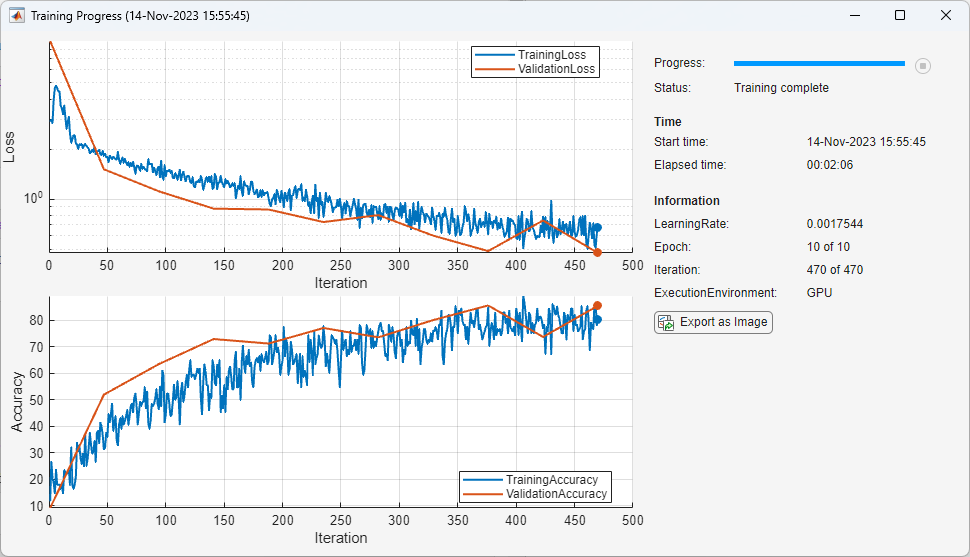
The Training Progress window shows animated plots of the metrics, as well as the information values, training progress bar, and elapsed time.
The training plots update each time you call
recordMetrics.The values under Information update each time you call
updateInfo.The elapsed time updates each time you call
recordMetricsorupdateInfoand when you update theProgressproperty.
Use a structure to update the information values.
structure.GradientDecayFactor = gradientDecayFactor;
structure.SquaredGradientDecayFactor = squaredGradientDecayFactor;
updateInfo(monitor,structure);
Input Arguments
Tips
The information values appear in the Training Progress window and the training plot shows a record of the metric values. Use information values for text and for numerical values that you want to display in the training window but not in the training plot.
You can use the information values to perform analysis after training. The monitor stores the information values without step information and only adds information when you call the
updateInfofunction. If you need the step information to use the values for the analysis, then update the information values at each step.

