fxpOptimizationOptions Class
Specify options for data type optimization
Description
The fxpOptimizationOptions object enables you to specify options and
constraints to use during the data type optimization process using fxpopt.
Creation
creates an
options = fxpOptimizationOptions()fxpOptimizationOptions object with default values.
creates an options = fxpOptimizationOptions('PropertyName',PropertyValue) fxpOptimizationOptions object with specified property name-value
pairs.
Properties
Maximum number of iterations to perform, specified as a nonnegative scalar integer. The optimization process iterates through different solutions until it finds an ideal solution, reaches the maximum number of iterations, or reaches another stopping criteria.
Example: options.MaxIterations = 75;
Example: options =
fxpOptimizationOptions('MaxIterations',75);
Data Types: double
Maximum amount of time for the optimization to run, in seconds, specified as a nonnegative scalar. The optimization runs until it reaches the time specified, finds an ideal solution, or reaches another stopping criteria.
Example: options.MaxTime = 1000;
Example: options =
fxpOptimizationOptions('MaxTime',1000);
Data Types: double
Maximum number of iterations where no new best solution is found, specified as a scalar integer. The optimization continues as long as the algorithm continues to find new best solutions.
Example: options.Patience = 15;
Example: options =
fxpOptimizationOptions('Patience',15);
Data Types: double
The level of information displayed at the command line during the optimization process, specified as one of these values:
'High'— Information is displayed at the command line at each iteration of the optimization process, including whether a new best solution was found and the cost of the solution.'Moderate'— Information is displayed at each major step of the optimization process, including when the process is in the preprocessing, modeling, and optimization phases.'Silent'— Nothing is displayed at the command line until the optimization process is finished.
Example: options.Verbosity = 'Moderate';
Example: options =
fxpOptimizationOptions('Verbosity','Moderate');
Data Types: char | string
Specify the allowed word lengths that can be used in your optimized system under
design. The optimization considers only word lengths which are in the intersection of
the AllowableWordLengths and word lengths compatible with hardware
constraints specified in the Hardware Implementation pane of your
model.
This option works together with the PerformNeighborhoodSearch setting:
When the
AdvancedOptionspropertyPerformNeighborhoodSearchis disabled, the optimization returns data types with homogeneous word lengths. The smallest value inAllowableWordLengthswhich meets the behavioral constraints set on the system under design will be used in the final optimized result.When the
AdvancedOptionspropertyPerformNeighborhoodSearchis enabled, the optimization returns data types with heterogeneous word lengths. The optimization first targets the search by finding homogeneous data types from theAllowableWordLengthswhich meet the behavioral constraints. Then a secondary search is performed around the neighborhood of this solution, allowing heterogeneous data types to be set on the system under design which minimize the cost of the system while meeting the specified behavioral constraints.
Tip
Use the MaxTime and Patience properties
to control how long the optimization process runs.
Example: options.AllowableWordLengths =
[8:11,16,32];
Data Types: double
Objective function to use during optimization search, specified as one of these values:
'BitWidthSum'— Minimize total bit width sum.'OperatorCount'— Minimize estimated count of operators in generated C code.This option may result in a lower program memory size for C code generated from Simulink® models. The
'OperatorCount'objective function is not suitable for FPGA or ASIC targets.Note
To use
'OperatorCount'as the objective function during optimization, the model must be ready for code generation. For more information about determining code generation readiness, see Check Model and Configuration for Code Generation (Embedded Coder).'CustomCostFunction'— Customize the objective function by specifying cost functions for blocks in your design.
Example: options.ObjectiveFunction =
'OperatorCount';
Data Types: char | string
Whether to run iterations of the optimization in parallel, specified as a logical
0 (false) or 1 (true). Running the iterations in
parallel requires a Parallel Computing Toolbox™ license. If you do not have a Parallel Computing Toolbox license, or if you specify 0 (false), the iterations
run in serial.
Example: options.UseParallel = 1;
Data Types: logical
Additional advanced options for optimization.
AdvancedFxpOptimizationOptions is an object containing additional
properties that can affect the optimization.
| Property | Description |
|---|---|
PerformNeighborhoodSearch | This property works together with the
Tip Use the |
EnforceLooseCoupling | Some Simulink blocks have a parameter that forces inputs to share a data type, or forces the output to share the same data type as the input.
|
UseDerivedRangeAnalysis |
Depending on the model configuration, derived range analysis may take longer than simulation of the model. |
SimulationScenarios | Define additional simulation scenarios to consider during optimization
using a Simulink.SimulationInput object.
For an example, see Optimize Data Types Using Multiple Simulation Scenarios. |
SafetyMargin | Enter a safety margin, specified as a nonnegative scalar value. The safety margin increases the bounds of the collected range by the percentage specified. For example, if a signal has a range
The safety margin is applied to all collected ranges, including simulation ranges, derived ranges, and design ranges. |
DataTypeOverride | Override data types specified in the model when simulating during the range collection phase of optimization.
|
HandleUnsupported | Some blocks are not supported for fixed-point conversion. Specify how the optimizer handles unsupported blocks.
For more information, see Blocks That Do Not Support Fixed-Point Data Types. |
InstrumentationContext | [model '/Subsystem'] — Restrict instrumentation for
minimum, maximum, and overflow logging for the range collection step of
optimization to a subsystem. The subsystem must be under the top-level model
and contain the system under design. |
Example: options.AdvancedOptions.PerformNeighborhoodSearch =
0;
Methods
addSpecification | Specify known data types in a system |
addTolerance | Specify numeric tolerance for optimized system |
showSpecifications | Show specifications for a system |
showTolerances | Show tolerances specified for a system |
clearTolerances | Remove tolerances from optimization options object |
setCustomCost | Set block-level cost functions to customize the optimization objective |
Examples
Create an fxpOptimizationObject with default property values.
options = fxpOptimizationOptions();
Edit the properties after creation using dot syntax.
options.Patience = 15; options.AllowableWordLengths = [8,16,32]; options.AdvancedOptions.UseDerivedRangeAnalysis = true
options =
fxpOptimizationOptions with properties:
MaxIterations: 50
MaxTime: 600
Patience: 15
Verbosity: High
AllowableWordLengths: [8 16 32]
ObjectiveFunction: BitWidthSum
UseParallel: 0
Advanced Options
AdvancedOptions: [1×1 DataTypeOptimization.AdvancedFxpOptimizationOptions]
Use property name-value pairs to set properties at object creation.
options = fxpOptimizationOptions('Patience',15,'AllowableWordLengths',[8,16,32])
options =
fxpOptimizationOptions with properties:
MaxIterations: 50
MaxTime: 600
Patience: 15
Verbosity: High
AllowableWordLengths: [8 16 32]
ObjectiveFunction: BitWidthSum
UseParallel: 0
Advanced Options
AdvancedOptions: [1×1 DataTypeOptimization.AdvancedFxpOptimizationOptions]
Specify advanced options.
options.AdvancedOptions.UseDerivedRangeAnalysis = 1
options =
fxpOptimizationOptions with properties:
MaxIterations: 50
MaxTime: 600
Patience: 15
Verbosity: High
AllowableWordLengths: [8 16 32]
ObjectiveFunction: BitWidthSum
UseParallel: 0
Advanced Options
AdvancedOptions: [1×1 DataTypeOptimization.AdvancedFxpOptimizationOptions]
You can import an fxpOptimizationOptions object into the Fixed-Point Tool to perform data type optimization in the app. By importing an fxpOptimizationOptions object rather than specifying settings manually in the app, you can easily save and restore your settings.
Open the model.
model = 'ex_controllerHarness';
open_system(model);To specify options for the optimization, such as the allowable word length and number of iterations, use the fxpOptimizationOptions object.
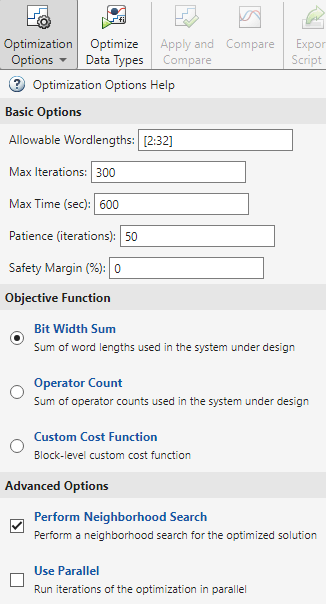
options = fxpOptimizationOptions('AllowableWordLengths',[2:32],... 'MaxIterations',3e2,... 'Patience',50);
Open the Fixed-Point Tool with the Controller subsystem selected.
fxptdlg('ex_controllerHarness/Controller')In the Fixed-Point Tool, select New > Optimized Fixed-Point Conversion to start the data type optimization workflow.
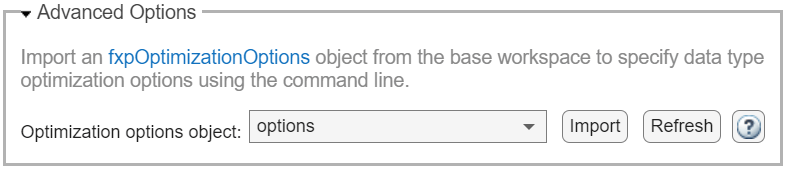
In the Setup pane, under Advanced Options, select the optimization options object to import from the dropdown menu. Click Import.
Expand the Optimization Options menu in the toolstrip to confirm that the optimization options were applied.
Version History
Introduced in R2018aThe PerformSlopeBiasCancellation property of
fxpOptimizationOptions will be removed in a future release. After removal,
the software will follow the current default behavior described below.
The fxpOptimizationOptions object allows you to specify additional
advanced options for optimization using the AdvancedFxpOptimizationOptions
object. This object has the property PerformSlopeBiasCancellation with settings:
0(default) — Do not propagate slope-bias data types.1— Propagate slope-bias data types from outside the system under design. Slopes and biases are chosen to reduce the complexity of generated code.
Use the clearTolerances method to remove individual tolerances or clear all tolerances
from the fxpOptimizationOptions object.
Using the fxpOptimizationOptions object, you can now specify to
automatically replace unsupported constructs with a lookup table
approximation.
options.AdvancedOptions.HandleUnsupported = "ReplaceLUT"You can now restrict instrumentation to a subsystem by using the
InstrumentationContext property of the
fxpOptimizationOptions object to specify the subsystem to use for
instrumentation and range collection.
You can now choose to display a warning message when fxpopt
encounters blocks that are not supported for data type conversion, in addition to the
existing options to isolate or error. To warn for unsupported constructs, set the
HandleUnsupported property of the
fxpOptimizationOptions object to 'Warn'.
You can now override data types in a model with scaled doubles.
See Also
Apps
Classes
Functions
MATLAB Command
You clicked a link that corresponds to this MATLAB command:
Run the command by entering it in the MATLAB Command Window. Web browsers do not support MATLAB commands.
Select a Web Site
Choose a web site to get translated content where available and see local events and offers. Based on your location, we recommend that you select: .
You can also select a web site from the following list
How to Get Best Site Performance
Select the China site (in Chinese or English) for best site performance. Other MathWorks country sites are not optimized for visits from your location.
Americas
- América Latina (Español)
- Canada (English)
- United States (English)
Europe
- Belgium (English)
- Denmark (English)
- Deutschland (Deutsch)
- España (Español)
- Finland (English)
- France (Français)
- Ireland (English)
- Italia (Italiano)
- Luxembourg (English)
- Netherlands (English)
- Norway (English)
- Österreich (Deutsch)
- Portugal (English)
- Sweden (English)
- Switzerland
- United Kingdom (English)