Calculate Execution Time of Functions in C/C++ Code
R2026bYou can use Polyspace®
Test™ to calculate the metric Execution Time, which computes the time required to execute the different callable entities of your code. See Execution Time.
Review Execution Time results to:
Determine whether your code meets your requirements for code execution time in host or target hardware.
Identify code sections that require execution speed enhancements.
Prerequisites
To follow this topic, copy the content of the folder <polyspaceroot>\polyspace\examples\doc_pstest\execution_profiling to a writable folder. Here, <polyspaceroot> is the Polyspace
Test installation folder, for instance, C:\Program Files\Polyspace\R2026b. The subfolder src contains the required source file, and the subfolder test contains the required xUnit test file. A makefile to generate the execution time report is also available in the folder.
Before using the makefile, specify your installation folder as the variable POLYSPACEROOT. For details about using makefiles to calculate the code profile, see Calculate Code Profile by Using Makefile.
Calculate Execution Time
You can calculate the execution time of the source code using either the Polyspace Platform user interface or the command line.
Use Polyspace Platform User Interface
To calculate the execution time using the Polyspace Platform user interface:
Create a new Polyspace Platform project.
Add the file
src/container.cto the project. Parse the added code.Add the Polyspace xUnit test file
test/test.c.In the Profiling section of the toolstrip, select Execution Time from the menu.
Click Build Project and then Run Tests to run the added test. This step generates the execution time results.
Use Command Line
At the command line, you can use either the make utility or the polyspace-code-profiler command.
If you have the make utility:
Open the makefile and specify your installation folder as the variable
POLYSPACEROOT.Navigate to the folder where you copied the content of the
execution_profilingfolder and, at the command line, enter:Themake reportHTMLreport containing theExecution Timeresults is stored in the folderreportFolder.
To calculate the execution time results using the command polyspace-code-profiler, use these scripts:
After executing these commands, Polyspace
Test stores the HTML report containing the Execution Time in the folder reportFolder. For details about these commands, see Calculate Execution Time and Memory Use of C/C++ Code Using Self-Managed Builds.
Open Execution Time Results
After calculating the execution time, you can open and review your results on the Dashboard in the Polyspace Platform user interface or the Polyspace Access™ web interface. For more information, see Review Execution Time of Functions in C/C++ Code.
View Execution Time Results on Dashboard
In the Dashboard perspective, you can see the Project Overview dashboard showing execution time metrics such as Self Time and Max Total Time, and the Execution Profiling dashboard showing a breakdown of execution time by file and function and a flame graph of the function call hierarchy.
For more details about the dashboard content, see Review Execution Time of Functions in C/C++ Code.
View Execution Time Results in Report
You can open an HTML report containing details of execution time results.
If you use the Polyspace Platform user interface:
In the Results pane, right -click Execution Profiling and select Open Review.
The user interface does not support reviewing the
Execution Timeresults directly. At the prompt, selectYesto open the HTML report.Select a location to save the HTML report.
The HTML report opens in your browser.
If you use the command line, open the HTML report in the folder reportFolder.
The results show the functions invoked in the code, the number of times each function is called, and their execution time.
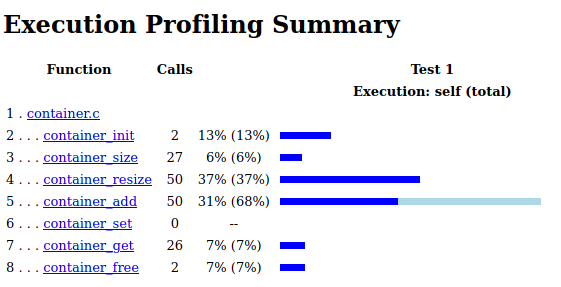
The report contains both the Self execution time and the Total execution time. For instance, the Self time of container_add is 31% while the Total time of container_add is 68%. This indicates that in total, 68% of the execution time is spent to execute container_add including all the function calls within
container_add. Excluding the called functions, the function container_add uses 31% of the execution time. Click each individual function to see more details about them. For more information on all execution time metrics, see Execution Time.
Depending on your hardware and compiler, your results might vary slightly from the example.
Review Results and Identify Bottleneck
Review the HTML report to identify possible bottlenecks in your code.
The results indicate that among the individual functions, container_add() requires the most execution time. This function might represent a bottleneck. Improving the performance of container_add() can speed up the overall execution time of the code.
When you review container_add(), you see that the function adds an element to the container if the container is not full. If the container is full, the function resizes the container to have one more element:
void container_add(container* foo, void* element)
{
    if (foo->numel == foo->total)
        container_resize(foo, foo->numel +1); //Resizing to have one more element
    foo->buffer[foo->total++] = element;
}container_add() resizes the container to have one more element, the function counter_resize() is called frequently, which is inefficient. In the report, you see that for 50 calls to container_add(), there are 50 calls to container_resize().Because of frequent resizing, the execution spends more than 8000 ticks in container_add(). Minimizing the number of calls to container_resize() can speed up the code.
To improve the execution speed of your code, modify the function container_add. Resize the container to have twice as many elements as it had previously:
void container_add(container* foo, void* element)
{
    if (foo->numel == foo->total)
        container_resize(foo, foo->numel *2 ); //Resizing to have twice as many elements
    foo->buffer[foo->total++] = element;
}
After making this change, calculate the execution time again. This time, for 50 calls to container_add(), there are 10 calls to container_resize(). Because the container is resized less frequently, the execution spends less than 5000 ticks in container_add(), which reduces the execution time of the code.
Depending on your hardware and software, you might get slightly different numbers. Regardless of the exact number, the time required to execute container_add() reduces if you resize the container less frequently.
By reviewing the execution time results, you can identify the bottlenecks in your code. Common causes of bottlenecks include inefficient coding patterns and poorly designed architecture. The strategy to resolve code bottlenecks depends on the context of the code. You can run a Polyspace static analysis on your code to identify performance inefficiencies or unwanted code complexity. See:
Performance Defects (Polyspace Bug Finder)
Identify and Reduce Software Complexity (Polyspace Bug Finder)
See Also
polyspace-code-profiler | Execution Time
Topics
- Review Execution Time of Functions in C/C++ Code
- Calculate C/C++ Code Profiling Metrics in Polyspace Platform User Interface
- Automate C/C++ Code Profiling Using Polyspace Platform Projects
- Calculate Execution Time and Memory Use of C/C++ Code Using Self-Managed Builds
- Identify and Reduce Software Complexity (Polyspace Bug Finder)

