Control UR5 Robotic Arm Using ROS 2 Action Client in Simulink
R2026bThis example shows how to control a UR5 robotic arm using a ROS 2 action client implemented in Simulink®, while also demonstrating how to handle real-world action behaviors such as goal acceptance, rejection, success, and abortion. In addition to executing a joint-space trajectory, the model incorporates a feedback loop that monitors the goal execution status and reacts by either stopping the simulation or sending the goal again when appropriate.
This example shows a logical workflow to:
Construct and send a ROS 2 action goal from Simulink.
Track goal execution using a unique goal identifier (UUID).
Interpret action status codes reported by the action server.
Handle goal rejection scenarios that commonly occur in practice.
ROS 2 actions are designed for long-running, goal-oriented tasks where execution may take time, provide feedback, or fail before completion. For a conceptual overview of ROS 2 actions, including goal states, feedback, and result semantics, see Explore ROS Actions: Action Client and Action Server Guide.
Prerequisites
To run this example, you must set up Docker® in your host environment (Windows Subsystem for Linux (WSL), Linux or Mac) and create a Docker image for Gazebo. For more information on how to configure Docker, see Install and Set Up Docker for ROS, ROS 2, and Gazebo.
Start Docker Container
With the prerequisites set up and the Docker image created, the first step is to launch an instance of Docker container.
To start a Docker container, run the following command in WSL/Linux/Mac terminal:
$ docker run -it --net=host -v /dev/shm:/dev/shm --name ros2_gz_robot <image-name>
Here, 'ros2_gz_robot' is the name of the Docker container. Replace the <image-name> with the name of the Docker image created in the prerequisite section.
Start Gazebo Robot Simulator
Once the container is running, the next step is to start the Gazebo robot simulator inside the Docker container.
Open a terminal within the Docker container by executing the following command in the WSL/Linux/Mac terminal:
$ docker exec -it ros2_gz_robot /bin/bash
Here, 'ros2_gz_robot' is the docker container name.
In the Docker container terminal, launch the manipulator in a Gazebo world by running the following command:
$ source start-gazebo-ur5.sh
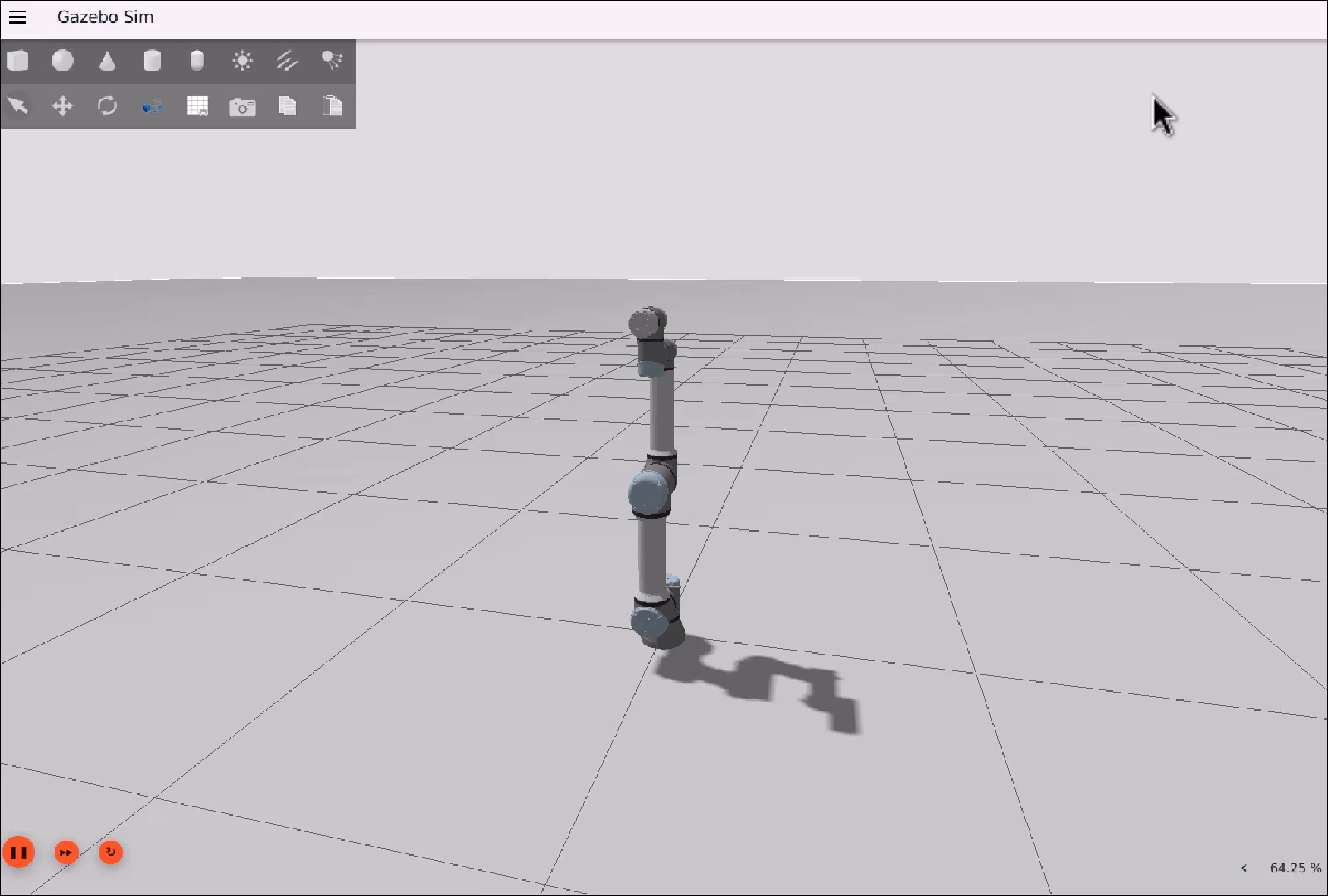
To view the Gazebo world, open a web browser on your Windows® or WSL machine and connect to the URL <docker-ip-address>:8080. If WSL is running on the same host machine, you can simply use localhost:8080. You can now visualize and interact with the Gazebo world directly in your web browser.
Configure MATLAB for ROS 2 Network
Launch MATLAB on your host machine and set the ROS_DOMAIN_ID environment variable to 25 and configure the ROS Middleware in MATLAB to rmw_fastrtps_cpp to match the robot simulator's ROS settings. For detailed steps, refer to Switching Between ROS Middleware Implementations.
Once the domain ID is set, run the following command in MATLAB to verify that the topics from the robot simulator are visible:
setenv('ROS_DOMAIN_ID','25')
ros2 action list
Open Existing Model
After connecting to the ROS 2 network, open the example model.
open_system('robotROS2ActionClientExample.slx');
The Simulink model communicates with the ROS 2 network using the following action interface:
Send Action Goal
The model sends control_msgs/FollowJointTrajectory action goals to the /arm_trajectory_controller/follow_joint_trajectory action server using the ROS 2 Send Action Goal block. When the block sends a goal, it generates a unique goal identifier (UUID), outputs the UUID of the active goal while it is executing, and ignores new goal inputs until the active goal completes. This behavior ensures that only one trajectory goal is active at a time.
Monitor Action Goal
The model monitors goal execution using the ROS 2 Monitor Action Goal block. The Monitor Action Goal block uses the UUID to associate incoming action responses with the corresponding goal, outputs a StatusCode that indicates the goal execution state, and outputs the associated FollowJointTrajectoryResult message after goal completion.
Control Execution Using Action Status
The model uses the reported status code to control simulation behavior:
Succeeded (
StatusCode = 4) — The trajectory execution completed successfully and the simulation stops.Aborted (
StatusCode = 6) — The action server terminated the goal during execution and the simulation stops.Rejected (
StatusCode = -1) — The action server rejected the goal before execution began. The model resends the goal.
Goal rejection can occur, for example, if the joint trajectory controller is inactive or if the trajectory message is invalid.
Configure Simulink and Run the Model
In this task, you will configure Simulink to communicate with ROS-enabled robot simulator over ROS 2, run the model and observe the behavior of the robot in the robot simulator.
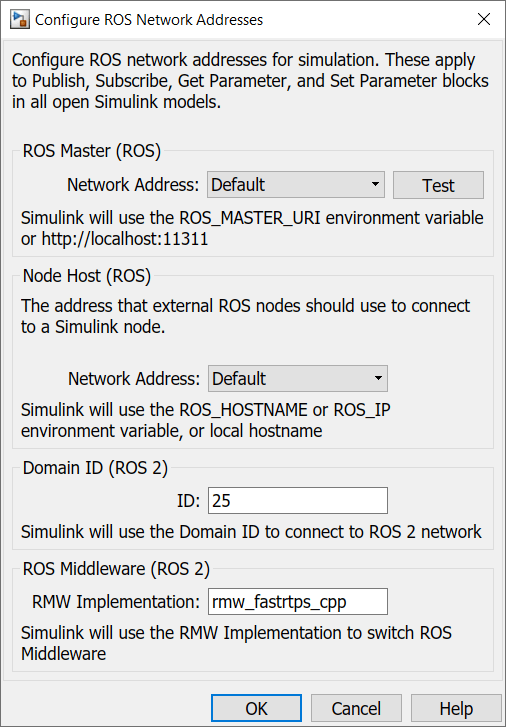
To configure the network settings for ROS 2.
Under the Simulation tab, in PREPARE, select ROS Toolbox > ROS Network.
In Configure ROS Network Addresses, set the ROS 2 Domain ID value to 25.
Make sure the ROS 2 RMW Implementation as
rmw_fastrtps_cpp.Click OK to apply changes and close the dialog box.
To run the model:
Position your windows so you can observe both the Simulink model and the Gazebo simulation of the UR5 robotic arm.
Click the Play button in Simulink to start the simulation.
While the simulation is running:
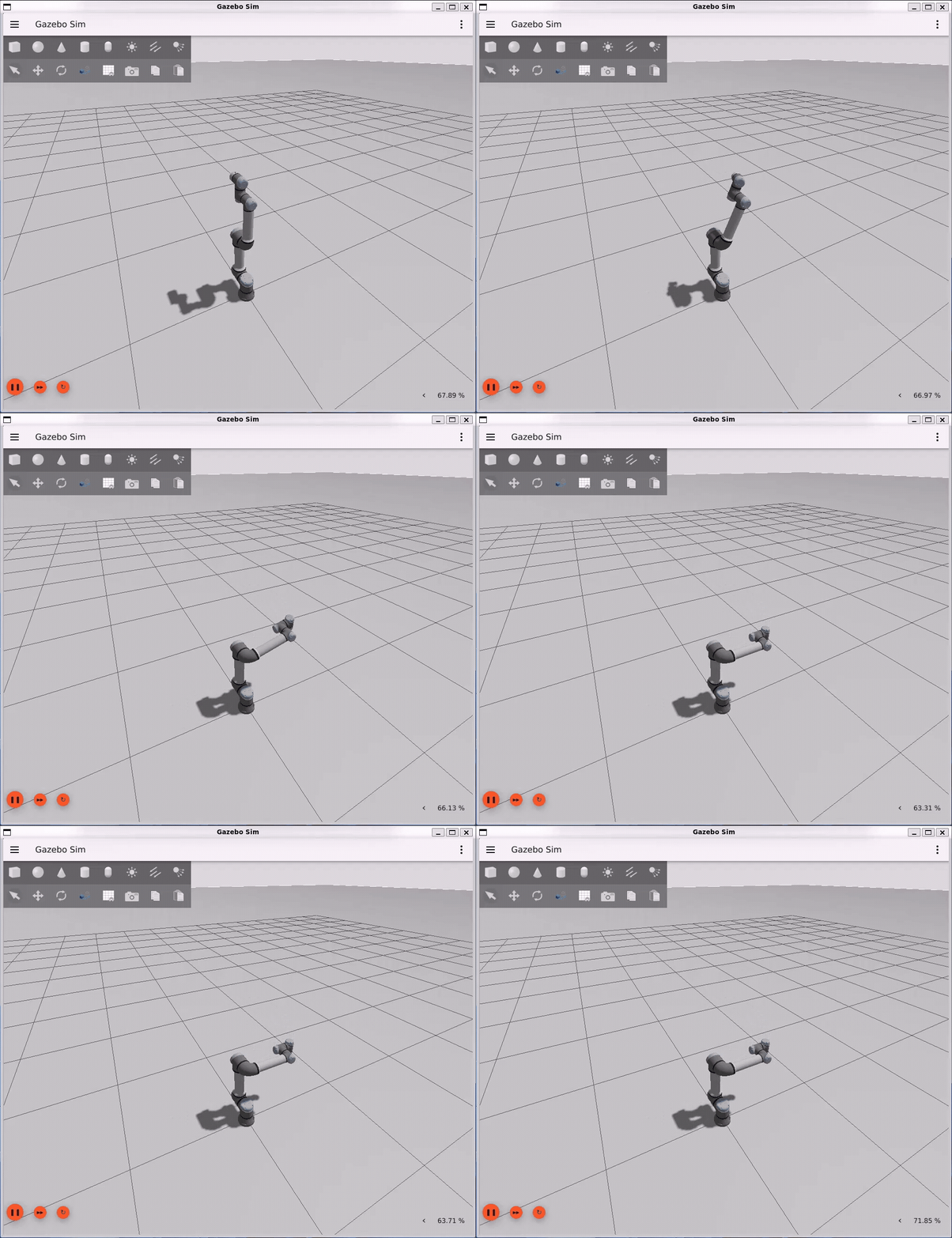
Change the Desired Joint Position: Double-click the Desired Joint Position block and update the constant value to
[0 -pi/2 pi/2 -pi/2 -pi/2 pi]. Observe the UR5 arm moving toward the new joint configuration in Gazebo.Modify Goal Timing or Trajectory:Open the MATLAB Function block that constructs the trajectory goal and adjust timing or interpolation parameters for smoother motion.
Monitor the Status Code output. You will see it outputs
4, which implies that the manipulator has successfully reached to the goal position.The simulation stops automatically when the goal succeeds. You can also manually stop the simulation if needed.
Clean Up Docker Container
To delete Docker container, run the following command in WSL/Linux/Mac terminal:
$ docker rm ros2_gz_robot
Here, 'ros2_gz_robot' is the name of Docker container.
Conclusion
This example illustrates how to integrate Simulink with ROS 2 action interfaces for commanding a UR5 robotic arm in Gazebo. By sending a joint trajectory goal and monitoring its execution, the model demonstrates a practical approach for action-based control workflows.
As a next step, you can enhance the trajectory by adding timing and interpolation for smoother motion, incorporate feedback from joint states to enable closed-loop control, and extend the workflow to deploy on real hardware for validating performance beyond simulation.
See Also
Send Action Goal | Monitor Action Goal

