Run Simulations in the Simulink Editor
R2026bAfter you open a model, you can start, pause, and stop simulations using the Simulink Editor. You can pause or stop simulations using buttons in the Simulink Editor or blocks in the model. Before starting a simulation, you can configure the simulation by specifying parameters using the Configuration Parameters dialog box.
Note
Security Considerations: Before loading, opening, or simulating a model, consider whether you trust the source or author of the model. Models from untrusted sources might contain callbacks and custom blocks that execute unexpected code when you load, open, or simulate the model. Untrusted sources include those you clone from a remote repository, download, or receive as an archive.
Simulation Basics
Before you start a simulation, you can specify model configuration parameters, such as the simulation start time and stop time. By default, models have a start time of 0 seconds and a stop time of 10 seconds. To modify parameter values, use the Configuration Parameters dialog box. In the Simulink® Toolstrip, on the Modeling tab, click Model Settings.
To specify a different start or stop time, select the Solver pane in the Configuration Parameters dialog box. In the Solver pane, you can also select a different solver and specify solver parameters, such as the maximum step size for a variable-step solver. For details, see Solver Pane.
Note
Simulation time and actual clock time are not the same. For example, a simulation with a stop time of 10 seconds typically does not take 10 seconds to run. The amount of time required to run a simulation depends on many factors including the complexity of the model, the step size, and the computing environment.
During simulation, you cannot make changes to the structure of the model, such as adding or deleting lines or blocks. However, you can make these changes while a simulation is running:
Modify some configuration parameters, including the stop time and the maximum step size.
Modify the parameters of a block, as long as you do not cause a change in:
Number of states, inputs, or outputs
Sample time
Number of zero crossings
Vector length of any block parameters
Length of the internal block work vectors
Dimension of any signals
You can also examine the model visually as it simulates. For example, you can click a line to see the signal carried on that line on a Floating Scope or Display block. You can also display port values as a model simulates. For more information, see View Signal Values Using Port Value Labels.
Start, Pause, and Stop Simulations Interactively
To simulate a model, open the model in the Simulink Editor. Then, in the
Simulink Toolstrip, click Run
 . The simulation uses the start time and stop time specified
in the model. In Simulink simulations, simulation time uses units of seconds. You can also start
simulations from other tools that have a Run button, such as the
Scope block.
. The simulation uses the start time and stop time specified
in the model. In Simulink simulations, simulation time uses units of seconds. You can also start
simulations from other tools that have a Run button, such as the
Scope block.
During simulation, the status bar at the bottom of the Simulink Editor provides information about the simulation, such as the simulation status, the current simulation time, and the percentage of the simulation completed. If the simulation issues diagnostics, such as errors or warnings, the status bar includes a link with the text View messages. To view the diagnostics in the Diagnostic Viewer, click View messages.
After the simulation starts, the Run button label changes to Pause. To pause the simulation, click Pause. The simulation pauses after completing the current time step. When you pause a simulation, the simulation writes logged data to the workspace and to logging files if you log data to files. While the simulation is paused, the button label is Continue. To continue the simulation, click Continue.
While the simulation is running, you can start a simulation of a different model.
The simulation stops on its own when it reaches the stop time or if an error occurs. To stop an active simulation, in the Simulink Toolstrip, click Stop. The simulation stops after completing the current time step. You can stop a simulation while the simulation is running or paused.
Stop Simulation Using Stop Simulation Blocks
You can use the Stop Simulation block to stop a simulation when the input has a value other than 0. If the input is a vector, any nonzero element stops the simulation.
Add a Stop Simulation block to your model.
Connect the Stop Simulation block to a signal whose value becomes nonzero at the specified stop time.
For example, this model stops the simulation when the simulation time reaches 5 seconds.

Pause Simulation Using Assertion Blocks
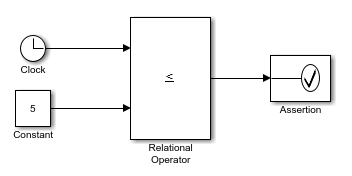
To pause a simulation based on runtime model behavior, use an Assertion block. The input to the Assertion block acts as the assertion. The assertion fails when the input value is 0. By default, the block stops the simulation when the assertion fails. To configure a different response when the assertion fails, specify a callback. To pause the simulation when the assertion fails, specify the pause simulation command as the callback. For information about simulation commands, see Run Simulations Programmatically.
Add an Assertion block to the model.
Connect a signal to the Assertion block.
Open the Block Parameters dialog box by double-clicking the block. Alternatively, use the Property Inspector.
Set Simulation callback when assertion fails to this command.
set_param(bdroot,SimulationCommand="pause")Clear Stop simulation when assertion fails.
Click OK.
This model uses an Assertion block with these settings to pause the simulation when the simulation time reaches 5.
To continue the simulation, disable the assertion for the Assertion block by clearing the Enable assertion parameter. Then, in the Simulink Toolstrip, click Continue.

