Maintain Compatibility of Library Blocks Using Forwarding Tables
R2026bWhen you modify a custom library block, all its linked instances that are open in the Simulink® Editor are automatically updated. To update the linked instances in closed models, you must use a forwarding table. When you open a model that contains a library block with a forwarding table, the model automatically updates its links to the library by using the forwarding table entries, while maintaining the library links and the functionality of the block.
To use a forwarding table to update a model, create the forwarding table in the library where you made changes to library blocks. Use forwarding tables when you:
Rename a block
Move a block from one library to another library
Add or remove parameters from a block
Split the functionality of a block among two or more blocks
When you open a model or execute the add_block or
replace_block commands, Simulink uses the information in the forwarding tables to update linked library
blocks in models.
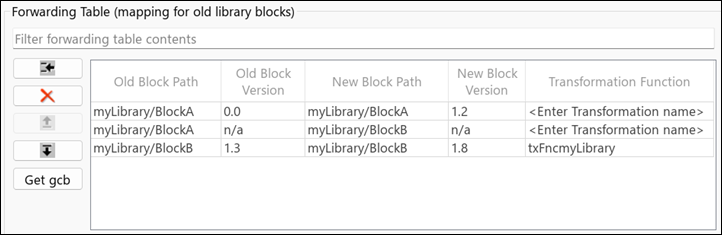
A forwarding table stores these details to map an old library block to its updated version:
| Element | Description |
| Old Block Path | Path of the old library block, in the format Library
name/Block name. |
| Old Block Version | Version number of the old library block. Use version numbers when the old and new block paths are same. For more information, see Assign Version Numbers to Library Blocks. |
| New Block Path | Path of the updated library block, in the format Library
name/Block name. |
| New Block Version | Version number of the updated library block. |
| Transformation Function | MATLAB® function to map old and new library blocks when you modify library block parameters. |
In the forwarding table, you can filter content using the search bar, sort columns in ascending or descending order, or group columns by their values.
Create Forwarding Table Entry to Rename a Block
Create a forwarding table entry to update linked library blocks in a model when you rename a custom library block.
1. Open and unlock the library LibraryA containing a masked block Gain with a mask parameter g1 set to 2. To unlock the library, in the Library tab of the Simulink Toolstrip, in the Protect section, click Locked Library.

2. Rename the block Gain to Amplifier.
3. On the Modeling tab, click Library Properties. The Library Properties window opens. Select the Forwarding Table tab.
4. To add a new row in the forwarding table, click the Add new entry button.
5. Create a mapping of the old block with its renamed version in the forwarding table. Specify the block paths LibraryA/Gain and LibraryA/Amplifier of the library block in the Old Block Path and New Block Path columns, respectively, and click OK. To autofill the path, select the renamed block in the library, then select the New Block Path column in the newly added row and click Get gcb.
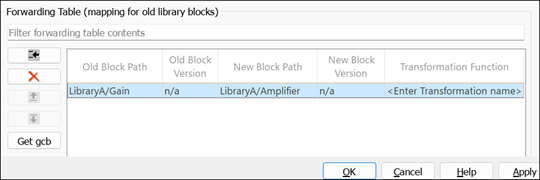
Because the old and new block paths are different, the old and new block versions are set to n/a. For information on model version numbers, see Assign Version Numbers to Library Blocks.
6. Save LibraryA.
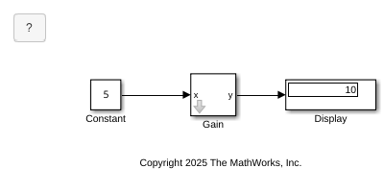
When you open the model topModel that contains links to this library block, the link to the renamed library block is automatically updated using the forwarding table.
Create Forwarding Table Entry to Move a Block to Another Library
Create a forwarding table entry to update linked library blocks in a model when you move a library block from LibraryA to LibraryB.
1. Open and unlock the library LibraryA containing a masked block Gain with a mask parameter g1 set to 2. To unlock the library, in the Library tab of the Simulink Toolstrip, in the Protect section, click Locked Library.

2. Open the library LibraryB. Move the block Gain from LibraryA to LibraryB and save LibraryB.
3. In the old library, LibraryA, on the Modeling tab, click Library Properties. The Library Properties window opens. Select the Forwarding Table tab.
4. To add a new row in the forwarding table, click the Add new entry button.
5. Create a mapping of the old block with its updated version in the Forwarding Table. Specify the block paths LibraryA/Gain and LibraryB/Gain of the library block in the Old Block Path and New Block Path columns, respectively, and click OK. To autofill the path, select the moved block in LibraryB, then select the New Block Path column in the newly added row, and click Get gcb.
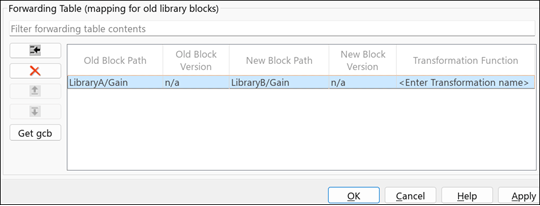
Because the old and new block paths are different, the old and new block versions are set to n/a. For information on model version numbers, see Assign Version Numbers to Library Blocks.
6. Save LibraryA.
When you open the model topModel that contains links to this library block, the link to the moved library block is automatically updated using the forwarding table.
Create Transformation Function to Update Library Block Parameters
When you add or remove parameters from a library block or split its functionality among multiple blocks, create a transformation function and reference it in the forwarding table to update the linked library blocks in models. Transformation functions define rules to map old and new library blocks. You can have multiple transformation function files for a library. However, it is recommended that you create version specific rules in a single transformation function file per library for easier maintenance.
Use these steps to create a transformation function to map library blocks for model version changes:
Define a transformation function
txFncLibraryusing this syntax:function outData = txFncLibraryA(inData)Here,
outDatais a structure that stores path and instance data of the new block, andinDatais a structure with these fields:InstanceData— Structure that stores block parameters to instantiate a linked block in a model.InstanceDatastores the block parameters in the form of name-value pairs to show how the parameters are used in a specific model. When you create different versions of a library block, you must updateInstanceDataby adding or removing parameters.ForwardingTableEntry— Structure that stores path and version details of the old and new blocks.
Initialize the output structure with default values.
outData.NewBlockPath = '';
outData.NewInstanceData = [];
Get the instance data and the forwarding table entry of the linked block for which transformation function is called.
instanceData = inData.InstanceData;
forwardingTableEntry = inData.ForwardingTableEntry;
Get the block parameter names from the instance data.
[ParamNames{1:length(instanceData)}] = instanceData.Name;Get the old and new block paths.
oldName = forwardingTableEntry.('__slOldName__');
newName = forwardingTableEntry.('__slNewName__');
Check if the old and new block paths are same. If so, then get the version numbers of the blocks to make version-specific transformations.
if strcmp(oldName,newName)
   oldVer = forwardingTableEntry.('__slOldVersion__');
   newVer = forwardingTableEntry.('__slNewVersion__');
If the block paths are same, make version-specific transformations.
if (oldVer >= '0.0' && newVer <= '1.2')
   % Make version-specific changes.
elseif (oldVer >= '1.3' && newVer <= '1.8')
   % Make version-specific changes.
else
    % Make changes that are not version-specific.
end
Return the path and instance data of the new block.
outData.NewInstanceData = instanceData;
outData.NewBlockPath = oldName;
Create Forwarding Table Entry with Transformation Function
Create a forwarding table entry with a transformation function to update linked library blocks in a model when you add and remove parameters from a library block.
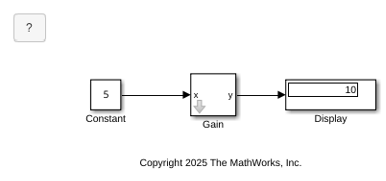
Consider a library LibraryA containing a masked block Gain with a mask parameter g1 set to 2. To develop the library, you may add or remove block parameters over time. As the library evolves, its model version updates. For each required version change, add a new entry in the forwarding table and define the transformation rules in the transformation function txFncLibraryA by using these steps:
1. Open and unlock the library LibraryA. To unlock the library, in the Library tab of the Simulink Toolstrip, in the Protect section, click Locked Library.

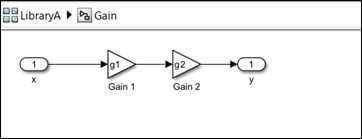
2. To modify the library, add a Gain block Gain 2 in the library block Gain. Then, add the corresponding edit parameter to its mask. Specify the parameter name as g2, its prompt as Gain 2, and its value as 5.
3. On the Modeling tab of LibraryA, click Library Properties. The Library Properties window opens. Select the Forwarding Table tab.
4. To add a new row in the forwarding table, click the Add new entry button. Set these details in the newly added row:
Specify
LibraryA/Gainin the Old Block Path and New Block Path columns. To autofill the path, select the block in the library, then select the Old Block Path column in the newly added row and click Get gcb. Autofill New Block Path in a similar way.Because the old and new block paths are same, the old and new block versions autofill. Increment the value of New Block Version by 0.1. This is required to match the new block version with the new library version when you save the library with the changes.
Specify the transformation function
txFncLibraryAin the Transformation Function column. The transformation function file must be on the MATLAB path.Click OK.
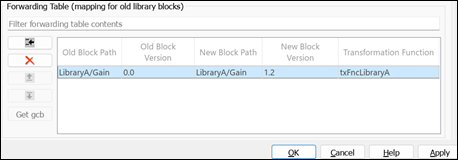
5. Specify version specific transformation rules in the transformation function txFncLibraryA. For example, for version changes from 0.0 to 1.2, add a new parameter.
6. Save the library to apply changes. This also updates its model version.
When you open the model topModel that contains links to this library block, the new parameter is added using the Forwarding Table.
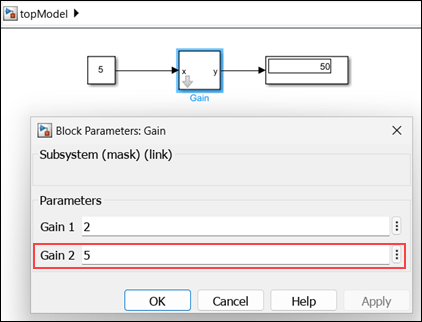
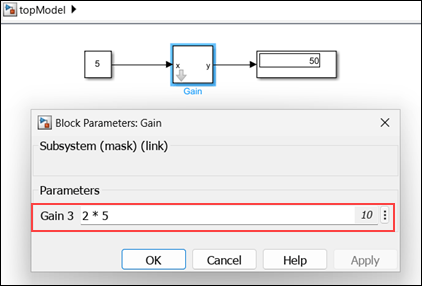
7. To further develop the library, replace blocks Gain 1 and Gain 2 with a combined block Gain 3. In LibraryA, delete the blocks Gain 1 and Gain 2, and add a new Gain block Gain 3. Update the mask of the library block Gain, by deleting the parameters g1 and g2, and adding a new parameter g3 with the value 2*5.
8. Create a new entry in the forwarding table with these details:
Specify
LibraryA/Gainin the Old Block Path and New Block Path columns.Specify the Old Block Version as
1.2and the New Block Version as1.3.Specify transformation function
txFncLibraryAin the Transformation Function column.Click OK.
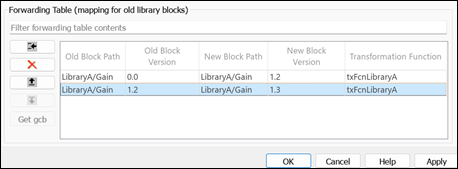
9. In the transformation function txFncLibraryA, add rules to handle parameter changes from version 1.2 to 1.3.
10. Save the library to apply changes and update its version.
When you open the model topModel that contains links to this library block, the block parameter is updated using the Forwarding Table.
function [outData] = txFcnLibraryA(inData)
% Transformation function for |LibraryA|. This function transforms
% |LibraryA| blocks based on version changes and specific transformation
% rules.

    % Initialize the output structure with default values.
    outData.NewBlockPath = '';
    outData.NewInstanceData = [];

    % Get the instance data and forwarding table entry of the linked block
    % for which transformation function is called.
    instanceData = inData.InstanceData;
    forwardingTableEntry = inData.ForwardingTableEntry;

    % Get the block parameter names from the instance data.
    [ParamNames{1:length(instanceData)}] = instanceData.Name;

    % Get the old and new block paths.
    oldName = forwardingTableEntry.('__slOldName__');
    newName = forwardingTableEntry.('__slNewName__');

    % Check if old and new block paths are same. If so, then get the
    % version numbers of the blocks to make version-specific
    % transformations.

    if strcmp(oldName,newName)
       oldVer = forwardingTableEntry.('__slOldVersion__');
       newVer = forwardingTableEntry.('__slNewVersion__');

        % As the block paths are same, add a gain parameter for version
        % changes from 0.0 to 1.2 and remove a gain parameter for version
        % changes from 1.2 to 1.3.
        if strcmp(oldName,'LibraryA/Gain')
            if oldVer >= '0.0' && newVer <= '1.2'
              % Add parameter g2
              i = find(strcmp(ParamNames,"g2"),true);
              if isempty(i)
              % If 'g2' does not exist, add it as a new parameter
                instanceData(end+1).Name = 'g2';
                instanceData(end).Value = '5';
              else
              % If 'g2' exists, update its value
                instanceData(i).Value = '5';
              end

            elseif oldVer >= '1.2' && newVer <= '1.3'
              % Remove parameters g1 & g2
              i = find(contains({instanceData.Name},'g1'), true);
              instanceData(i) = [];
              i = find(contains({instanceData.Name},'g2'), true);
              instanceData(i) = [];
              % Add parameter g3
              i = find(contains({instanceData.Name},'g3'), true);
              if isempty(i)
              % If 'g3' does not exist, add it as a new parameter
                instanceData(end+1).Name = 'g3';
                instanceData(end).Value = '2*5';
              else
              % If 'g3' exists, update its value
                instanceData(i).Value = '2*5';
              end
            end
        end
    end
   % Return the path and instance data of the new block.
   outData.NewInstanceData = instanceData;
   outData.NewBlockPath = oldName;
end
Create Forwarding Table Entry to Split Block Functionality Among Multiple Blocks
To split the functionality of a single block among multiple blocks, you need to add, remove, or modify existing parameters of the original library block and incorporate them into the new blocks. For example, consider a wiper system of a vehicle that controls both the front and rear wiper speeds. You can split this system into two distinct blocks, one for the front wiper and another for the rear wiper. To split the functionality, use a mask parameter to select between the front and rear wipers, and then update block parameters to support the functionalities of each block.
Use these steps to create a forwarding table entry when you split the functionality of a block:
Specify path of block to be split in the Old Block Path column.
Leave the New Block Path column empty. This field dynamically updates using the mask parameter value in the transformation function.
Specify old and new block versions as
n/a.Specify transformation function in Transformation Function column.
Use this transformation function to split the functionality of a single wiper
system block in the library LibWiper into
FrontWiper and RearWiper blocks based on a
mask parameter WiperType:
function [outData] = transformWiper(inData)
% Transformation function to split a wiper system block into
% front and rear wiper blocks.

% Initialize output structure with default values.
outData.NewBlockPath = '';
outData.NewInstanceData = inData.InstanceData;

% Get instance data and forwarding table entry of the block to be split.
instanceData = inData.InstanceData;
forwardingTableEntry = inData.ForwardingTableEntry;

% Get block parameter names from the instance data.
[ParamNames{1:length(instanceData)}] = instanceData.Name;

% Get path of the block to be split.
oldPath = forwardingTableEntry.('__slOldName__');

% Leave the new block path empty initially.
newPath = '';

% Find index of parameter used to decide how to split the block.
i = find(strcmp(ParamNames,"WiperType"),true);

% Split the block based on the parameter value.
wiperType = instanceData(i).Value;
switch wiperType
    case "Front"
        newPath = "LibWiper/FrontWiper";
        % Insert code to add or modify parameters related to front wiper
        % and remove parameters related to rear wiper.
    case "Rear"
        newPath = "LibWiper/RearWiper";
        % Insert code to add or modify parameters related to rear wiper
        % and remove parameters related to front wiper.
    otherwise
        newPath = oldPath;
end

    % Return the new block path with the updated instance data.
    outData.NewBlockPath = newPath;
    outData.NewInstanceData = instanceData;
end
Assign Version Numbers to Library Blocks
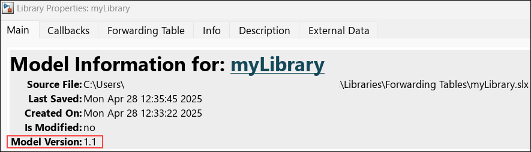
A model version number indicates the version in which a model or library was last saved. By assigning version numbers, you can identify and track changes of a library over time. To view the model version number of a library, on the Modeling tab, click Library Properties. In the Library Properties window, select the Main tab.
Alternatively, to get the model version number of library
myLibrary programmatically, use this
command:
get_param("myLibrary","ModelVersionFormat")
You can use two formats for assigning model version numbers to library blocks:
%<AutoIncrement:1.0>— This is the default format. In this format, a version number is written asmajorVersion.minorVersion, where theminorVersionautomatically increments each time you save a library in the same MATLAB release andmajorVersionauto increments when you open and save a library in a different MATLAB release.For example, when you create a blank library, its model version is
1.0. After you add blocks and save the library, the model version increments to1.1. If you later open and save the library in the next MATLAB release, the model version is set as2.0.Use this format to add entries in the forwarding table when you modify a library multiple times within individual MATLAB releases. When you use this format:
Use numeric values for
majorVersionandminorVersion.Use only one dot in the version number. For example,
1.3is valid, but1.3.1is invalid.If the old and new block paths are different, you can set the version number to
n/a, as the block path itself indicates the changes. For example, this applies when you rename a library block or move a block to another library.
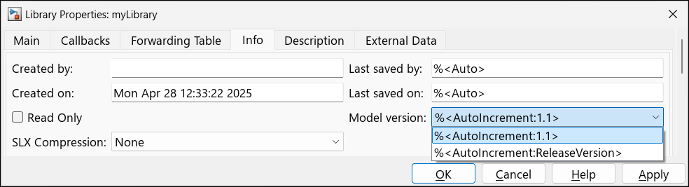
%<AutoIncrement:Release Version>— Starting in R2026a, you can use the MATLAB release version to represent a model version number. In this format, Simulink assigns the MATLAB release version that you open and save the library in as its model version number. For example, if you create a library in R2025b, then open and save it in R2026a, the model version number updates toR2026a.Use this format to add entries in the forwarding table when you modify and publish changes in a library only once in a release.
To switch between model version formats, first unlock the library and clear Read Only in the Info tab of the Library Properties window. Then select the format from the Model version list. When you switch between model version formats, you must manually update the model version numbers in any existing forwarding table entries to prevent inconsistencies.
Alternatively, to switch between model version formats programmatically, use either of these commands:
set_param(myLibrary,"ModelVersionFormat","%<AutoIncrement:1.0>")
set_param(myLibrary,"ModelVersionFormat","%<AutoIncrement:ReleaseVersion>")
Note
When you switch the Model version to %<AutoIncrement:Release
Version> format, all library blocks will have only a major
version. Reconciling blocks using the minor versions within a MATLAB release is not supported.
Create Mask Parameter Aliases
If you rename a mask parameter, you must ensure that the existing MATLAB scripts that use the old parameter names, continue to work. To check compatibility, you can create an alias for a mask parameter name. An alias allows you to change the name of a mask parameter in a library block without having to recreate links to the block in existing models.
Consider a masked block that contains an Edit parameter. The
mask parameter name for this Edit parameter is
p1.
MaskObj = Simulink.Mask.get(gcb);
hEdit = MaskObj.getParameter('p1')

hEdit=
% MaskParameter with properties:

           Type: 'edit'
    TypeOptions: {0×1 cell}
           Name: 'p1'
         Prompt: 'p1'
          Value: '0'
       Evaluate: 'on'
        Tunable: 'on'
      NeverSave: 'off'
         Hidden: 'off'
        Enabled: 'on'
        Visible: 'on'
        ToolTip: 'on'
       Callback: ''
          Alias: ''
Notice that the Edit mask parameter does not have an alias.
To add an alias for the mask parameter, set a value for the Alias
mask parameter property.
hEdit.Alias = 'pa'You can use either the mask parameter name or its alias to set the value of a mask
parameter. For example, you can either use
set_param(gcb,'p1','10') (mask parameter name) or
set_param(gcb,'pa','10') (mask parameter alias) to set a
value for the Edit mask parameter.

