Activate Stateflow Charts by Sending Input Events
R2026bYou can create a Stateflow® chart that only activates when the Simulink® model sends an input event to the chart. After the chart activates, it executes its actions.
Simulink models, Simulink functions, or other Stateflow charts can generate input events.
Define an Input Event
To define an input event:
Add an event to the Stateflow chart. For more information, see Define Events in a Chart.
In the Property Inspector, set the Scope property for the event to
Input from Simulink. This setting creates an input port on the Chart block.To specify an edge-triggered event, set Trigger to
Rising,Falling, orEither. To specify a function call, set Trigger toFunction call.
You can use a control signal, also known as a edge-trigger, or a function call from a Simulink block. You cannot use both edge-triggered and function-call input events in the same Stateflow chart. Using these input events together results in a compile-time error.
Activate a Stateflow Chart by Using Edge Triggers
Edge-triggered input events activate the Stateflow chart when the control signal changes from positive to negative, negative to positive, or between negative and positive. Edge-triggered events execute during the time step when the control signal changes. The setting of the Trigger property determines when the chart activates:
To activate the edge trigger event, the value of the control signal must be equal to or cross zero. For example, a signal that changes from -1 to 1 or from 0 to 2 is a valid rising edge trigger. A signal that changes from 1 to 2 is not a valid rising edge trigger.
Multiple rising edge triggers can only occur when the control signal has more than
one time step difference between two rises or two falls in the signal value. In
other words, a chart treats a -1 to 0 to
1 signal in successive time steps as a single rising edge
trigger, not two rising edge triggers.
When to Use Edge-Triggered Input Events
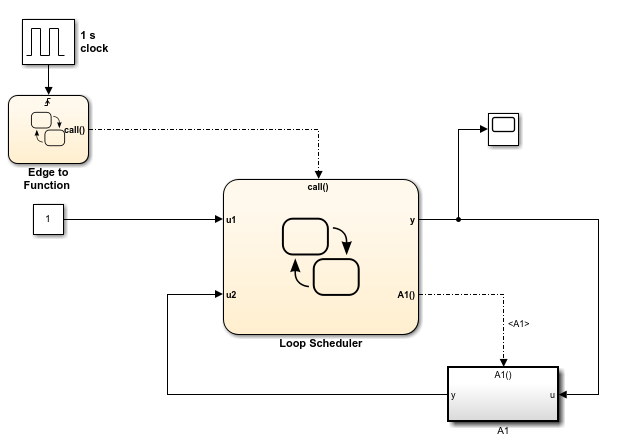
Use an edge-triggered input event to activate a chart when your model requires regular or periodic chart execution. For example, in this model, an edge-triggered input event activates the Edge to Function chart at regular intervals.
Multiple Edge-Triggered Input Events
You can use an edge-triggered input event to activate a chart multiple times in the same time step. At every time step, Stateflow checks input events in ascending order based on their port numbers. The chart wakes up once for each valid event. If multiple edges occur in the same time step, the chart activates more than once in that time step.
Activate Stateflow Chart by Using Function Calls
A function-call input event causes a Stateflow chart to execute during the current time step of simulation.
When to Use Function-Call Input Events
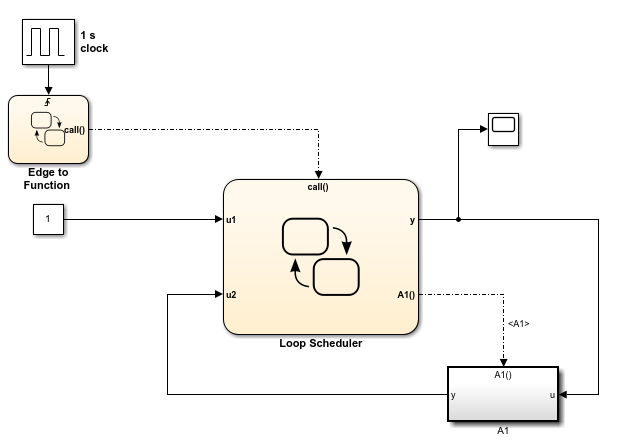
Use a function-call input event to activate a chart when your model requires access to output data from the chart in the same time step as the function call. For example, in this model, a function-call input event activates the Looping Scheduler chart.
Multiple Function-Call Input Events
For function-call input events, only one trigger event exists. The event caller explicitly calls and executes the chart.
Supported Data Types for Input Events
When there are multiple input events to a trigger port, all signals must have the
same data type. Using signals of different data types as input events results in an
error during simulation. For example, you can use a Mux block to combine two input
signals of type double and use this signal to trigger inputs
events in a chart.

You cannot use a Mux block to combine two input signals of different data types,
such as boolean and double.


