Manage MATLAB Web App Server Using Admin Portal
R2026bSupported Platforms: MATLAB® Web App Server™ on Linux®
After you deploy the MATLAB Web App Server reference architecture on Amazon® Web Services and configure licensing in the cloud, use the MATLAB Web App Server admin portal to edit server settings, configure user access for web apps, and view server logs.
Starting in R2026b, you can use the admin portal with MATLAB Web App Server reference architecture on Microsoft® Azure®.
For information on deploying the reference architecture on AWS®, see MATLAB Web App Server on Amazon Web Services. For information on deploying the reference architecture on Azure, see MATLAB Web App Server on Microsoft Azure. For information on setting up your MATLAB Web App Server license for using in the cloud, see Configure MATLAB Web App Server License for Use on the Cloud.
Connect and Log In to Admin Portal
Note
If the EC2 instance that hosts the server uses private IP addresses, you can connect to the EC2 instance from a VM that belongs to the same virtual private cloud (VPC) as the EC2 instance.
In the Stack details for your stack, click the Outputs tab.
Look for the key named AdminPortalUrl and click the corresponding
URL listed under value. This opens the admin portal
Overview page.
The first time you access the admin portal, you can log in using the following information:
| Username | matlab-webapps-admin |
| Password | matlab-webapps-admin |
After logging in, you are prompted to change the password. For more information on user authentication, see Configure Authentication for MATLAB Web App Server on AWS.
View Information About Server
To view information about the MATLAB Web App Server instance deployed on AWS, click Overview on the admin portal navigation menu. You can view the server URL, the time of the last server restart, and MATLAB Runtime versions installed on the server.
On the top right, the server status is displayed. Clicking the icons lets you start, restart, or shut down the server.

Edit Server Configuration
The Configuration page lets you manage server configuration properties. To update properties, click Save and then restart the server to apply your changes.
You can modify the following configuration properties.
General
| Property | Description |
|---|---|
| Network License host name | Host name of the Network License Manager. |
| Network License port | Port that the Network License Manager is on. The default port is 27000. |
Server Logs
| Property | Description |
|---|---|
| Logging level | Set the level of logging granularity. Select 'Minimal', 'Normal', or 'Verbose'. |
| Log Archive Max Size (MB) | Maximum size of all log files in megabytes (MB) in the log directory. Specify as a positive integer. |
| Log Rotation Size (MB) | Maximum size of a log file in megabytes (MB) before it will roll over into another file. Specify as a positive integer. |
Audit Logs
| Property | Description |
|---|---|
| Log File Maximum Size (MB) | Maximum size of each log file in megabytes (MB). Specify as a positive integer. |
| Log Files Maximum Number | Maximum number of log files to keep. Specify as a positive integer. |
| Event Categories | Specify server events to add to the audit log. |
Session Settings
| Property | Description |
|---|---|
| Show Footer | Specify whether to show app session footer and logs to specific users. |
| Full Screen Mode | Specify whether app sessions start in full-screen mode. |
App Sessions
| Property | Description |
|---|---|
| Maximum Sessions | The maximum number of sessions the MATLAB Web App Server can support.
Use a positive integer, or enter -1 to allocate 1
session per GB of available RAM. |
| App Session Idle Timeout (minutes) | Timeout in minutes before terminating a session when idle. Specify as a positive integer. |
| App Session Startup Timeout (seconds) | Timeout in seconds when starting a new session. Specify as a positive integer. |
Metrics Export (OpenTelemetry)
Since R2026b
| Property | Description |
|---|---|
| Export Metrics |
|
| Destination Endpoint | HTTP endpoint URL for the metrics receiver. This parameter
is required only if you configure the metrics type as
For an example on displaying metrics output using Grafana, see Capture Observability Metrics for MATLAB Web App Server. |
Customize MATLAB Web App Server Apps Home Page
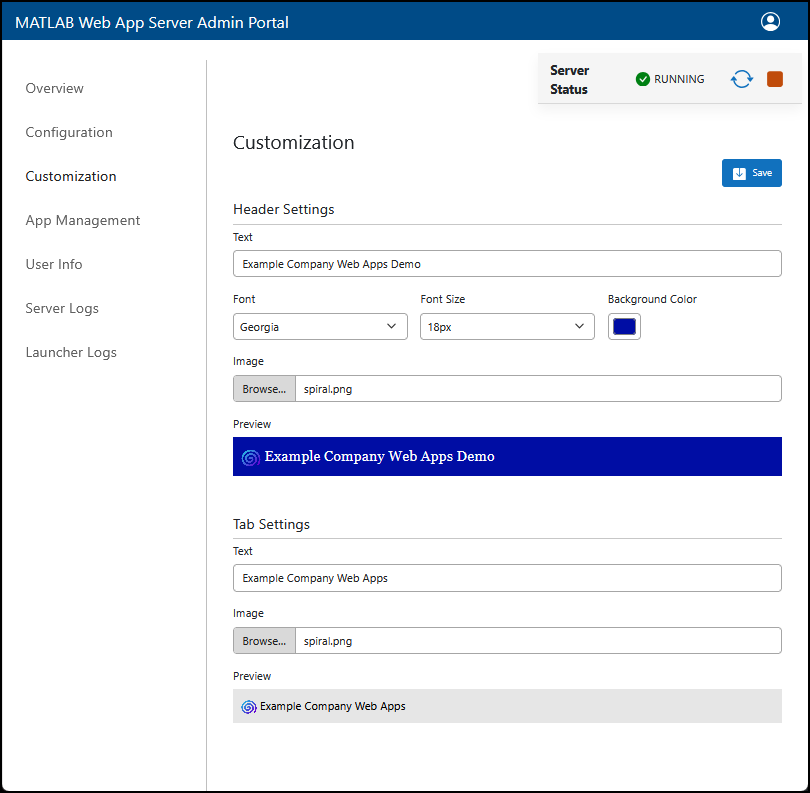
In the Customization page, you can change the appearance of your MATLAB Web App Server apps home page. You can customize the following features:
Title, background color, font type, and font size of the banner in the apps home page.
Add custom logo images in the apps page header and browser tab.
Manage App Access Control, Secrets, and User Info
Note
To create user info properties and control app access with user authentication, you must enable authentication on the server. By default, user authentication is administered through Keycloak. For more information, see Configure Authentication for MATLAB Web App Server on AWS.
The App Management page allows you to set access control, secrets, and user info for specific apps or folders. Click the Manage button next to an app to manage the app properties.
Access Control
Allow specific users and groups access to apps or folders on the App Management/Access Control tab. Access to apps and folders on the MATLAB Web App Server is limited to specific users and groups. Only a defined set of users and groups have access to these resources. You can add permissions for a user or group by clicking Add User and specifying the user or group ID. The user or group name must correspond with a user or group through your authentication provider. Then, you can allow Execute or Upload/Delete permissions for the app or folder.
Secrets
Create secrets on the App Management/Secrets tab to enable secure and flexible access to sensitive data. Each secret consists of a name, which is stored in plain text, and value, which is encrypted and stored in the MATLAB Web App Server vault.
To add a new secret to the app, click Create Secret. Enter
the secret key name and a value for the secret. In your web app, a call to getSecret (MATLAB) with the secret key name returns the secret value you
specified. For more information on creating and using secrets, see Handle Sensitive Information in Deployed Applications.
User Info
Allow an app to access to user information properties on the App Management/User Info tab.
To allow a specific app to access a user info property, click Add Property next to the app name. You can select an existing property or enter a new property name and value. New user info properties added directly to apps are added to the list of properties on the User Info page.
To create, modify, or delete user info properties, navigate to the User Info page.
Manage User Info Properties
Note
To create and use user info properties, you must enable authentication on the server. By default, user authentication is administered through Keycloak. For more information, see Configure Authentication for MATLAB Web App Server on AWS.
Create, modify, or delete user info properties on the server. User info properties let you customize the behavior of a web app based on which user is logged in. For instance, you could access the user ID, display name, or email of the currently logged in user in your application code.
Two properties exist by default.
WebAppsRole— Role of user, either author or user.WebAppsDisplayName— User display name that appears on the web apps home page.
You can create additional user info properties globally for the server or on a per-app
basis. For example, to allow apps to use the user's email, you could create a new user
info property named email. The value must be what the identity
provider uses to identify email, for example, mail. In the web app
code, you reference the email property, and the server returns the
claim mail.
To allow specific apps to access a user info property, navigate to the App Management page.
Access Logs
On the Audit Logs, Server Logs, and Launcher Logs pages, you can view log files that contain information about the service that runs the server. You can change log verbosity on the Configuration page.
Audit Logs
Audit logs let you track and monitor user access and app usage and record critical events. You can specify audit log events on the Configuration page. For more information, see Audit Logging.
Server Logs
You can access the following logs on the Server Logs page.
| Log File Name | Purpose |
|---|---|
| Log file for the service that runs the server. |
| Log file that captures errors when the service that runs the server fails to start. |
| Log file that captures standard output when the service that runs the server fails to start. |
Launcher Logs
You can access the following logs on the Launcher Logs page.
| Log File Name | Purpose |
|---|---|
| Log file that captures errors associated with starting the service that runs applications. |
| Log file that captures standard output when the service that runs applications fails to start. |
| Log file that captures errors when the service that runs the server fails to start. |
Update Admin Portal Certificate
To update the certificate and key used by the Admin Portal, connect to the server
machine. Then, place the new certificate (.pem) and key
(.pem) files in
/local/MathWorks/webapps/.<release>/config/webapps_private
At the command line, restart the admin portal service for changes to take effect.
sudo systemctl restart mw-adminportal-gateway.service
sudo systemctl restart mw-adminportal-manager.service
sudo systemctl restart mw-adminportal-authn.service
sudo systemctl restart mw-adminportal-workspace.service
sudo systemctl restart mw-adminportal-ui.service
For more details on SSL certificates, see Enable SSL on MATLAB Web App Server.

