Test Case
R2026bDescription
The test case document enables you to author graphical C/C++ tests in the Polyspace® Platform user interface.
Graphical test cases are organized by test suite, and each test case can contain one or more tabular or scripted test steps:
Tabular test steps allow you to specify the function under test, which automatically populates tables of inputs, assessments, and callees based on information derived from your source code. Using tabular test steps reduces manual setup and maintains consistency between your source code and tests.
Scripted test steps allow you to write custom C/C++ code to implement test logic, call multiple functions, or use test constructs that are not supported in tabular test steps. Scripted test steps combine the simplicity of graphical test authoring with the flexibility of writing tests as code.
Graphical test authoring also provides built-in support for requirements linking, test parameterization, function call counts, and call sequence assessments. If your source code changes, Polyspace Test™ can automatically update your existing graphical tests while preserving applicable test data.
You can save graphical test cases as part of the .psprjx project file,
or in a separate .pstestd file that is referenced by the project. Saving
test cases as separate .pstestd files enables you to modularize your
project and share or reuse those graphical test cases with similar projects.
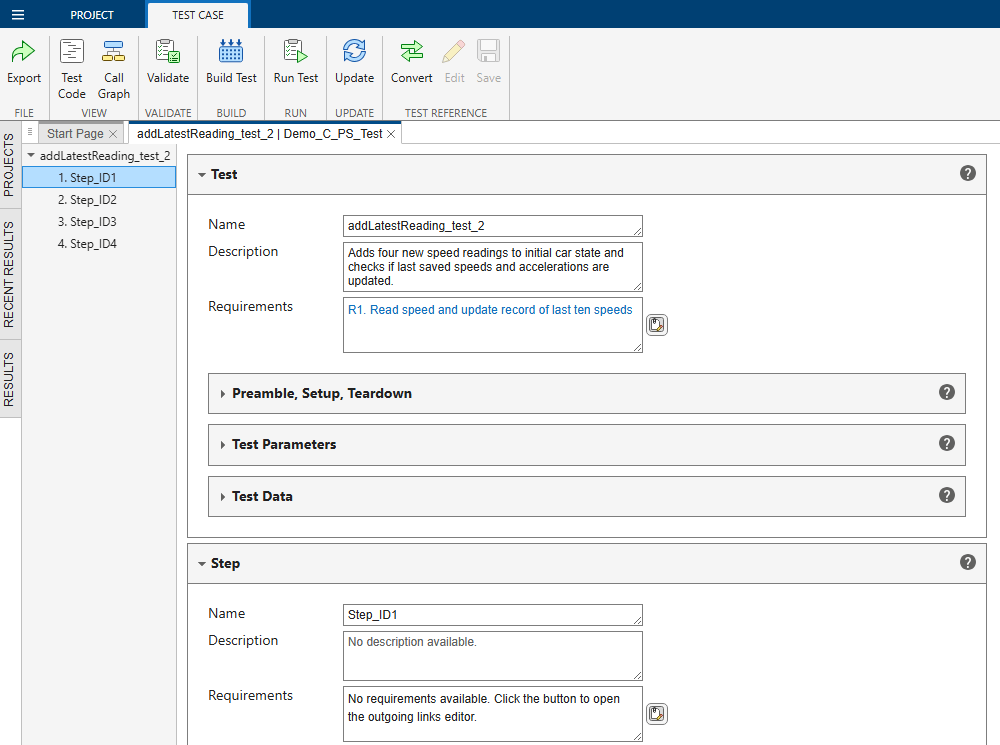
Open the Test Case
Polyspace Platform Toolstrip: On the Project tab, in the Test section, click Add Test or Add Scripted Test.
Projects pane: Right-click the Tests node or a test suite node and select Add Test Case. Or, double-click the name of an existing test under the Tests node to edit it in the test case document.
Examples
- Write Multistep Tests in Polyspace Platform User Interface
- Create Function Call Sequence Assessments
- Test C/C++ Functions by Using Scripts in Graphical Tests
- Override Callee Definitions When Testing Functions in Polyspace Platform User Interface
- Run Same Test with Different Inputs in Polyspace Platform User Interface
- Specify Pointer Targets for C/C++ Test Authoring in Polyspace Platform User Interface
- Author Graphical Tests Using Python API for Polyspace
- C/C++ Test Authoring Tips and Tricks
Parameters
Step Browser
Identifies the order and name of each step in the test case. Right-click a test step to add, duplicate, remove, or reorder test steps within the test case. A test case can contain tabular steps, scripted steps, or both.
A tabular test step executes a single function, specified in Code Under Test, based on input values and assessments that you specify in pre-populated, structured tables.
A scripted test step executes the custom C/C++ code you enter in Step Body to implement test logic, call one or more functions, manipulate data, and compute intermediate results. To assess variables, add them to the Observables table and then specify the expected result in the Assessments table. Scripted test steps are suitable for advanced test logic or for testing functions and data types that are not supported for graphical test authoring. For more information, see Test C/C++ Functions by Using Scripts in Graphical Tests.
Test
Name of the test case. The name is used to identify the test in test suites, results, reports, and coverage views.
Optional description about the test intent, behavior to validate, or any assumptions relevant to the test case.
Requirements linked to the test case. Click the Create or edit links to
requirements button  and use the Outgoing Links dialog box to establish
traceability between tests and requirements. Alternatively, if you have Requirements Toolbox™ or IBM®
DOORS®, you can open requirements in those tools and link from the requirement
to the test. For more information, see Link C/C++ Sources and Tests to Requirements.
and use the Outgoing Links dialog box to establish
traceability between tests and requirements. Alternatively, if you have Requirements Toolbox™ or IBM®
DOORS®, you can open requirements in those tools and link from the requirement
to the test. For more information, see Link C/C++ Sources and Tests to Requirements.
C or C++ declarations required for the test case, such as include directives, type definitions, or function declarations. In general, if you use a symbol in the Setup or Teardown section, you must declare it here. For an example, see Set Global and Static Variables in Polyspace Platform User Interface.
Code to execute before each test run to initialize the global or static state required by the test case. All symbols used in this code must be declared in the Preamble section or in the code itself. For an example, see Set Global and Static Variables in Polyspace Platform User Interface.
Code to execute after each test run to reset the state or clean up resources that were modified during test execution. All symbols used in this code must be declared in the Preamble section or in the code itself. For an example, see Set Global and Static Variables in Polyspace Platform User Interface.
Define named parameters and specify one or more value sets to run the same test with different combinations of input values. Each value set produces a separate test iteration, reported as a test point. Test parameters can be referenced by inputs and assessments. For an example, see Run Same Test with Different Inputs in Polyspace Platform User Interface.
When you parameterize multiple inputs or assessments, select Sequential or Exhaustive to specify a parameter iteration strategy:
Sequential — Apply the parameter values in sequence. The first iteration uses the first values of all parameters, the second iteration uses the second values of all parameters, and so on.
Exhaustive — Exhaustively test all parameter value combinations. In an exhaustive iteration strategy, each value of a test parameter is combined with each value of other test parameters.
Note that the exhaustive parameter iteration strategy does not distinguish between parameters for inputs and parameters for assessments. Therefore, this strategy is useful only when you do not need to parameterize the expected values in the test assessments. For instance:
You are testing a function that returns an error code in case of an error. In all your test iterations, you can test that an error did not occur by assessing the single return value that represents the absence of an error.
You are using a comparator other than
==to test if a function returns values within a given range. Your assessments can use the>,>=,<, or<=comparators with a single expected value representing a boundary of the range.
To enable run-time loading of parameter values, select Load Parameters at Runtime. Selecting this option reduces the size of the test executable, which can be helpful if you are running the tests on an embedded target with memory restrictions. However, passing the data at run time can result in increased execution times.
Not all data types are supported for run-time loading of parameters. If you choose to load parameters at run time, the inputs that you parameterize can have only these data types or typedefs of these data types:
Integer types (
char,short,int,long, andlong long)Note that most integer types such as
size_tandwchar_t, and fixed-width types such asint32_t, are defined as typedefs of these integer types.Unsigned integer types
Floating-point types (
floatanddouble)Boolean types
Aggregate data types such as structures and arrays, where each individual member has a supported data type
When you select the Load Parameters at Runtime option, if any of your parameters have an unsupported type, you see an error when you validate or build the test. Check the Logs pane for more details about the error.
Reusable test data elements. Test data is local to a graphical test and is accessible from all of its test steps. You can create a pointer or non-pointer test data element from an input, assessment, or function return value within a test step, and it appears in the Test Data table. Test data allows you to:
Share data between test steps — Use test data to exchange data between steps in a multistep test. For an example, see Multistep Tests Using Test Data Element for Data Exchange.
Provide pointer targets — Use test data to define the target that a pointer object must point to. For an example, see Specify Pointer Targets for C/C++ Test Authoring in Polyspace Platform User Interface.
Step
Name of the test step. The step name is used to identify the step within the test case and in test execution results.
Optional description of the behavior validated by this test step or any assumptions relevant to the step.
Requirements linked to the test step. Click the Create or edit links to
requirements button and use the Outgoing Links dialog box to establish
traceability between individual test steps and requirements. Alternatively, if you
have Requirements Toolbox or IBM
DOORS, you can open requirements in those tools and link from the requirement
to the test. For more information, see Link C/C++ Sources and Tests to Requirements.
Function invoked by this tabular test step. Polyspace Test uses the parsed code information to automatically populate inputs, assessments, and callees for the code under test.
Click Go to Definition to navigate to the function definition in the source code.
This option is available only in tabular test steps.
C or C++ code to execute as part of a scripted test step. Use scripted test steps to implement custom logic or invoke functions that are not supported for graphical test authoring. All symbols used in this code must be declared in the Preamble section or in the code itself. For an example, see Test C/C++ Functions by Using Scripts in Graphical Tests.
This option is available only in scripted test steps.
Variables to monitor during the execution of a scripted test step. Observables can be referenced later in assessments. Only variables with primitive data types can be monitored. For an example, see Test C/C++ Functions by Using Scripts in Graphical Tests.
This option is available only in scripted test steps.
Input values passed to the function under test, including function parameters and global variables read during execution. For more information, see:
How to specify Test Parameters
How to specify Test Data
Specify expected values for function return values, output variables, and global variables written during execution. You can also use the Assessments table to add function call count assessments. Each test step can have multiple assessments, which consist of two parts:
The result that you want to check, for instance, a function return value.
The check itself, which consists of a value and a comparator. Typically, the comparator is
==, which means that you are checking if the result is equal to a value. For call count assessments, the default check is to verify that a function is called at least once, in which case the comparator is>and the value is0u.
For more information, see:
Specify Test Assessments in Polyspace Platform User Interface
How to specify Test Parameters
How to specify Test Data
Expected order of function calls during execution of the test step. Optionally, include assessments on input arguments passed to the functions in the sequence. Each test step, both tabular and scripted, can have one call sequence assessment.
To create a call sequence assessment, click the Add functions to the call sequence
assessment button  , then drag the function cards into the expected
order. Enable input parameter assessments for a function by expanding the function
card and selecting the check box in the Name column.
, then drag the function cards into the expected
order. Enable input parameter assessments for a function by expanding the function
card and selecting the check box in the Name column.
A function call sequence assessment fails when:
The functions are not called in the expected order.
One or more of the input parameter assessments fail.
Note
Function call sequences are strict. Once you include a function in the call sequence, the assessment checks for all calls to that function. If the function is called before, after, or in between the expected calls you specify, the call sequence assessment fails.
For more information, see Create Function Call Sequence Assessments and Review Function Call Sequence Assessment Results.
List of functions called directly or indirectly by the function under test. Use this table to review dependencies and identify functions that require stubbing or mocking. To create or apply a mock for a callee, right-click the function in this table and select Create Mock or choose the desired mock implementation from the context menu. For more information, see Differences Between Stubs and Mocks When Testing C/C++ Functions and Override Callee Definitions When Testing Functions in Polyspace Platform User Interface.
Tips
Parse source code before authoring tests to automatically populate function interfaces, inputs, and assessments. See Parse Source Code for Auto-Populating Test Information in Polyspace Platform User Interface.
Duplicate an existing test case to use it as a starting point for a new test case.
To view the code that gets generated for a graphical test, use the Test Code button in the View section of the Test Case toolstrip tab. Viewing the generated test code can be helpful for understanding a graphical test and useful for debugging.
For scripting and workflow automation, use the Polyspace Python API to create, modify, or run graphical tests. See Author Graphical Tests Using Python API for Polyspace.
Version History
Introduced in R2023bSee Also
Topics
- Polyspace Platform: A Unified Platform for Static Analysis and Dynamic Testing
- Test Authoring in Polyspace Platform User Interface
- Functions and Data Types Not Supported for Graphical Test Authoring in Polyspace Platform User Interface
- Test Execution in Polyspace Platform User Interface
- Create Easily Shareable Projects for Version Control
- Modularize Project by Converting Graphical Tests to Test References in Polyspace Platform User Interface
- Update Tests in Polyspace Platform User Interface
- Link C/C++ Sources and Tests to Requirements
- Review C/C++ Test Execution Results

