Include Model Requirements and Coverage Data in Web Views
R2026bYou can include these optional views in a model web view:
Model requirements (requires Requirements Toolbox™)
Model coverage (requires Simulink® Coverage™)
Prepare Models for Optional Web Views
Before you can include an optional view in a web view, the model must contain requirements or coverage data:
To add requirements to a model, see Author and Validate Requirements (Requirements Toolbox).
To add coverage data to a model, simulate the model with coverage enabled and save the results of the last coverage run. To enable saving the results:
Open the Configuration Parameters window. In the Modeling tab, click Model Settings.
Click Coverage.
Select Enable coverage analysis.
In the Results section, select Save last run in workspace variable.
For more information, see Specify Code Coverage Options (Simulink Coverage).
Add Requirements and Coverage Data by Using Web View Window
To create a web view that includes requirements or coverage data by using the Simulink toolstrip:
In the Simulink toolstrip, in the Simulation tab, in the File section, click Save > Web View.
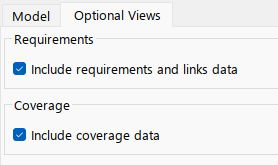
In the Web View window, click the Optional Views tab and select the data you want to include.
Click Export.
When you export a model web view from the Simulation tab and include requirements data, the web view includes requirements and links data only for links in the model. To export all the requirements in the linked requirement set, see View Requirement and Links in a Web View.
Add Requirements and Coverage Data by Using slwebview
If you export a web view by using slwebview, specify the optional
views by using the "OptionalViews" argument. Specify one or both of
these values in a cell array:
"requirements"
"coverage"
For example:
htmlFileName = slwebview(gcs,"OptionalViews", {"requirements" "coverage"})
When you export a model web view using slwebview and include
requirements data, the web view includes requirements and links data only for links in
the model. To programmatically export all the requirements in the linked requirement
set, see slwebview_req (Requirements Toolbox)
Open Requirements and Coverage Data Views
Open the web view in a web browser. See Display and Navigate Through Web Views. In the lower-left palette of the web view, there is a button for each optional view that you selected.
To view model elements that have requirement links, click the
 button. To view requirement link information,
select a highlighted model element.
button. To view requirement link information,
select a highlighted model element.To access the coverage data view, click the
 button. Click model elements for coverage
information.
button. Click model elements for coverage
information.
View Requirement and Links in a Web View
You can also create a web view that lists requirements and links in a separate pane. To create the web view:
In the Apps tab, click Requirements Manager to open the Requirements tab.
In the Requirements tab, click Share > Export Model to Web View.
You can generate the web view programmatically by calling slwebview_req (Requirements Toolbox).
The web view displays the requirements from the linked requirement set in a pane below the model view. When you select a requirement or link, the Properties pane displays the properties. If the requirement is linked to a model artifact, selecting the requirement highlights the linked model artifact.
For example, if you export the model used in the Link Test Cases to Requirements (Requirements Toolbox) example to a web view, the web view includes this pane.

View Coverage in a Web View
You can also create a web view that lists the coverage information in a separate pane. To create the web view:
In the Apps tab, click Coverage Analyzer to open the Coverage tab.
Click Results Explorer in the toolstrip.
Open Settings from the left navigation tree, select Generate Web View Report, and click Apply.
Select Current Cumulative Data from the left navigation tree.
Click Generate Report in the toolstrip.
For more information on model coverage highlighting and analysis
information, see View Coverage Results (Simulink Coverage). You can
generate the web view programmatically by calling slwebview_cov (Simulink Coverage).
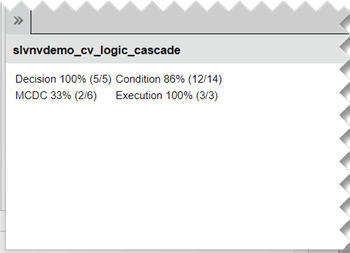
The web view displays the coverage information in a pane below the model view. For example if you export the model used in the Analyzing MCDC for Cascaded Logic Blocks (Simulink Coverage) example to a web view, the web view includes this pane.
See Also
Functions
slwebview|slwebview_req(Requirements Toolbox) |slwebview_cov(Simulink Coverage)

