Results for

Introduction
This article describes how I have used MATLAB, MCP, and other tools to enable AI desktop apps to communicate with and share information between multiple AIs in performing research and code development. I describe how Claude desktop app (for example) can orchestrate AI-related setups of itself and other AI dektop apps using system calls through MATLAB, access multiple local and cloud AIs to develop and test code, and share with and evaluate results from multiple AIs. If you have been copy-pasting between MATLAB and an AI application or browser page, you may find this helpful.
Warning
When connected to MATLAB App via MCP, an AI desktop application acquires MATLAB App's command line privileges, possibly full system privileges. Be careful what commands you approve.
Setup
Experiments with Claude code and MATLAB MCP Core Server describes how to link Claude App via MCP to a local MATLAB to create MATLAB scripts in your file system, operate MATLAB App to test them, collect errors sent to standard output, view created files, and iterate. Other AI apps can similarly configured as described here.
My setup is an APPLE M1 MacBook with MATLAB v2025a and ollama along with MATLAB MCP Core Server, ollama MCP, filesystem MCP, fetch MCP to access web pages, and puppeteer MCP to navigate and operate webpages like MATLAB Online. I have similarly Claude App, Perplexity App (which requires the PerplexityXPC helper for MCP since it's sandboxed as a Mac App Store app), and LM Studio App. As of this writing, ChatGPT App support for MCP connectors is currently in beta and possibly available to Pro users if setup enabled via a web browser. It is not described here.
The available MCP commands are:
filesystem MCP `read_text_file`, `read_media_file`, `write_file`, `edit_file`, `list_directory`, `search_files`, `get_file_info`, etc.
matlab MCP `evaluate_matlab_code`, `run_matlab_file`, `run_matlab_test_file`, `check_matlab_code`, `detect_matlab_toolboxes`
fetch MCP ‘fetch_html`, `fetch_markdown`, `fetch_txt`, `fetch_json` | Your Mac |
puppeteer MCP `puppeteer_navigate`, `puppeteer_screenshot`, `puppeteer_click`, `puppeteer_fill`, `puppeteer_evaluate`, etc.
ollama MCP ‘ollama_list’, ‘ollama_show’, ’ollama_pull’, ’ollama_push’, ’ollana_copy’, ’ ollama-create’, ’ollama_copy’, ’ollama_delete’, ’ollama_ps’, ’ollama_chat’, ’ollama_web_search’, ’ollama_web_fetch’
Claude App (for example) can help you find, download, install, and configure MCP services for itself and for other Apps. Claude App requires for this setup a json configuration file like
{
"mcpServers": {
"ollama": {
"command": "npx",
"args": ["-y", "ollama-mcp"],
"env": {
"OLLAMA_HOST": "http://localhost:11434"
}
},
"filesystem": {
"command": "npx",
"args": [
"-y",
"@modelcontextprotocol/server-filesystem",
"/Users/duncancarlsmith/Documents/MATLAB"
]
},
"matlab": {
"command": "/Users/duncancarlsmith/Developer/mcp-servers/matlab-mcp-core-server",
"args": ["--matlab-root", "/Applications/MATLAB_R2025a.app"]
},
"fetch": {
"command": "npx",
"args": ["-y", "mcp-fetch-server"]
},
"puppeteer": {
"command": "npx",
"args": ["-y", "@modelcontextprotocol/server-puppeteer"]
}
}
}
Various options for these services are available through Claude App’s Settings=>Connectors. If you first install and set up the MATLAB MCP with Claude App, then Claude can find and edit its own json file using MATLAB and help you (after quitting and restarting) to complete the installations of all of the other tools. I highly recommend using Claude App as a command post for installations although other desktop apps like Perplexity may serve equally well.
Perplexity App is manually configured using Settings=>Connectors and adding server names and commands as above. Perplexity XPC is included with the Perplexity App download . When you create connectors with Perplexity App, you are prompted to install Perplexity XPC to allow Perplexity App to spawn proceses outside its container. LM Studio is manually configured via its righthand sidebar terminal icon by selecting Install-> Edit mcp.json. The json is like Claude’s. Claude can tell/remind you exactly what to insert there.
One gotcha in this setup concerns the Ollama MCP server. Apparently the default json format setting fails and one must tell the AIs to use “markdown” when commuicating with it. This instruction can be made session by session but I have made it a permanent preference in Claude App by clicking my initials in the lower left of Claude App, selecting settings, and under “What preferences should claude consider in responses,” adding “When using ollama MCP tools (ollama_chat, ollama_generate), always set format="markdown" - the default json format returns empty responses.”
LM Studio by default points at an Open.ai API. Claude can tell you how to download a model, point LM Studio at a local Ollama model and set up LM Studio App with MCP. Be aware that the default context setting in LM Studio is too small. Be sure to max out the context slider for your selected model or you will experience an AI with a very short term memory and context overload failures. When running MATLAB, LM Studio will ask for a project directory. Under presets you can enter something like “When using MATLAB tools, always use /Users/duncancarlsmith/Documents/MATLAB as the project_path unless the user specifies otherwise.” and attach that to the context in any new chat. An alternate ollama desktop application is Ollama from ollama.com which can run large models in the cloud. I encountered some constraints with Ollama App so focus on LM Studio.
I have installed Large Language Models (LLMs) with MATLAB using the recommended Add-on Browser. I had Claude configure and test it. This package helps MATLAB communicate with external AIs via API and also with my native ollama. See the package information. To use it, one must define tools with MATLAB code. A tool is a function with a description that tells an LLM what the function does, what parameters it takes, and when to call it. FYI, Claude discovered my small ollama default model had not been trained to support tool and hallucinated a numerical calculaton rather than using a tool we set up to perform such a calculation with MATLAB with machine precision. Claude suggested and then orchestrated the download of the 7.1 GB model mistral-nemo model which supports tool calling so if using you are going to use tools be sure to use a tool aware model.
To interact with Ollama, Claude can use the MATLAB MCP server to execute MATLAB commands to use ollamaChat() from the LLMs-with-MATLAB package like “chat = ollamaChat("mistral-nemo");response = generate(chat, "Your question here”);” The ollamaChat function creates an object that communicates with Ollama's HTTP API running on localhost:11434. The generate function sends the prompt and returns the text response. Claude can also communicate with Ollama using the Ollama MCP server. Similarly, one can ask Claude to create tools for other AIs.
The tool capability allows one to define and suggest MATLAB functions that the Ollama model can request to use to, for example, to make exact numerical calculations in guiding its response. I have also the MATLAB Add-on MATLAB MCP HTTP Client which allows MATLAB to connect with cloud MCP servers. With this I can, for example, connect to an external MCP service to get JPL-quality (SPICE generated) ephemeris predictions for solar system objects and, say, plot Earth’s location in solar system barycentric coordinates and observe the deviations from a Keplerian orbit due of lunar and other gravitational interactions.
To connect with an external AI API such as openAI or Perplexity, you need an account and API key and this key must be set as an environmental variable in MATLAB. Claude can remind you how to create the environmental variable by hand or how you can place your key in a file and have Claude find and extract the key and define the environmental variable without you supplying it explicitly to Claude.
It should be pointed out that conversations and information are NOT shared between Desktop apps. For example, if I use Claude App to, via MATLAB, make an API transaction with ChatGPT or Perplexity in the cloud, the corresponding ChatGPT App or Perplexity App has no access the the transaction, not even to a log file indicating it occured. There may be various OS dependent tricks to enable communication between AI desktop apps (e.g. AppleScript/AppleEvents copy and paste) but I have not explored such options.
AI<->MATLAB Communication
WIth this setup, I can use any of the three desktop AI apps to create and execute a MATLAB script or to ask any supported LLM to do this. Only runtime standard output text like error messages generated by MATLAB are fed back via MCP. Too evaluate the results of a script during debugging and after successful execution, an AI requires more information.
Perplexity App can “see and understand” binary graphical output files (presented as inputs to the models like other data) without human intervention via screen sharing, obviating the need to save or paste figures. Perplexity and Claude can both “see” graphical output files dragged and dropped manually into their prompt interface. With MacOS, I can use Shift-Command-5 to capture a window or screen selection and paste it into the input field in either App. Can this exchange of information be accomplished programmatically? Yes, using MCP file services.
To test what binary image file formats are supported by Claude with the file server connection, I asked Claude to use MATLAB commands to make and convert a figure to JPEG, PNG, GIF, BMP, TIFF, and WebP and found the filesytem: read_media_file command of the Claude file server connection supported the first three. The file server MCP transmits the file using JSON and base64 text strings. A 64-bit encoding adds an additonal ~30 percent to a bitmap format and there is overhead. A total tranmission limit of 1MB is imposed by Anthropic so the maximum bitmap file size appears to be about 500 KB. If your output graphic file is larger, you may ask Claude to use MATLAB to compress it before reading it via the file service.
BTW, interestingly, the drag and drop method of image file transfer does not have this 500 KB limit. I dragged and dropped an out of context (never shared in my interactions with Claude) 3.3 MB JPEG and received a glowing, detailed description of my cat.
So in in generating a MATLAB script via AI prompts, we can ask the AI to make sure MATLAB commands are included in the script that save every figure in a supported and possibly compressed bitmap format so the command post can fetch it. Claude, for example, can ‘see’ an an annotated plot and and accurately describe the axes labels, understand the legend, extract numbers in an annotation, and also derive approximate XY values of a plotted function. Note that Claude (given some tutoring and an example) can also learn to parse and find all of the figures saved as PNG inside a saved .mlx package and, BTW, create a .mlx from scratch. So an alternate path is to generate a Live Script or ask the AI to convert a .m script to Live Script using a MATLAB command and to save the executed .mlx. Another option is for the AI to ask MATLAB to loop over figures and execute for each issue a command like exportgraphics(fig, ‘figname.png', 'Resolution', 150); and then itself upload the files for processing.
With a sacrifiice of security, other options are available. With the APPLE OS, it is possible to approve matlab_mcp_core_server (and or your Claude App or Perplexity App) to access screen and audio recording. Then for example, Claude can ask MATLAB to issue a system command system('screencapture -x file.png') to capture the entire screen or java.awt.Robot().createScreenCapture() to capture a screen window. I have demonstrated with Claude App capturing a screenshot showing MATLAB App and figures, and, for fun, sending that via API to ChatGPT, and receiving back an analysis of the contents. (Sending the screenshot to Perplexity various ways via API failed for unknown reasons despite asking Perplexity for help.)
One might also try to execute a code like
robot = java.awt.Robot();
toolkit = java.awt.Toolkit.getDefaultToolkit();
screenSize = toolkit.getScreenSize();
rectangle = java.awt.Rectangle(0, 0, screenSize.width, screenSize.height);
bufferedImage = robot.createScreenCapture(rectangle);
% ... convert to MATLAB array and save with imwrite()
to capture and transmit a certain portion of your screen. Going down this path further, according to Claude, it is possible to create a MacOS virtual Desktop containing only say MATLAB, Claude, and Perplexity apps so a screen capture does not accidentally transmit a Mail or Messages window. Given accessiblity permission, one could capture windows by ID and stitch them together with a MATLAB command like composite = [matlab_img; claude_img; perplexity_img]; imwrite(composite, 'ai_workspace.png');
One must be careful an AI does not fake an analysis of an image based on context. Use a prompt preface like ‘Based solely on this image,… .” Note that AI image analysis is useful if you want suggestions for how to improve a figure by say moving a legend location from some default ‘best location’ to another location where it doesn’t hide something important.
What about communicating exact numerical results from MATLAB to an AI? A MATLAB .fig format file contains all of the exact data values used to create the figure. It turns out, Claude can receive a .fig through the manually-operated attach-file option in Claude App. Claude App of course sends received data to Anthropic and can parse the .fig format using python in its Docker container. In this way it can access the exact values behind plot data points and fitted curves and, for example, calculate a statistic describing agreement between a model curve and the data, assess outliers, and in principle suggest actions like smoothing or cleaning. Perplexity App’s manual attach-file handler does not permit upload of this format. There seem to be workarounds to 64-bit encode output files like .fig and transfer them to the host (Anthropic or Perplexity) but are there simpler ways to communicate results of the script execution? Yes.
Unless one has cleared variables during execution, all numerical and other results are contained in workspace variables in MATLAB’s memory. The values of these variables if saved can be accessed by an AI using MATLAB commands. The simplest way to ensure these values are available is to ask the AI that created and tested the script to include in the script itself a command like save('workspace.mat’) or to ask MATLAB to execute this command after executing the script. Then any AI connected to MATLAB can issue a request for variable values by issuing a MATLAB command like ‘data=load(‘workspace.mat’);fprintf(‘somevariablename’);and receive the response as text. An AI connected to MATLAB can also garner data embedded in a saved figure using MATLAB with a command like fig = openfig('MassPlots.fig', 'invisible'); h = findall(fig, 'Type', 'histogram'); data = h.Values .
Example work flow
The screenshot below illustrates a test with this setup. On the right is Perplexity App. I had first asked Perplexity to tell me about Compact Muon Solenoid (CMS) open data at CERN. The CERN server provides access to several data file types through a web interface. I decided to analyze the simplest such files, namely, Higgs boson decay candidate csv files containing the four-momentum vectors of four high energy leptons (two electrons and two muons) in select events recorded in the early years 2011 and 2012. (While the Higgs boson was discovered via its top-quark/W-boson loop-mediated decay to two photons, it can also decay to two Z bosons and each of these to a lepton+antilepton pair of any flavor.)

I asked Perplexity to create a new folder and write a MATLAB code to download those two files into the folder. Perplexity asked me to mouse over and copy the URLs of the download links on the appropriate page as these were hidden behind java applications, and voila. (As a test, I asked Claude in vague terms to find and download these files and it just figured it out without my manual intervention.) Next I asked Perplexity to “write and execute a MATLAB script to histogram the invariant mass of the electron pairs, of the muon pairs, and of the entire system of leptons, and to overlay fits of each dilepton mass distribution to a Lorentzian peak near the Z-boson mass (~90 GeV) plus a smooth background, save the script in the same folder, and run it.” It turns out that uncorrelated Z-boson pairs can be created by radiation from uncorrelated processes, that virtual Z bosons and photons with the “wrong” mass can be created, so one does not expect to necessary see a prominence in the 4-lepton invariant mass at the Higgs mass. For this reason I did not ask for a fit to the 4-lepton mass distribution. I did provide the starting estimated value for the location of the peak based on my experience of such nonlinear fits going off the rails.
After approving a few fixes of minor errors, voila. Sweet. In the middle of the screen shot are MATLAB App and the figure created. The format of the figure was all invented by the AI. On the left is Claude App’s analysis of the data, extracted from the manually uploaded figure in .fig format. The prompt was “Extract the histogram and fit values bin by bin an calculate the chisq per degree of freedom using the data in that .fig upload” .
I manually saved the workspace using the MATLAB Command line ( I could have asked Claude to do that) and I issued to Claude App the prompt “OK, I just saved workspace.mat in MATLAB/CMS. List the contents and the fit results.” Below is an image of the response of Claude analyzing the workspace .mat file.

I then asked Claude to ask my local Ollama model for a 2nd opinion with the prompt “I want you to ask mistral-nemo for a 2nd opinion on the results on its own, based on all it knows, and to ask it for information about related resources. ” Claude first formulated and sentthe following prompt to the local LLM: “I measured the Z boson in the dimuon channel and got: Mass = 92.46 GeV Width = 12.44 GeV. The PDG values are M_Z = 91.19 GeV and Gamma_Z = 2.50 GeV. Based on your knowledge of particle physics and detector effects, what do you think is going on with my measurement? What could cause the width to be 5x larger than the natural width?” It’s mention of the width discrepency inparticular indicated it knew more about the physics than it had divulged.
Claude used MATLAB to call the local Ollama's REST API to get mistral-nemo's opinion with the path MATLAB MCP → webwrite() → Ollama Server (localhost:11434) → mistral-nemo% calling Ollama's API from MATLAB with the pattern url = 'http://localhost:11434/api/generate';body = struct('model', 'mistral-nemo', 'prompt', 'Your question...', 'stream', false);response = webwrite(url, body, weboptions('MediaType', 'application/json'));
The received response was:
Your measured results for the Z boson mass and width differ significantly from the Particle Data Group (PDG) values. Here's a possible explanation for these discrepancies:
1. **Mass:**
The measured mass of 92.46 GeV is about 1.3 GeV higher than the PDG value of 91.19 GeV. This could be due to:
- **Detector calibration issues**: If your detector's energy scale is slightly miscalibrated, it could lead to an apparent shift in the measured mass.
- **Systematic effects**: Unaccounted-for systematic uncertainties might contribute to this difference.
- **New Physics**: While less likely, if new physics processes affect the Z boson, they could cause a resonant rise or other deviations from the expected behavior.
2. **Width:**
The measured width of 12.44 GeV is roughly five times larger than the natural width (Gamma_Z = 2.50 GeV). This significant difference is concerning and suggests potential issues:
- **Resonance tail**: If there's an unknown resonance near the Z boson mass, it could contribute to a large apparent width.
- **Misestimation of experimental resolution**: If you have underestimated your detector's energy resolution, it might result in a broader observed peak. The difference here seems quite large compared to typical experimental uncertainties (~1-2%).
- **Backgrounds and pile-up**: Higher backgrounds or pile-up events could artificially broaden the width.
- **Analysis method**: There might be an issue with your analysis method leading to a biased estimation of the Z boson width.
Given the discrepancy in both mass and width, it's crucial to perform thorough checks and validations:
- Review detector calibration data.
- Evaluate systematic uncertainties.
- Check for potential instrumental effects or electronic issues with the detector.
- Verify background models and consider alternative fitting methods or techniques like sideband subtraction.
- Re-evaluate your analysis pipeline to ensure no steps lead to biases in the measurements.
- Consult colleagues or experts to help identify possible causes of the discrepancy.
If these checks don't resolve the issue, it might warrant a cautionary note on potential new physics processes affecting the Z boson. However, without solid evidence and careful validation, it would be premature to claim such findings at this stage.
Claude then prompted the Ollama model with “I’m analyzing CMS H→ZZ→4ℓ data to measure Z boson properties. Can you recommend:1. Key papers I should read on Z boson measurements at the LHC 2. Standard analysis techniques for handling detector resolution 3. Any publicly available CMS or ATLAS open data resources 4. Software tools commonly used for this type of analysis” and received a long list of resources.
As Claude pointed out, the local Ollama model operates purely from memory and is subject to URL hallunciation so I asked Claude to check each of the many (too many to list here) URLs that Ollama provided. Claude has several options to accomplish such a task in my setup:
1. web_fetch (Anthropic tool)
2. fetch MCP server (installed on my Mac) commands fetch_html, fetch_markdown, fetch_text, fetch_jason.
3. puppeteer MCP server (installed on my Mac) which can navigate to a URL and take a screen shot and handle JavaScript-rendered pages.
4. web_search (Anthropic tool)
5. MATLAB web access tools including webread, websave, and shell commands
Claude first chose to test Ollama’s references using my installed fetch MCP server and found Mistral-nemo's URL accuracy to be: 5 valid: opendata.cern.ch, root.cern.ch, opendata.atlas.cern, pythia.org (concept, wrong URL), cms-sw.github.io; 6 invalid/hallucinated: atlas-open-data.org, pythia8.hep.yorku.ca, aida.hep.com, mc-code.eu/sherpa, www.cms.gov; 2 exist but WRONG CONTENT: arxiv URLs exist but are completely unrelated papers!
However, as Claude pointed out, use of one tool alone is subject to gotcha’s due to the variety of webpage content and deployment, robot rejection methods, and ability to check the content is valid if the URL is in fact reachable so a more detailed winnowing of the supplied resources ensued, combining results from using all tools.
Puppeteer
So what does the puppeteer server bring to the table? Puppeteer allows an app to access a website and exercise its interface. I used it with Claude App to explore and understand the interactive tools for creating an article submission on this website. Rather than create this submission, based on my own experience and Claude’s help, decided tht rather than have Claude build the submission interactively, it was easiest this time to create the submission in formatted .rtfd and paste that manually into the article submission field retaining all formating, and possibly use MATLAB to downsize the graphics a bit before insertion. WIth more experience, all this could be automated.
Like Perplexity Comet and the new Claude Chrome Extension, with puppeteer, your desktop AI App can presumably operate MATLAB Online but I’ve yet to explore that. If you do, let me know how it goes.
Conclusion
I hope this article encourages you to explore for yourself the use of AI apps connected to MATLAB, your operating system, and to cloud resources including other AIs. I am more and more astounded by AI capabilities. Having my “command post” suggest, write, test, and debug code, anwser my questions, and explore options was essential for me. I could ot have put this together unasisted. Appendix 1 (by Claude) delves deeper into the communications processes and may be helpful. Appendix 2 provides example AI-agent code generated by Claude. A much more extensive one was generated for interaction with Claude. To explore this further, ask Claude to just build and test such tools.
References
Appendix 1 Understanding the Architecture (Claude authored)
What is MCP?
Model Context Protocol (MCP) is an open standard developed by Anthropic that allows AI applications to connect to external tools through a standardized interface. To understand how it works, you need to know where each piece runs and how they communicate.
Where Claude Actually Runs
When you use Claude Desktop App, the AI model itself runs on Anthropic's cloud servers — not on your Mac. Your prompts travel over HTTPS to Anthropic, Claude processes them remotely, and responses return the same way. This raises an obvious question: how can a remote AI interact with your local MATLAB installation?
The Role of Claude Desktop App
Claude Desktop App is a native macOS application that serves two roles:
- Chat interface: The window where you type and read responses
- MCP client: A bridge that connects the remote Claude model to local tools
When you launch Claude Desktop, macOS creates a process for it. The app then reads its configuration file (~/Library/Application Support/Claude/claude_desktop_config.json) and spawns a child process for each configured MCP server. These aren't network servers — they're lightweight programs that communicate with Claude Desktop through Unix stdio pipes (the same mechanism shell pipelines use).
┌─────────────────────────────────────────────────────────────────┐
│ Your Mac │
│ │
│ Claude Desktop App (parent process) │
│ │ │
│ ├──[stdio pipe]──► node ollama-mcp (child process) │
│ ├──[stdio pipe]──► node server-filesystem (child) │
│ ├──[stdio pipe]──► matlab-mcp-core-server (child) │
│ ├──[stdio pipe]──► node mcp-fetch-server (child) │
│ └──[stdio pipe]──► node server-puppeteer (child) │
│ │
└─────────────────────────────────────────────────────────────────┘
When you quit Claude Desktop, all these child processes terminate with it.
The Request/Response Flow
Here's what happens when you ask Claude to run MATLAB code:
- You type your request in Claude Desktop App
- Claude Desktop → Anthropic (HTTPS): Your message travels to Anthropic's servers, along with a list of available tools from your MCP servers
- Claude processes (on Anthropic's servers): The model decides to use the evaluate_matlab_code tool and generates a tool-use request
- Anthropic → Claude Desktop (HTTPS): The response arrives containing the tool request
- Claude Desktop → MCP Server (stdio pipe): The app writes a JSON-RPC message to the MATLAB MCP server's stdin
- MCP Server executes: The server runs your code in MATLAB and captures the output
- MCP Server → Claude Desktop (stdio pipe): Results written to stdout
- Claude Desktop → Anthropic (HTTPS): Tool results sent back to Claude
- Claude formulates response (on Anthropic's servers)
- Anthropic → Claude Desktop → You: Final response displayed
The Claude model never directly touches your machine. It can only "see" what MCP servers return, and it can only "do" things by requesting tool calls that your local app executes on its behalf.
MCP Servers vs. Backend Services
It's important to distinguish MCP servers from the services they connect to:
Component
What It Is
Lifecycle
Ollama MCP server
A Node.js process that translates MCP requests into Ollama API calls
Spawned by Claude Desktop, dies when app quits
Ollama server
The actual LLM runtime serving models like mistral-nemo
Runs independently (started manually or via launchd)
MATLAB MCP server
A process that translates MCP requests into MATLAB Engine commands
Spawned by Claude Desktop
MATLAB
The full MATLAB application
Runs independently; MCP server connects to it
If the Ollama server isn't running, the Ollama MCP server has nothing to talk to — its commands will fail. Similarly, the MATLAB MCP server needs MATLAB to be running (or may launch it, depending on implementation).
What About Other AI Apps?
If you run both Claude Desktop and Perplexity App with MCP configurations, each app spawns its own set of MCP server processes:
Claude Desktop (PID 1001) Perplexity App (PID 2001)
│ │
├── ollama-mcp (PID 1002) ├── ollama-mcp (PID 2002)
├── server-filesystem (PID 1003) ├── server-filesystem (PID 2003)
└── matlab-mcp-server (PID 1004) └── matlab-mcp-server (PID 2004)
│ │
│ HTTP to same endpoints │
└──────────────►◄──────────────────────┘
│
┌──────────┴──────────┐
│ Shared Services │
│ • Ollama Server │
│ • MATLAB Engine │
└─────────────────────┘
Key points:
- No cross-talk: Claude Desktop cannot communicate with Perplexity's MCP servers (or vice versa). Each app only talks to its own children via stdio pipes.
- Shared backends: Both apps' MCP servers can make requests to the same Ollama server or MATLAB instance — they're just independent clients of those services.
- No app launching: Claude cannot launch, control, or send commands to Perplexity App. They are peer applications, not parent-child.
How Claude "Talks To" Perplexity
When I say Claude can query Perplexity, I mean Claude calls Perplexity's cloud API — not Perplexity App. The path looks like this:
Claude model (Anthropic servers)
│
│ requests tool use
▼
Claude Desktop App
│
│ stdio pipe
▼
MATLAB MCP Server
│
│ MATLAB Engine API
▼
MATLAB running webwrite() or perplexityAgent()
│
│ HTTPS
▼
api.perplexity.ai (Perplexity's cloud)
Perplexity App isn't involved at all. The same applies to OpenAI, Anthropic's own API (for nested calls), or any other service with an HTTP API.
One App to Rule Them All?
Claude Desktop doesn't control other apps, but it can:
- Orchestrate local tools via MCP servers it spawns and controls
- Call any cloud API (Perplexity, OpenAI, custom services) via HTTP through fetch MCP or MATLAB
- Share backend services (Ollama, MATLAB) with other apps that happen to use them
- Coordinate multi-AI workflows by sending prompts to local models (via Ollama) and cloud APIs, then synthesizing their responses
The "ruling" is really about Claude serving as a command post that can dispatch requests to many AI backends and tools, not about controlling other desktop applications.
Appendix 2 Example AI agent (Claude authored)
The following is an example of Claude-generated code generated for an AI agent to handle requests to access Perplexity. It receives the users prompt, if needed, discovers the users Perplexity API key hidden in a local text file, posts a message to Perplexity API, and then receives and returns the response.
function response = perplexityAgent(prompt)
%PERPLEXITYAGENT Query Perplexity AI using their Sonar API
% response = perplexityAgent(prompt)
%
% Requires: PERPLEXITY_API_KEY environment variable
% Get your key at: https://www.perplexity.ai/settings/api
apiKey = getenv('PERPLEXITY_API_KEY');
if isempty(apiKey)
% Try to load from file
keyFile = fullfile(userpath, 'PERPLEXITY_API_KEY.txt');
if isfile(keyFile)
fid = fopen(keyFile, 'r');
raw = fread(fid, '*char')';
fclose(fid);
match = regexp(raw, 'pplx-[a-]+', 'match');
if ~isempty(match)
apiKey = match{1};
setenv('PERPLEXITY_API_KEY', apiKey);
end
end
end
if isempty(apiKey)
error('PERPLEXITY_API_KEY not set. Get one at perplexity.ai/settings/api');
end
url = 'https://api.perplexity.ai/chat/completions';
% Build request
data = struct();
data.model = 'sonar';
msg = struct('role', 'user', 'content', prompt);
data.messages = {msg};
jsonStr = jsonencode(data);
% Use curl for reliability
curlCmd = sprintf(['curl -s -X POST "%s" ' ...
'-H "Authorization: Bearer %s" ' ...
'-H "Content-Type: application/json" ' ...
'-d ''%s'''], url, apiKey, jsonStr);
[status, result] = system(curlCmd);
if status == 0 && ~isempty(result)
resp = jsondecode(result);
if isfield(resp, 'choices')
response = resp.choices(1).message.content;
elseif isfield(resp, 'error')
response = sprintf('API Error: %s', resp.error.message);
else
response = result;
end
else
response = sprintf('Request failed with status %d', status);
end
end

In the sequence of previous suggestion in Meta Cody comment for the 'My Problems' page, I also suggest to add a red alert for new comments in 'My Groups' page.
Thank you in advance.

I’m currently developing a multi-platform viewer using Flutter to eliminate the hassle of manual channel setup. Instead of adding IDs one by one, the app uses your User API Key to automatically discover and list all your ThingSpeak channels instantly.
Key Highlights (Work in Progress):
- Automatic Sync: All your channels appear in seconds.
- Multi-platform: Built for Web, Android, Windows, and Linux.
- Privacy-Focused: Secure local storage for your API keys.
I’ve installed Claude-code, MATLAB MCP Core Server, and now Puppeteer on my MacBook Pro. Puppeteer can navigate and operate web pages like Perplexity Comet or the new Claude Chrome Extension. The new wrinkle is MATLAB in the loop.
Claude-code and MATLAB MCP installation are described at Experiments with Claude code and MATLAB MPC Core Server . To install and configure Puppeteer, I used Claude App and its ability to use my MATLAB’s access to system files. The installation includes a Google Chrome for testing browser that is independent of (and does not interfere with) my normal Chrome browser. Puppeteer installation took just minutes of my approving various steps, and quitting and relaunchinbg Claude App. A minor hiccough was overwriting a special fetch connector configuration but that was readily fixed. The resulting linkage is Claude (cloud) ↔ Claude Desktop App ↔ MCP Server (local) ↔ Puppeteer ↔ Chrome for Testing (local) as well as the link to MATLAB on my laptop.
As a very first test, I selected Wikipedia from the Claude App suggestions. We navigated to a page Lorenz system in the Chrome for testing browser where Claude dismissed a prompt for donations to Wikipedia. ( I was like “What is Anthropic’s valuation and why didn’t you donate?” but said nothing.) and extracted content and summarized, many of the equations beautifully formated. I issued the following prompt: “Take a look at the differential equations there and at the example solutions and their parameter values. Then create a MATLAB script in my folder MATLAB/ClaudePuppeteer to reproduce the illustrations and run the script.” After clicking to approve various steps, presto.
The screen shot below shows 1) Claude App (upper left) after the process completed, 2) a MacOS Finder window showing the Lorentz Attractor.m in a folder ClaudePuppeteer that Claude had previously created for me to test Puppeteer functionality, 3) the Lorentz system wiki page in the Google Chrome for testing browser (lower right), 4) the LorentzAttractor script open in MATLAB (upper right), and 5) various figures created by the MATLAB Script.
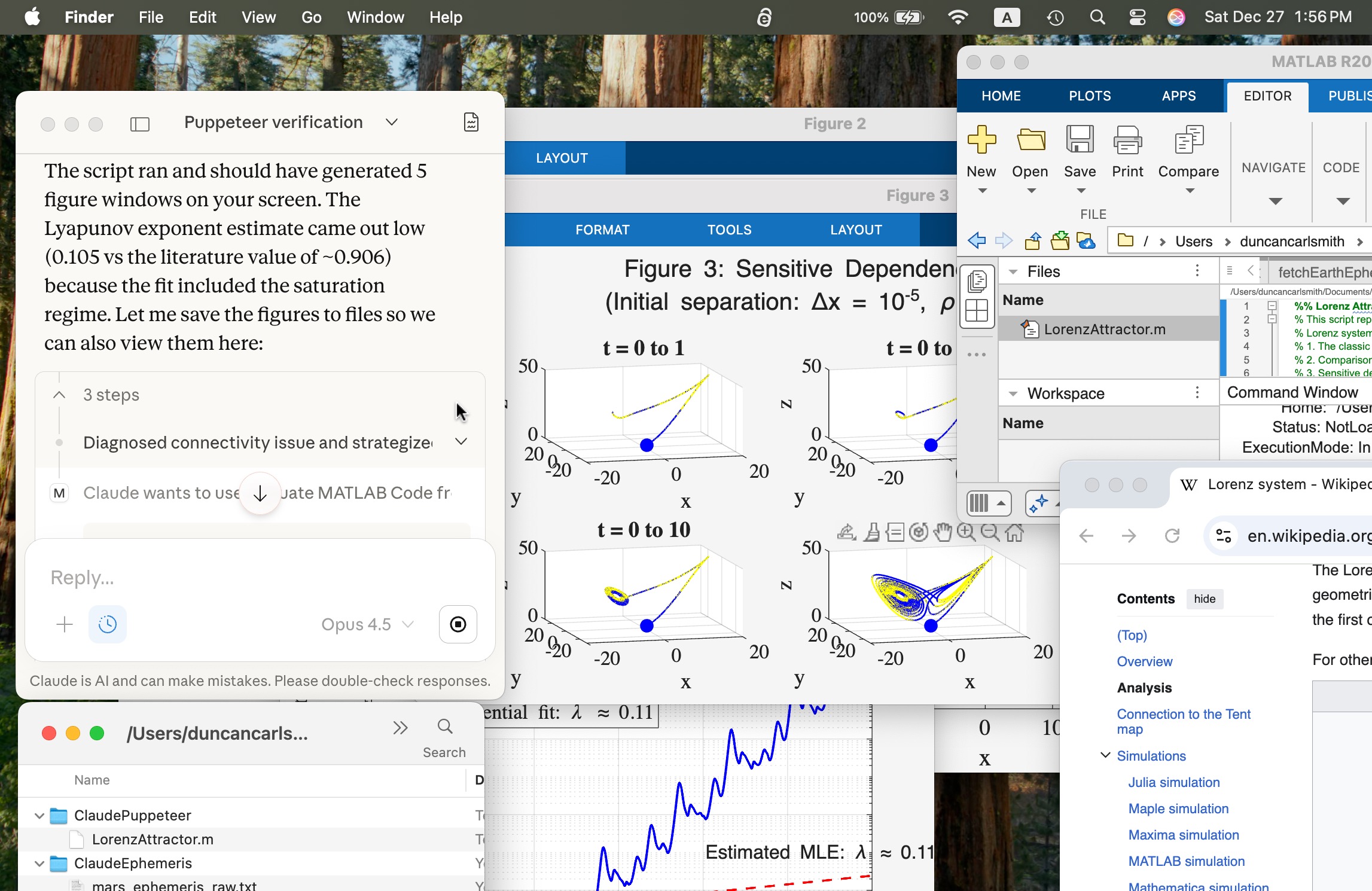
Um, wow!
Introduction
MCP is an open protocol that can link Claude and other AI Apps to MATLAB using MATLAB MCP Core Server (released in Nov 2025). For an introduction, see Exploring the MATLAB Model Context Protocol (MCP) Core Server with Claude Desktop. Here, I describe my experience with installation and testing Claude-Code and MATLAB, a security concern, and in particular how I "taught" Claude to handle various MATLAB file formats.
Setup
A basic installation requires you download for your operating system claude-code, matlab-mcp-core-server, and node.js. One configuration is a terminal-launched claude connected to MATLAB. To connect Claude App to MATLAB requires an alternate configuration step and I recommend it for interative use. The configuration defines the default node/folder and MATLAB APP location.
I recommend using Claude itself to guide you through the installation and configuration steps for your operating system by providing terminal commands. I append Claude’s general description of installation for my APPLE Silicon laptop. Once set up, just ask in Claude App to do something in MATLAB and MATLAB App will be launched.
Security warning: Explore the following at your own risk.
When working with Claude App, Claude code, and MATLAB, you are granting Claude AI access to read and write files. By default, you must approve (one time or forever) any action so you hopefully don’t clobber files etc. Claude App believes it can not directly access file outside the top node defined in the setup. For this reason, I set the top node to be a folder ..../Documents/MATLAB. However, Claude inherits MATLAB App's command line privileges, typically your full system privileges. Claude can describe for you some work-arounds like a Docker container which might still be license validation compatible. I have not explored such options. During my setup, Claude just provided me terminal commands to copy and run. After setup, I've demonstrated it can run system level commands via matlab:evaluate_matlab_code and the MCP server. Be careful out there!
My first test
Claude can write a text-based .m script, execute it, collect text standard output from it, and open files it makes (or any file). It cannot access figures that you might see in MATLAB App unless they are saved as files or embedded in files. As we will see, the figures generated by a Live Script are saved in an Claude-accessible format when the Live Script is saved so the code need not itself export them.
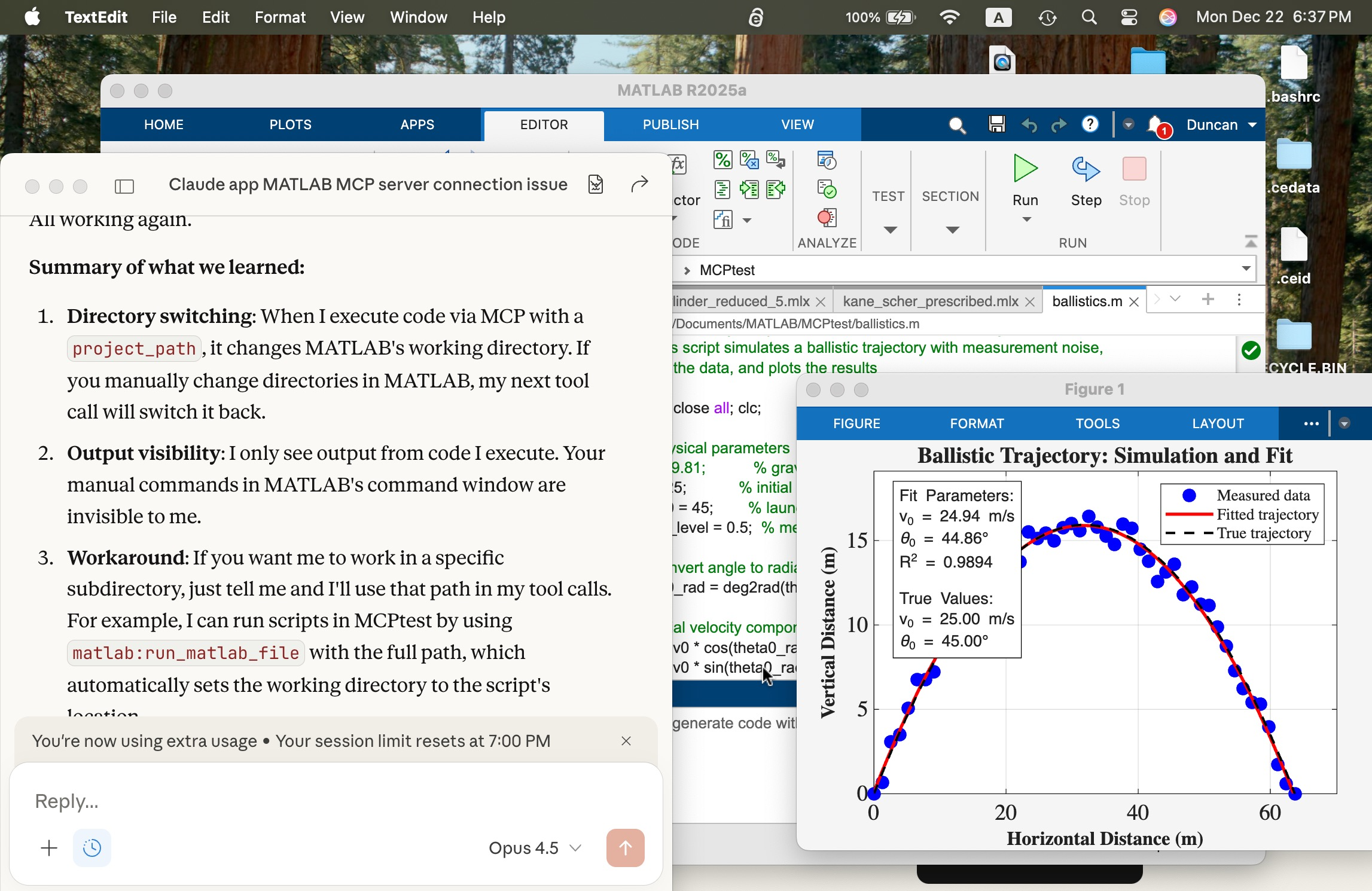
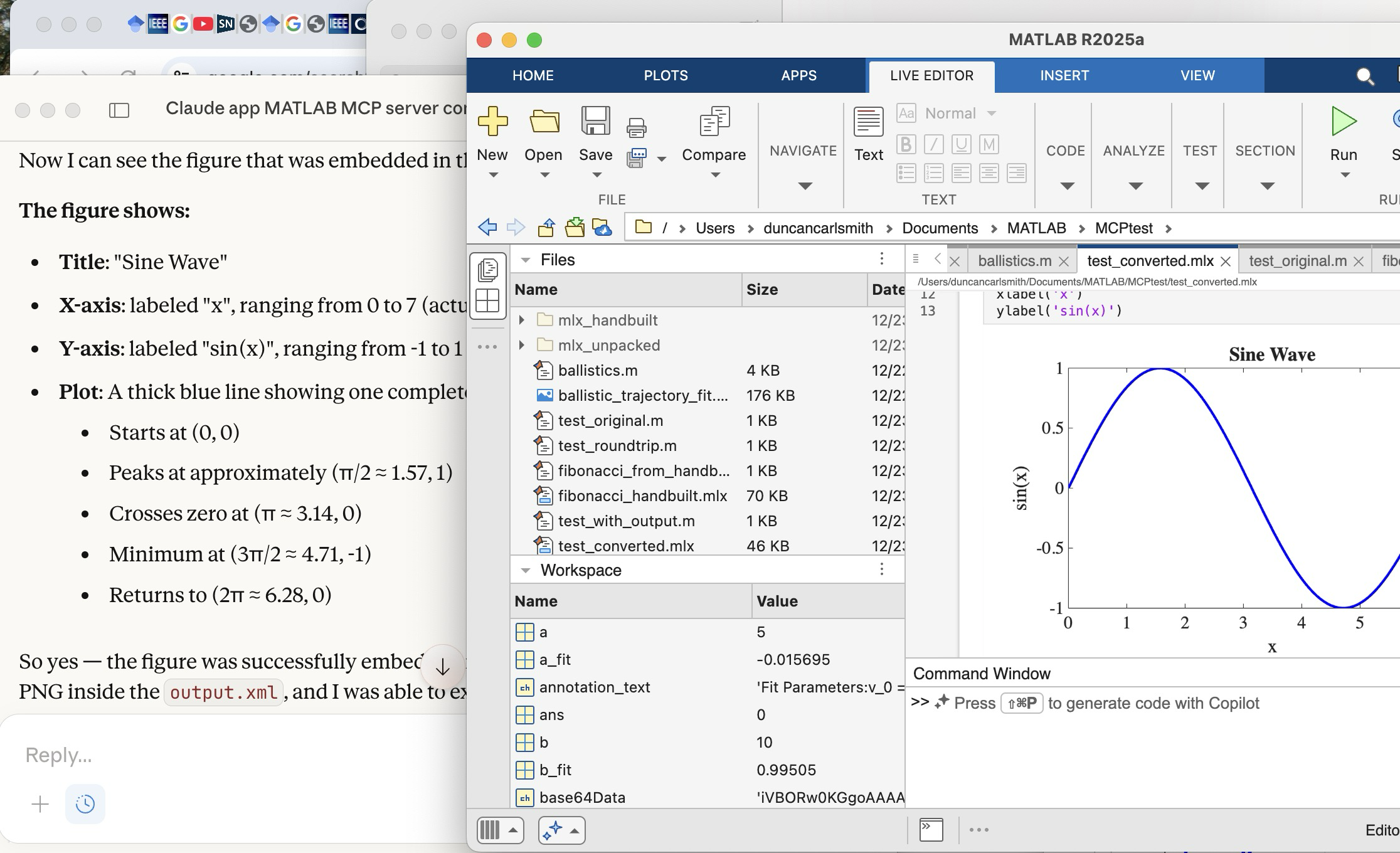
In the screen shot below, the window at left is the Claude App after a successful connection. The MATLAB App window shows a script in the MATLAB editor that simulates a ballistics experiment, the script created successfully with a terminal-interfaced Claude and a simple prompt on the first try.
I deliberately but trivially broke this script using MATLAB App interactively by commenting out a needed variable g (acceleration of gravity) and saving the script to the edit was accessible to Claude. Using Claude App after its connection, I fixed the script with a simple prompt and ran it successfully to make the figure you see. The visible MATLAB didn’t know the code had been altered and fixed by Claude until I reloaded the file. Claude recommends plots be saved in PNG or JPEG, not PDF. It can describe in detail a plot in a PNG and thusly judge if the code is functioning correctly.
Live Scripts with Claude
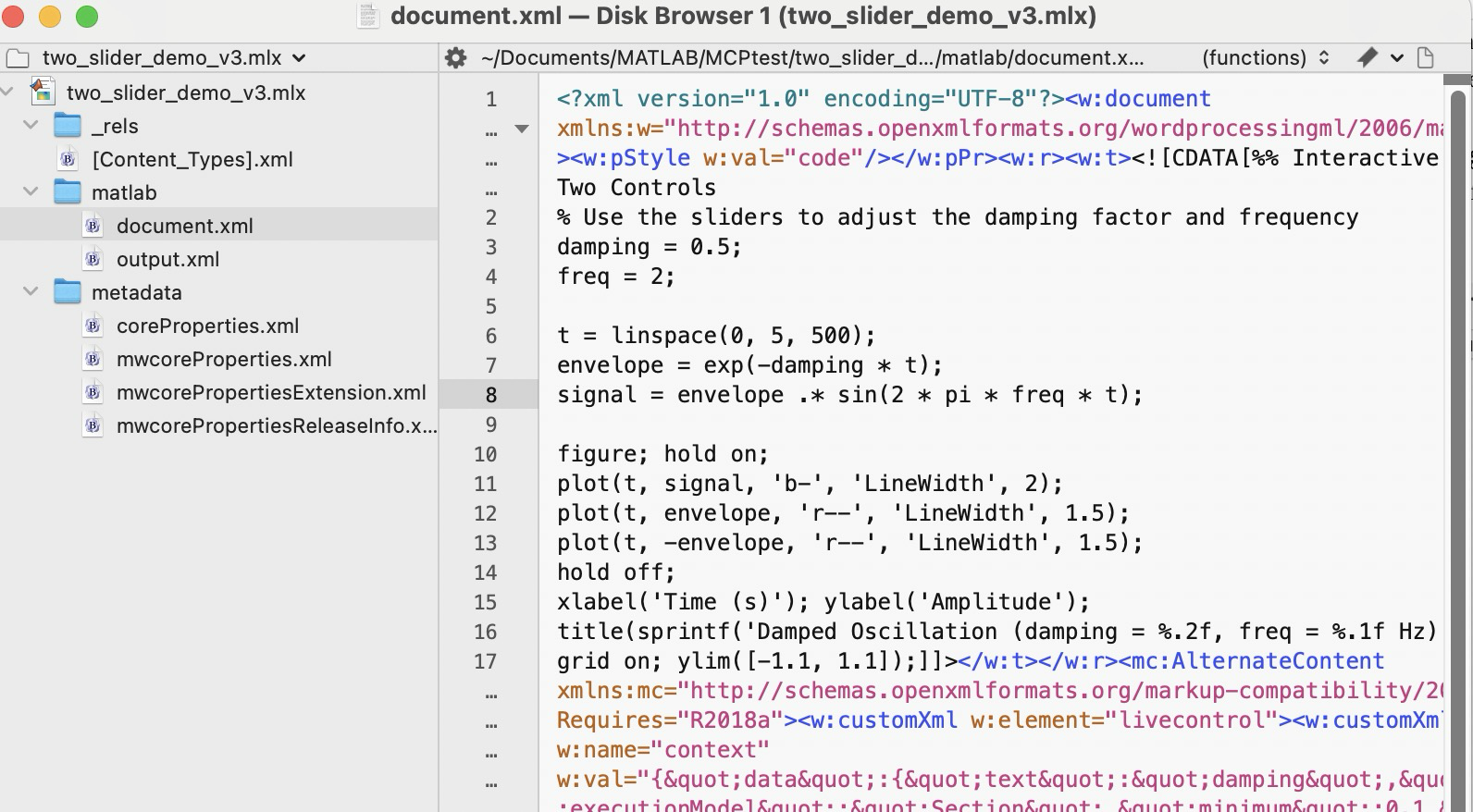
What about Live Scripts (.mlx) and the (2025a) .m live? A .mlx file is a zipped package of files mixing code and images wtih XML markup. You can peek inside one and edit it directly without unzipping and rezipping it using a tool like BBEdit on a Mac, as shown below. This short test script has two interactive slider controls. You can in v2025+ now save a .mlx in a transportable .m Live text file format. The .mlx and .m Live formats have special markup for formatted text, interactive features like sliders, and figures.
Claude can convert a vanilla .m file to .mlx using matlab.internal.liveeditor.openAndSave(source.m, dest.mlx) and the reverse matlab.internal.liveeditor.openAndConvert('myfile.mlx', 'myfile.m’).
These functions do not support .m Live yet apparently. It would be great if they did.
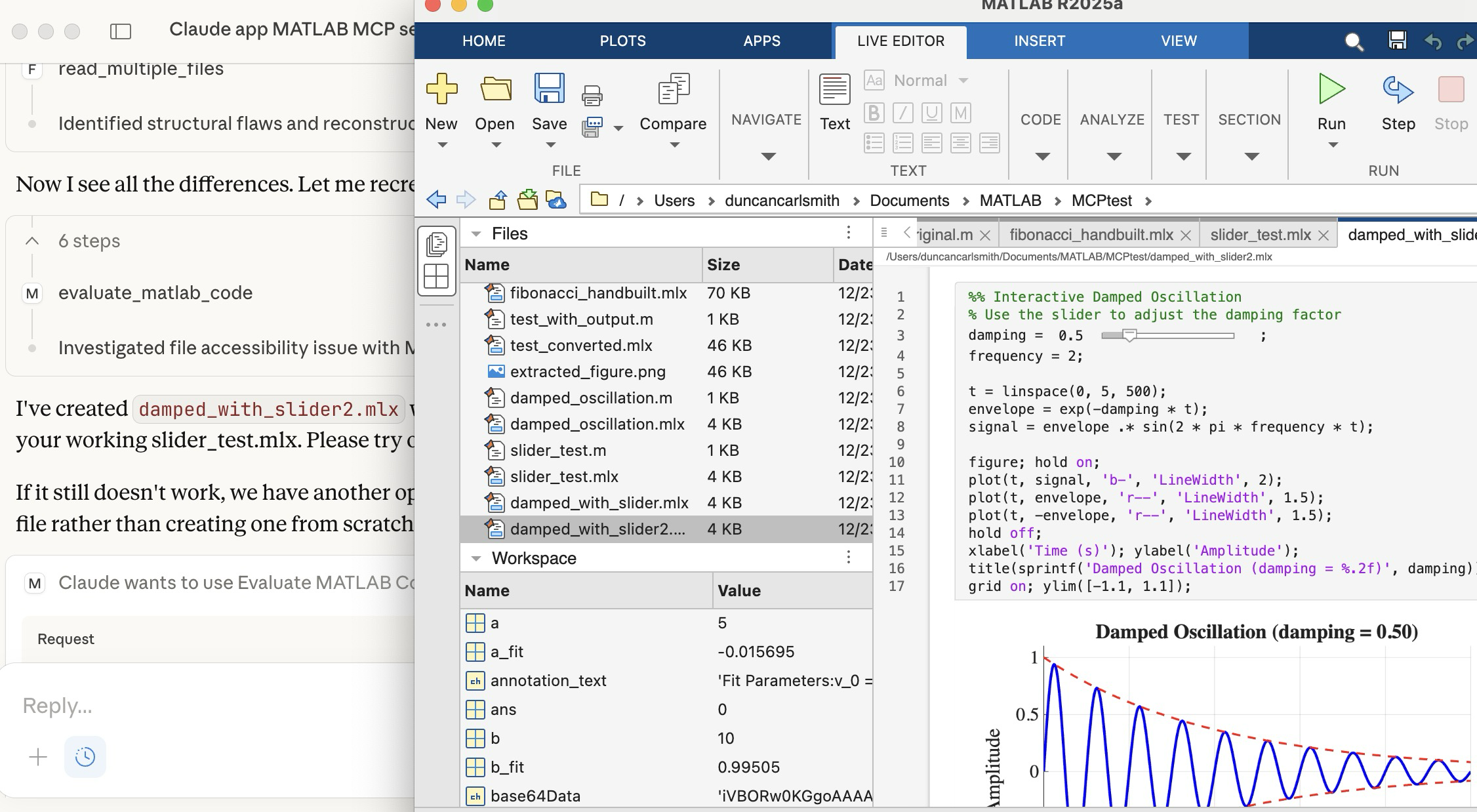
Vanilla Claude doesn’t know all the details of the .mlx and .m formats yet. To teach Claude these formats, I created a simple .mlx with interactive features (sliders), saved it, and exported it to .m Live. I then sketched for Claude these structures. Claude digested these files and was then able to create such formats from scratch immediately. Wow! In the figure below, you see Claude on the left after creating a .mlx with sliders from scratch. The successfully executed Live Script appears in the MATLAB App.
Once Claude knows the .mlx format, it can peek inside a saved .mlx, process a PNG figure saved there, and describe it, as illustrated below. Here you see Claude describing a plot it found in the .mlx shown in the MATLAB window.
Wrap up
This summarizes my first look at using claude-code. The generation of simple MATLAB codes with the latest models is increasingly trivial with Claude, Perplexity, Open.ai GPT and other apps and the direct method of code and other file transfer between a native MATLAB and Claude seems to beat a copy-paste workflow. New methods to connect MATLAB Online with commercial AI's like Comet and Anthropic's Chrome extension seem to me more fluid and intuitive in that the user and the AI are co-working the same interface without copy-paste steps, but seem slower.
Appendix
Here are installation and setup instructions for Mac from Claude for reference.
Setting Up Claude Code + MATLAB MCP Server on Mac
Part 1: Claude Code
Install via npm:
bash
npm install -g @anthropic-ai/claude-code
Or via Homebrew:
bash
brew install claude-code
Run it:
bash
cd /path/to/your/project
claude
You'll need to authenticate with your Anthropic account on first run. Claude Code works in your terminal and can read/write files, run commands, and do agentic coding tasks.
Part 2: MATLAB MCP Server
Step 1: Download the server binary
Go to the MathWorks GitHub or File Exchange and download matlab-mcp-core-server for macOS (Apple Silicon or Intel depending on your Mac).
Step 2: Make it executable
bash
chmod +x ~/Downloads/matlab-mcp-core-server
Step 3: Create/edit Claude Desktop config
Edit ~/Library/Application Support/Claude/claude_desktop_config.json:
json
{
"mcpServers": {
"matlab": {
"command": "/Users/YOURUSERNAME/Downloads/matlab-mcp-core-server",
"args": ["--matlab-root", "/Applications/MATLAB_R2025a.app"]
},
"filesystem": {
"command": "npx",
"args": [
"@modelcontextprotocol/server-filesystem",
"/Users/YOURUSERNAME/Documents/MATLAB"
]
}
}
}
Replace YOURUSERNAME with your actual username, and adjust the MATLAB version if needed.
Step 4: Install Node.js (if not already)
bash
brew install node
Step 5: Restart Claude Desktop
Quit fully (Cmd+Q) and reopen. You should see a hammer/tools icon indicating MCP servers are connected.
Part 3: Verify Connection
In Claude Desktop, ask me to run MATLAB code. I should be able to execute:
matlab
disp('Hello from MATLAB!')
Troubleshooting
Check logs:
bash
cat ~/Library/Logs/Claude/mcp-server-matlab.log
cat ~/Library/Logs/Claude/mcp.log
Common issues:
- Missing --matlab-root argument → "no valid MATLAB environments found"
Connecting Claude App to MATLAB via MCP Server
Edit ~/Library/Application Support/Claude/claude_desktop_config.json:
json
{
"mcpServers": {
"filesystem": {
"command": "npx",
"args": [
"-y",
"@modelcontextprotocol/server-filesystem",
"/Users/YOURUSERNAME/Documents/MATLAB"
]
},
"matlab": {
"command": "/Users/YOURUSERNAME/Downloads/matlab-mcp-core-server",
"args": [
"--matlab-root", "/Applications/MATLAB_R2025a.app"
]
}
}
}
Then fully quit Claude Desktop (Cmd+Q) and reopen.
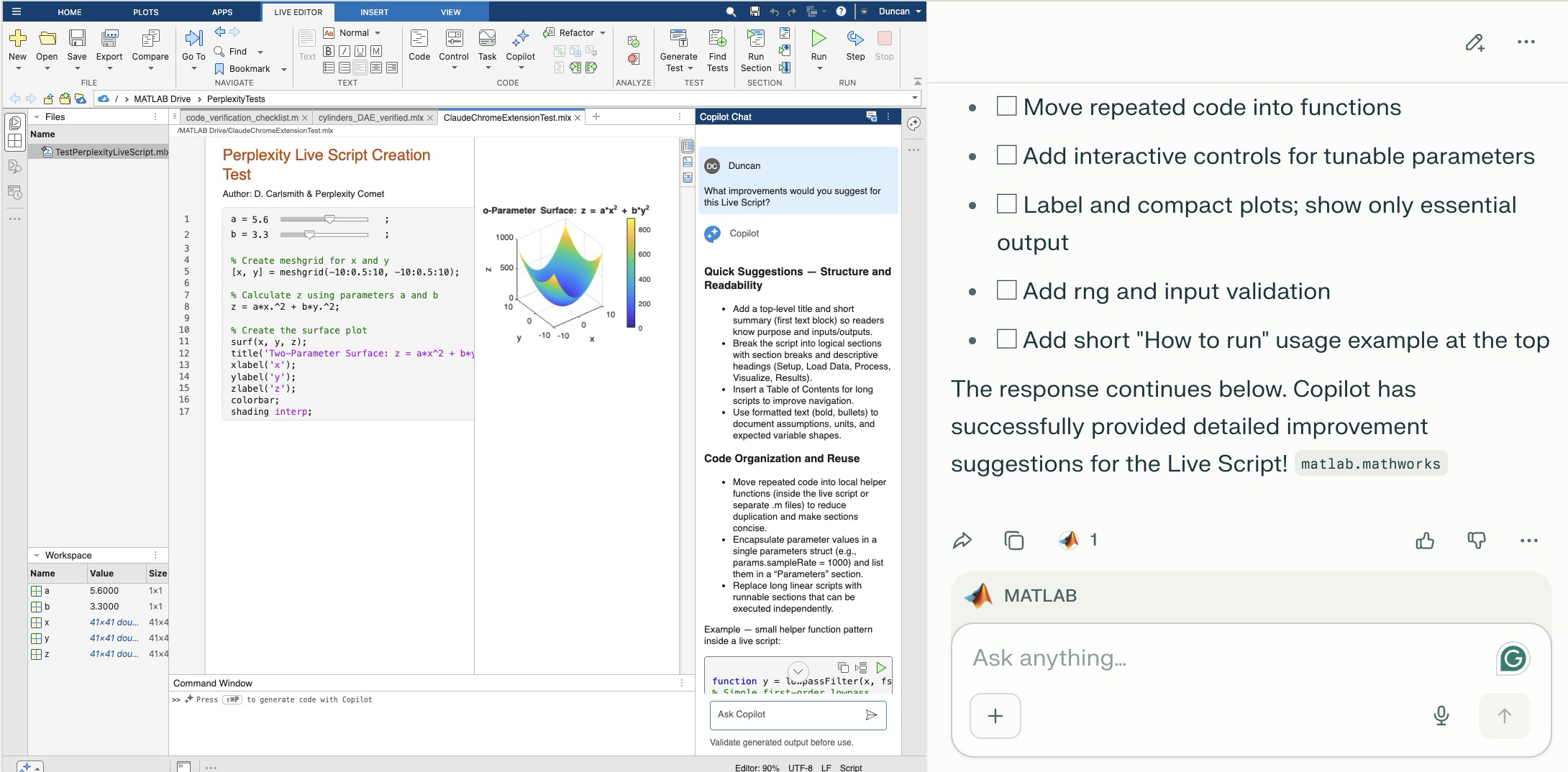
Comet browser can figure out and operate a user interface on the web including MATLAB Online. The screen shot shows MATLAB online to the left of the Comet AI. You see a test Live Script with sliders thjat Comet created in a folder (that it created). Comet is summarizing suggested improvements it requested of MATLAB Online's Copilot. Comet can plow into the arcane NASA astrophysical database interface SIMBAD, figure out how to grab information about, say, a star orbiting the black hole in the center of our galaxy and structure that information into a MATLAB data structure in a MATLAB script and run the script in MATLAB Online and display the results in the structure - it succeeded on the first try. It can do a Google Scholar citation tree search and park the results in MATLAB (success first try) or presumably in say MS Word in Office online. Presumably it can switch to a JuypterHub tab to then run a notebook or what you will. It can make mistakes, explore and discover GUI options, and recover e.g. use undo paste in MATLAB, operate in the command window, get help via the GUI if needed. Not at light speed but this seems enabling. Just released, Claude Chrome Extension Beta has similar capabilities.

Inspired in part by Christmas Trees, I'm curious about people's experience using AI to generate Matlab code.
1. Do you use AI to generate production code or just for experimentation/fun code?
2. Do you use the AI for a complete solution? Or is it more that the AI gets you most of the way there and you have to apply the finishing touches manually?
3. What level of quality would you consider the generated code? Does it follow "standard" Matlab coding practices? Is it well commented? Factored into modular functions? Argument checking? Memory efficient? Fast execution? Etc.?
4. Does the AI ever come up with a good or clever solution of which you wouldn't have thought or maybe of which you weren't even aware?
5. Is it easy/hard to express your requirements in a manner that the AI tool effectively translates into something useful?
6. Any other thoughts you'd care to share?

If you use tables extensively to perform data analysis, you may at some point have wanted to add new functionalities suited to your specific applications. One straightforward idea is to create a new class that subclasses the built-in table class. You would then benefit from all inherited existing methods.
One workaround is to create a new class that wraps a table as a Property, and re-implement all the methods that you need and are already defined for table. The is not too difficult, except for the subsref method, for which I’ll provide the code below.
Class definition
Defining a wrapper of the table class is quite straightforward. In this example, I call the class “Report” because that is what I intend to use the class for, to compute and store reports. The constructor just takes a table as input:
classdef Rapport
methods
function obj = Report(t)
if isa(t, 'Report')
obj = t;
else
obj.t_ = t;
end
end
end
properties (GetAccess = private, SetAccess = private)
t_ table = table();
end
end
I designed the constructor so that it converts a table into a Report object, but also so that if we accidentally provide it with a Report object instead of a table, it will not generate an error.
Reproducing the behaviour of the table class
Implementing the existing methods of the table class for the Report class if pretty easy in most cases.
I made use of a method called “table” in order to be able to get the data back in table format instead of a Report, instead of accessing the property t_ of the object. That method can also be useful whenever you wish to use the methods or functions already existing for tables (such as writetable, rowfun, groupsummary…).
classdef Rapport
...
methods
function t = table(obj)
t = obj.t_;
end
function r = eq(obj1,obj2)
r = isequaln(table(obj1), table(obj2));
end
function ind = size(obj, varargin)
ind = size(table(obj), varargin{:});
end
function ind = height(obj, varargin)
ind = height(table(obj), varargin{:});
end
function ind = width(obj, varargin)
ind = width(table(obj), varargin{:});
end
function ind = end(A,k,n)
% ind = end(A.t_,k,n);
sz = size(table(A));
if k < n
ind = sz(k);
else
ind = prod(sz(k:end));
end
end
end
end
In the case of horzcat (same principle for vertcat), it is just a matter of converting back and forth between the table and Report classes:
classdef Rapport
...
methods
function r = horzcat(obj1,varargin)
listT = cell(1, nargin);
listT{1} = table(obj1);
for k = 1:numel(varargin)
kth = varargin{k};
if isa(kth, 'Report')
listT{k+1} = table(kth);
elseif isa(kth, 'table')
listT{k+1} = kth;
else
error('Input must be a table or a Report');
end
end
res = horzcat(listT{:});
r = Report(res);
end
end
end
Adding a new method
The plus operator already exists for the table class and works when the table contains all numeric values. It sums columns as long as the tables have the same length.
Something I think would be nice would be to be able to write t1 + t2, and that would perform an outerjoin operation between the tables and any sizes having similar indexing columns.
That would be so concise, and that's what we’re going to implement for the Report class as an example. That is called “plus operator overloading”. Of course, you could imagine that the “+” operator is used to compute something else, for example adding columns together with regard to the keys index. That depends on your needs.
Here’s a unittest example:
classdef ReportTest < matlab.unittest.TestCase
methods (Test)
function testPlusOperatorOverload(testCase)
t1 = array2table( ...
{ 'Smith', 'Male' ...
; 'JACKSON', 'Male' ...
; 'Williams', 'Female' ...
} , 'VariableNames', {'LastName' 'Gender'} ...
);
t2 = array2table( ...
{ 'Smith', 13 ...
; 'Williams', 6 ...
; 'JACKSON', 4 ...
}, 'VariableNames', {'LastName' 'Age'} ...
);
r1 = Report(t1);
r2 = Report(t2);
tRes = r1 + r2;
tExpected = Report( array2table( ...
{ 'JACKSON' , 'Male', 4 ...
; 'Smith' , 'Male', 13 ...
; 'Williams', 'Female', 6 ...
} , 'VariableNames', {'LastName' 'Gender' 'Age'} ...
) );
testCase.verifyEqual(tRes, tExpected);
end
end
end
And here’s how I’d implement the plus operator in the Report class definition, so that it also works if I add a table and a Report:
classdef Rapport
...
methods
function r = plus(obj1,obj2)
table1 = table(obj1);
table2 = table(obj2);
result = outerjoin(table1, table2 ...
, 'Type', 'full', 'MergeKeys', true);
r = reportingits.dom.Rapport(result);
end
end
end
The case of the subsref method
If we wish to access the elements of an instance the same way we would with regular tables, whether with parentheses, curly braces or directly with the name of the column, we need to implement the subsref and subsasgn methods. The second one, subsasgn is pretty easy, but subsref is a bit tricky, because we need to detect whether we’re directing towards existing methods or not.
Here’s the code:
classdef Rapport
...
methods
function A = subsasgn(A,S,B)
A.t_ = subsasgn(A.t_,S,B);
end
function B = subsref(A,S)
isTableMethod = @(m) ismember(m, methods('table'));
isReportMethod = @(m) ismember(m, methods('Report'));
switch true
case strcmp(S(1).type, '.') && isReportMethod(S(1).subs)
methodName = S(1).subs;
B = A.(methodName)(S(2).subs{:});
if numel(S) > 2
B = subsref(B, S(3:end));
end
case strcmp(S(1).type, '.') && isTableMethod (S(1).subs)
methodName = S(1).subs;
if ~isReportMethod(methodName)
error('The method "%s" needs to be implemented!', methodName)
end
otherwise
B = subsref(table(A),S(1));
if istable(B)
B = Report(B);
end
if numel(S) > 1
B = subsref(B, S(2:end));
end
end
end
end
end
Conclusion
I believe that the table class is Sealed because is case new methods are introduced in MATLAB in the future, the subclass might not be compatible if we created any or generate unexpected complexity.
The table class is a really powerful feature.
I hope this example has shown you how it is possible to extend the use of tables by adding new functionalities and maybe given you some ideas to simplify some usages. I’ve only happened to find it useful in very restricted cases, but was still happy to be able to do so.
In case you need to add other methods of the table class, you can see the list simply by calling methods(’table’).
Feel free to share your thoughts or any questions you might have! Maybe you’ll decide that doing so is a bad idea in the end and opt for another solution.

Give your LLM an easier time looking for information on mathworks.com: point it to the recently released llms.txt files. The top-level one is www.mathworks.com/llms.txt, release changes use www.mathworks.com/help/relnotes. How does it work for you??

(Requested for newer MATLAB releases (e.g. R2026B), MATLAB Parallel Processing toolbox.)
Lower precision array types have been gaining more popularity over the years for deep learning. The current lowest precision built-in array type offered by MATLAB are 8-bit precision arrays, e.g. int8 and uint8. A good thing is that these 8-bit array types do have gpuArray support, meaning that one is able to design GPU MEX codes that take in these 8-bit arrays and reinterpret them bit-wise as other 8-bit array types, e.g. FP8, which is especially common array type used in modern day deep learning applications. I myself have used this to develop forward pass operations with 8-bit precision that are around twice as fast as 16-bit operations and with output arrays that still agree well with 16-bit outputs (measured with high cosine similarity). So the 8-bit support that MATLAB offers is already quite sufficient.
Recently, 4-bit precision array types have been shown also capable of being very useful in deep learning. These array types can be processed with Tensor Cores of more modern GPUs, such as NVIDIA's Blackwell architecture. However, MATLAB does not yet have a built-in 4-bit precision array type.
Just like MATLAB has int8 and uint8, both also with gpuArray support, it would also be nice to have MATLAB have int4 and uint4, also with gpuArray support.

I thought it would be fun to vibe code Christmas trees.
Model: Claude Sonnet4.5
Prompt: Write a MATLAB script that draws a Christmas tree. There should be decorations and presents too.
Result:
christmasTree()

function christmasTree()
% Christmas Tree with Decorations and Presents
% Creates a festive scene with a decorated tree and gift boxes
figure('Color', 'w', 'Position', [100, 100, 800, 900]);
hold on;
axis equal;
axis off;
xlim([-3, 3]);
ylim([0, 10]);
% Draw the tree (three layered triangular sections)
drawTreeSection(0, 2, 2.5, 2.5, [0.1, 0.5, 0.1]);
drawTreeSection(0, 3.5, 2, 2, [0.15, 0.55, 0.15]);
drawTreeSection(0, 4.8, 1.5, 1.8, [0.2, 0.6, 0.2]);
% Tree trunk
rectangle('Position', [-0.3, 0, 0.6, 2], 'FaceColor', [0.4, 0.2, 0.1], ...
'EdgeColor', 'none');
% Add decorations
addOrnaments();
addTinsel();
% Star on top
drawStar(0, 7.2, 0.4, [1, 0.84, 0]);
% Add presents under the tree
drawPresent(-1.8, 0, 0.6, 0.5, [0.8, 0.1, 0.1], [1, 0.84, 0]);
drawPresent(-0.8, 0, 0.5, 0.6, [0.1, 0.3, 0.8], [0.9, 0.9, 0.9]);
drawPresent(1.2, 0, 0.7, 0.4, [0.7, 0.5, 0.9], [0.2, 0.8, 0.2]);
drawPresent(0.2, 0, 0.4, 0.5, [1, 0.7, 0.1], [0.8, 0.1, 0.1]);
% Add some snow on the ground
scatter(randn(1, 100)*2.5, rand(1, 100)*0.3, 20, 'w', 'filled', ...
'MarkerEdgeColor', [0.8, 0.8, 0.8]);
title('Merry Christmas!', 'FontSize', 24, 'Color', [0.8, 0.1, 0.1], ...
'FontWeight', 'bold');
hold off;
end
function drawTreeSection(x, y, width, height, color)
% Draw a triangular section of the tree
xPoints = [x - width, x + width, x];
yPoints = [y, y, y + height];
fill(xPoints, yPoints, color, 'EdgeColor', [0.05, 0.3, 0.05], ...
'LineWidth', 1.5);
end
function addOrnaments()
% Add colorful baubles to the tree
ornamentColors = [
1, 0, 0; % Red
0, 0, 1; % Blue
1, 0.84, 0; % Gold
0.9, 0.1, 0.5;% Pink
0.5, 0, 0.5 % Purple
];
% Ornament positions (x, y coordinates)
positions = [
-1.5, 2.5; 1.5, 2.5; 0, 3.2;
-1.2, 3.8; 1.2, 3.8; -0.6, 4.2; 0.6, 4.2;
-0.8, 5.2; 0.8, 5.2; 0, 5.8; -0.4, 6.3; 0.4, 6.3
];
for i = 1:size(positions, 1)
colorIdx = mod(i-1, size(ornamentColors, 1)) + 1;
x = positions(i, 1);
y = positions(i, 2);
% Draw bauble
theta = linspace(0, 2*pi, 50);
radius = 0.15;
xCirc = x + radius * cos(theta);
yCirc = y + radius * sin(theta);
fill(xCirc, yCirc, ornamentColors(colorIdx, :), ...
'EdgeColor', ornamentColors(colorIdx, :)*0.7, 'LineWidth', 1.5);
% Add highlight for shine
highlightX = x - radius*0.4 + radius*0.3*cos(theta(1:15));
highlightY = y + radius*0.4 + radius*0.3*sin(theta(1:15));
fill(highlightX, highlightY, [1, 1, 1], 'EdgeColor', 'none', ...
'FaceAlpha', 0.6);
end
end
function addTinsel()
% Add sparkly tinsel effect
tinselX = [-1.8, -1.2, -0.5, 0.2, 0.9, 1.6];
tinselY = [2.8, 3.5, 4.0, 4.5, 5.0, 5.5];
for i = 1:length(tinselX)
plot(tinselX(i) + randn(1, 5)*0.1, tinselY(i) + rand(1, 5)*0.2, ...
'*', 'Color', [1, 0.84, 0], 'MarkerSize', 8, 'LineWidth', 1.5);
end
end
function drawStar(x, y, size, color)
% Draw a 5-pointed star on top of the tree
angles = linspace(0, 2*pi, 11);
radii = repmat([size, size*0.4], 1, 5);
radii = [radii, radii(1)];
xStar = x + radii .* cos(angles - pi/2);
yStar = y + radii .* sin(angles - pi/2);
fill(xStar, yStar, color, 'EdgeColor', [0.8, 0.6, 0], 'LineWidth', 2);
% Add sparkle
plot(x, y, '*', 'Color', [1, 1, 1], 'MarkerSize', 15, 'LineWidth', 2);
end
function drawPresent(x, y, width, height, boxColor, ribbonColor)
% Draw a gift box with ribbon and bow
% Box
rectangle('Position', [x, y, width, height], 'FaceColor', boxColor, ...
'EdgeColor', boxColor*0.7, 'LineWidth', 2);
% Vertical ribbon
ribbonWidth = width * 0.15;
rectangle('Position', [x + width/2 - ribbonWidth/2, y, ribbonWidth, height], ...
'FaceColor', ribbonColor, 'EdgeColor', 'none');
% Horizontal ribbon
ribbonHeight = height * 0.15;
rectangle('Position', [x, y + height/2 - ribbonHeight/2, width, ribbonHeight], ...
'FaceColor', ribbonColor, 'EdgeColor', 'none');
% Bow on top
bowX = x + width/2;
bowY = y + height;
bowSize = width * 0.2;
% Left loop
theta = linspace(0, pi, 30);
fill(bowX - bowSize*0.3 + bowSize*0.5*cos(theta), ...
bowY + bowSize*0.5*sin(theta), ribbonColor, 'EdgeColor', 'none');
% Right loop
fill(bowX + bowSize*0.3 + bowSize*0.5*cos(theta), ...
bowY + bowSize*0.5*sin(theta), ribbonColor, 'EdgeColor', 'none');
% Center knot
theta = linspace(0, 2*pi, 30);
fill(bowX + bowSize*0.25*cos(theta), bowY + bowSize*0.25*sin(theta), ...
ribbonColor*0.8, 'EdgeColor', 'none');
end

I like this quote, what do you think?
"If the part of programming you enjoy most is the physical act of writing code, then agents will feel beside the point. You’re already where you want to be, even just with some Copilot or Cursor-style intelligent code auto completion, which makes you faster while still leaving you fully in the driver’s seat about the code that gets written.
But if the part you care about is the decision-making around the code, agents feel like they clear space. They take care of the mechanical expression and leave you with judgment, tradeoffs, and intent. Because truly, for someone at my experience level, that is my core value offering anyway. When I spend time actually typing code these days with my own fingers, it feels like a waste of my time."
— Obie Fernandez, What happens when the coding becomes the least interesting part of the work

The Cody Contest 2025 has officially wrapped up! Over the past 4 weeks, more than 700 players submitted over 20,000 solutions. In addition, participants shared 20+ high-quality Tips & Tricksarticles—resources that will benefit Cody users for years to come.
Now it’s time to announce the winners.
🎉 Week 4 winners:
Weekly Prizes for Contest Problem Group Finishers:
@JKMSMKJ, @Yu Zhang, @Oliver Jaros, @Pauli Huusari, @Karl, @Marcos Silveira, @goc3, @Ildeberto de los Santos Ruiz, @Norberto, @Eric
Weekly Prizes for Contest Problem Group Solvers:
Weekly Prizes for Tips & Tricks Articles:
This week’s prize goes to @WANG Zi-Xiang. See the comments from our judge and problem group author @Matt Tearle:
‘We had a lot of great tips for solving Cody problems in general and the contest problems specifically. But we all know there are those among us who, having solved the problem, still want to tinker and make their code better. There are different definitions of "better", but code size remains the base metric in Cody. Enter Wang Zi-Xiang who compiled a list of many tips for reducing Cody size. This post also generated some great discussion (even prompting our insane autocrat, Lord Ned himself, to chime in). I particularly like the way that, while reducing Cody size often requires some arcane tricks that would normally be considered bad coding practice, the intellectual activity of trying to "game the system" makes you consider different programming approaches, and sometimes leads you to learn corners of MATLAB that you didn't know.’
🏆 Grand Prizes for the Main Round
Team Relentless Coders:
2nd Place: @Roberto
Team Creative Coders:
Team Cool Coders
Congratulations to all! Securing a top position on the leaderboard requires not only advanced MATLAB skills but also determination and consistency throughout the four-week contest. You will receive Amazon gift cards.
🥇 Winning Team
The competition was incredibly tight—we even had to use the tie-breaker rule.
Both Team Cool Coders and Team Relentless Coders achieved 16 contest group finishers. However, the last finisher on Cool Coders completed the problem group at 1:02 PM on Dec 7, while the last finisher on Relentless Coders finished at 9:47 PM the same day.
Such a close finish! Congratulations to Team Cool Coders, who have earned the Winning Team Finishers badge.

🎬 Bonus Round
Invitations have been sent to the 6 players who qualified for the Bonus Round. Stay tuned for updates—including the Big Watch Party afterward!
Congratulations again to all winners! We’ll be reaching out after the contest ends. It has been an exciting, rewarding, and knowledge-packed journey.
See you next year!

I can't believe someone put time into this ;-)

Our exportgraphics and copygraphics functions now offer direct and intuitive control over the size, padding, and aspect ratio of your exported figures.
- Specify Output Size: Use the new Width, Height, and Units name-value pairs
- Control Padding: Easily adjust the space around your axes using the Padding argument, or set it to to match the onscreen appearance.
- Preserve Aspect Ratio: Use PreserveAspectRatio='on' to maintain the original plot proportions when specifying a fixed size.
- SVG Export: The exportgraphics function now supports exporting to the SVG file format.
Check out the full article on the Graphics and App Building blog for examples and details: Advanced Control of Size and Layout of Exported Graphics
No, staying home (or where I'm now)
25%
Yes, 1 night
0%
Yes, 2 nights
12.5%
Yes, 3 nights
12.5%
Yes, 4-7 nights
25%
Yes, 8 nights or more
25%
8 votes

Hi everyone
I've been using ThingSpeak for several years now without an issue until last Thursday.
I have four ThingSpeak channels which are used by three Arduino devices (in two locations/on two distinct networks) all running the same code.
All three devices stopped being able to write data to my ThingSpeak channels around 17:00 CET on 4 Dec and are still unable to.
Nothing changed on this side, let alone something that would explain the problem.
I would note that data can still be written to all the channels via a browser so there is no fundamental problem with the channels (such as being full).
Since the above date and time, any HTTP/1.1 'update' (write) requests via the REST API (using both simple one-write GET requests or bulk JSON POST requests) are timing out after 5 seconds and no data is being written. The 5 second timeout is my Arduino code's default, but even increasing it to 30 seconds makes no difference. Before all this, responses from ThingSpeak were sub-second.
I have recompiled the Arduino code using the latest libraries and that didn't help.
I have tested the same code again another random api (api.ipify.org) and that works just fine.
Curl works just fine too, also usng HTTP/1.1
So the issue appears to be something particular to the combination of my Arduino code *and* the ThingSpeak environment, where something changed on the ThingSpeak end at the above date and time.
If anyone in the community has any suggestions as to what might be going on, I would greatly appreciate the help.
Peter

In a recent blog post, @Guy Rouleau writes about the new Simulink Copilot Beta. Sign ups are on the Copilot Beta page below. Let him know what you think.
Guy's Blog Post - https://blogs.mathworks.com/simulink/2025/12/01/a-copilot-for-simulink/
Simulink Copilot Beta - https://www.mathworks.com/products/simulink-copilot.html
I believe that it is very useful and important to know when we have new comments of our own problems. Although I had chosen to receive notifications about my own problems, I only receive them when I am mentioned by @.
Is it possible to add a 'New comment' alert in front of each problem on the 'My Problems' page?
Over the past three weeks, players have been having great fun solving problems, sharing knowledge, and connecting with each other. Did you know over 15,000 solutions have already been submitted?
This is the final week to solve Cody problems and climb the leaderboard in the main round. Remember: solving just one problem in the contest problem group gives you a chance to win MathWorks T-shirts or socks.
🎉 Week 3 Winners:
Weekly Prizes for Contest Problem Group Finishers:
@Umar, @David Hill, @Takumi, @Nicolas, @WANG Zi-Xiang, @Rajvir Singh Gangar, @Roberto, @Boldizsar, @Abi, @Antonio
Weekly Prizes for Contest Problem Group Solvers:
Weekly Prizes for Tips & Tricks Articles:
This week’s prize goes to @Cephas. See the comments from our judge and problem group author @Matt Tearle:
'Some folks have posted deep dives into how to tackle specific problems in the contest set. But others have shared multiple smaller, generally useful tips. This week, I want to congratulate the cumulative contribution of Cool Coder Cephas, who has shared several of my favorite MATLAB techniques, including logical indexing, preallocation, modular arithmetic, and more. Cephas has also given some tips applying these MATLAB techniques to specific contest problems, such as using a convenient MATLAB function to vectorize the Leaderboard problem. Tip for Problem 61059 – Leaderboard for the Nedball World Cup:'
Congratulations to all Week 3 winners! Let’s carry this momentum into the final week!

