Results for

The Cody Contest 2025 has officially wrapped up! Over the past 4 weeks, more than 700 players submitted over 20,000 solutions. In addition, participants shared 20+ high-quality Tips & Tricksarticles—resources that will benefit Cody users for years to come.
Now it’s time to announce the winners.
🎉 Week 4 winners:
Weekly Prizes for Contest Problem Group Finishers:
@JKMSMKJ, @Yu Zhang, @Oliver Jaros, @Pauli Huusari, @Karl, @Marcos Silveira, @goc3, @Ildeberto de los Santos Ruiz, @Norberto, @Eric
Weekly Prizes for Contest Problem Group Solvers:
Weekly Prizes for Tips & Tricks Articles:
This week’s prize goes to @WANG Zi-Xiang. See the comments from our judge and problem group author @Matt Tearle:
‘We had a lot of great tips for solving Cody problems in general and the contest problems specifically. But we all know there are those among us who, having solved the problem, still want to tinker and make their code better. There are different definitions of "better", but code size remains the base metric in Cody. Enter Wang Zi-Xiang who compiled a list of many tips for reducing Cody size. This post also generated some great discussion (even prompting our insane autocrat, Lord Ned himself, to chime in). I particularly like the way that, while reducing Cody size often requires some arcane tricks that would normally be considered bad coding practice, the intellectual activity of trying to "game the system" makes you consider different programming approaches, and sometimes leads you to learn corners of MATLAB that you didn't know.’
🏆 Grand Prizes for the Main Round
Team Relentless Coders:
2nd Place: @Roberto
Team Creative Coders:
Team Cool Coders
Congratulations to all! Securing a top position on the leaderboard requires not only advanced MATLAB skills but also determination and consistency throughout the four-week contest. You will receive Amazon gift cards.
🥇 Winning Team
The competition was incredibly tight—we even had to use the tie-breaker rule.
Both Team Cool Coders and Team Relentless Coders achieved 16 contest group finishers. However, the last finisher on Cool Coders completed the problem group at 1:02 PM on Dec 7, while the last finisher on Relentless Coders finished at 9:47 PM the same day.
Such a close finish! Congratulations to Team Cool Coders, who have earned the Winning Team Finishers badge.

🎬 Bonus Round
Invitations have been sent to the 6 players who qualified for the Bonus Round. Stay tuned for updates—including the Big Watch Party afterward!
Congratulations again to all winners! We’ll be reaching out after the contest ends. It has been an exciting, rewarding, and knowledge-packed journey.
See you next year!
Over the past three weeks, players have been having great fun solving problems, sharing knowledge, and connecting with each other. Did you know over 15,000 solutions have already been submitted?
This is the final week to solve Cody problems and climb the leaderboard in the main round. Remember: solving just one problem in the contest problem group gives you a chance to win MathWorks T-shirts or socks.
🎉 Week 3 Winners:
Weekly Prizes for Contest Problem Group Finishers:
@Umar, @David Hill, @Takumi, @Nicolas, @WANG Zi-Xiang, @Rajvir Singh Gangar, @Roberto, @Boldizsar, @Abi, @Antonio
Weekly Prizes for Contest Problem Group Solvers:
Weekly Prizes for Tips & Tricks Articles:
This week’s prize goes to @Cephas. See the comments from our judge and problem group author @Matt Tearle:
'Some folks have posted deep dives into how to tackle specific problems in the contest set. But others have shared multiple smaller, generally useful tips. This week, I want to congratulate the cumulative contribution of Cool Coder Cephas, who has shared several of my favorite MATLAB techniques, including logical indexing, preallocation, modular arithmetic, and more. Cephas has also given some tips applying these MATLAB techniques to specific contest problems, such as using a convenient MATLAB function to vectorize the Leaderboard problem. Tip for Problem 61059 – Leaderboard for the Nedball World Cup:'
Congratulations to all Week 3 winners! Let’s carry this momentum into the final week!
In just two weeks, the competition has become both intense and friendly as participants race to climb the team leaderboard, especially in Team Creative, where @Mehdi Dehghan currently leads with 1400+ points, followed by @Vasilis Bellos with 900+ points.
There’s still plenty of time to participate before the contest's main round ends on December 7. Solving just one problem in the contest problem group gives you a chance to win MathWorks T-shirts or socks. Completing the entire problem group not only boosts your odds but also helps your team win.
🎉 Week 2 Winners:
Weekly Prizes for Contest Problem Group Finishers:
@Cephas, @Athi, @Bin Jiang, @Armando Longobardi, @Simone, @Maxi, @Pietro, @Hong Son, @Salvatore, @KARUPPASAMYPANDIYAN M
Weekly Prizes for Contest Problem Group Solvers:
Weekly Prizes for Tips & Tricks Articles:
This week’s prize goes to @Athi for the highly detailed post Solving Systematically The Clueless - Lord Ned in the Game Room.
Comment from the judge:
Shortly after the problem set dropped, several folks recognized that the final problem, "Clueless", was a step above the rest in difficulty. So, not surprisingly, there were a few posts in the discussion boards related to how to tackle this problem. Athi, of the Cool Coders, really dug deep into how the rules and strategies could be turned into an algorithm. There's always more than one way to tackle any difficult programming problem, so it was nice to see some discussion in the comments on different ways you can structure the array that represents your knowledge of who has which cards.
Congratulations to all Week 2 winners! Let’s keep the momentum going!
In just one week, we have hit an amazing milestone: 500+ players registered and 5000+ solutions submitted! We’ve also seen fantastic Tips & Tricks articles rolling in, making this contest a true community learning experience.
And here’s the best part: you don’t need to be a top-ranked player to win. To encourage more casual and first-time players to jump in, we’re introducing new weekly prizes starting Week 2!
New Casual Player Prizes:
- 5 extra MathWorks T-shirts or socks will be awarded every week.
- All you need to qualify is to register and solve one problem in the Contest Problem Group.
Jump in, try a few problems, and don’t be shy to ask questions in your team’s channel. You might walk away with a prize!
Week 1 Winners:
Weekly Prizes for Contest Problem Group Finishers:
@Mazhar, @Julien, @Mohammad Aryayi, @Pawel, @Mehdi Dehghan, @Christian Schröder, @Yolanda, @Dev Gupta, @Tomoaki Takagi, @Stefan Abendroth
Weekly Prizes for Tips & Tricks Articles:
We had a lot of people share useful tips (including some personal favorite MATLAB tricks). But Vasilis Bellos went *deep* into the Bridges of Nedsburg problem. Fittingly for a Creative Coder, his post was innovative and entertaining, while also cleverly sneaking in some hints on a neat solution method that wasn't advertised in the problem description.
Congratulations to all Week 1 winners! Prizes will be awarded after the contest ends. Let’s keep the momentum going!
What a fantastic start to Cody Contest 2025! In just 2 days, over 300 players joined the fun, and we already have our first contest group finishers. A big shoutout to the first finisher from each team:
- Team Creative Coders: @Mehdi Dehghan
- Team Cool Coders: @Pawel
- Team Relentless Coders: @David Hill
- 🏆 First finisher overall: Mehdi Dehghan
Other group finishers: @Bin Jiang (Relentless), @Mazhar (Creative), @Vasilis Bellos (Creative), @Stefan Abendroth (Creative), @Armando Longobardi (Cool), @Cephas (Cool)
Kudos to all group finishers! 🎉
Reminder to finishers: The goal of Cody Contest is learning together. Share hints (not full solutions) to help your teammates complete the problem group. The winning team will be the one with the most group finishers — teamwork matters!
To all players: Don’t be shy about asking for help! When you do, show your work — include your code, error messages, and any details needed for others to reproduce your results.
Keep solving, keep sharing, and most importantly — have fun!
The main round of Cody Contest 2025 kicks off today! Whether you’re a beginner or a seasoned solver, now’s your time to shine.
Here’s how to join the fun:
- Pick your team — choose one that matches your coding personality.
- Solve Cody problems — gain points and climb the leaderboard.
- Finish the Contest Problem Group — help your team win and unlock chances for weekly prizes by finishing the Cody Contest 2025 problem group.
- Share Tips & Tricks — post your insights to win a coveted MathWorks Yeti Bottle.
- Bonus Round — 2 players from each team will be invited to a fun live code-along event!
- Watch Party – join the big watch event to see how top players tackle Cody problems
Contest Timeline:
- Main Round: Nov 10 – Dec 7, 2025
- Bonus Round: Dec 8 – Dec 19, 2025
Big prizes await — MathWorks swag, Amazon gift cards, and shiny virtual badges!
We look forward to seeing you in the contest — learn, compete, and have fun!

Automating Parameter Identifiability Analysis in SimBiology
Is it possible to develop a MATLAB Live Script that automates a series of SimBiology model fits to obtain likelihood profiles? The goal is to fit a kinetic model to experimental data while systematically fixing the value of one kinetic constant (e.g., k1) and leaving the others unrestricted.
The script would perform the following:
Use a pre-configured SimBiology project where the best fit to the experimental data has already been established (including dependent/independent variables, covariates, the error model, and optimization settings).
Iterate over a defined sequence of fixed values for a chosen parameter.
For each fixed value, run the estimation to optimize the remaining parameters.
Record the resulting Sum of Squared Errors (SSE) for each run.
The final output would be a likelihood profile—a plot of SSE versus the fixed parameter value (e.g., k1)—to assess the practical identifiability of each model parameter.

作ったコードは公開して使ってもらいましょう!ということでその方法をブログで紹介します。
GitHub や File Exchange で公開しているコードがあれば、ぜひこのスレで教えてください!
ブログで紹介している大まかな3ステップをここにまとめます。
1. GitHub でコードを公開・開発する
- GitHub 上でのリポジトリ公開はコミュニティ形成にもつながります。
- R2025a 以降は MATLAB の Markdown サポートも強化されており、README.md を充実させると理解や導入が促進されます。
2. File Exchange に展開(GitHub と連携して自動同期)
- File Exchangeで公開することで MATLAB 内から検索・インストールが可能になります。
- GitHub と File Exchange の連携設定により、GitHub の更新を自動的に File Exchange に反映させることも可能です。
3. 「Open in MATLAB Online」ボタンやリンクを追加
- GitHub リポジトリに「Open in MATLAB Online」リンクやボタンを埋め込むことで、ブラウザ上でコードを試せます。
群馬産業技術センター様をお招きし、製造現場での異常検知の取り組みについてご紹介いただくオンラインセミナーを開催します。
実際の開発事例を通して、MATLABを使った「教師なし」異常検知の進め方や、予知保全に役立つ最新機能もご紹介します。
✅ 異常検知・予知保全に興味がある方
✅ データ活用を何から始めればいいか迷っている方
✅ 実際の現場事例を知りたい方
ぜひお気軽にご参加ください!

Hi everyone,
Please check out our new book "Generative AI for Trading and Asset Management".
GenAI is usually associated with large language models (LLMs) like ChatGPT, or with image generation tools like MidJourney, essentially, machines that can learn from text or images and generate text or images. But in reality, these models can learn from many different types of data. In particular, they can learn from time series of asset returns, which is perhaps the most relevant for asset managers.
In our book (amazon.com link), we explore both the practical applications and the fundamental principles of GenAI, with a special focus on how these technologies apply to trading and asset management.
The book is divided into two broad parts:
Part 1 is written by Ernie Chan, noted author of Quantitative Trading, Algorithmic Trading, and Machine Trading. It starts with no-code applications of GenAI for traders and asset managers with little or no coding experience. After that, it takes readers on a whirlwind tour of machine learning techniques commonly used in finance.
Part 2, written by Hamlet, covers the fundamentals and technical details of GenAI, from modeling to efficient inference. This part is for those who want to understand the inner workings of these models and how to adapt them to their own custom data and applications. It’s for anyone who wants to go beyond the high-level use cases, get their hands dirty, and apply, and eventually improve these models in real-world practical applications.
Readers can start with whichever part they want to explore and learn from.

Simulinkモデルを生成AIで自動的に作成できたら便利だと思いませんか?
QiitaのSacredTubesさんは、このアイデアを実験的に試みた記事を公開しています。
その方法は、まず生成AIでVerilogコードを作成し、それをSimulinkに取り込んでモデル化するというものです。(ここではHDL Coderというツールボックスの機能が使われました:importhdl)
まだ実用段階には至っていませんが、モデルベース開発(MBD)と生成AIの可能性を探る上で、非常に興味深い試みです。
生成AIの限界と可能性を考えるきっかけとして、一読の価値があります。
---
もし「Simulink Copilot」のような生成AIツールが登場するとしたら、
どんな機能があったら嬉しいと思いますか?
- 自然言語でブロック図を生成?
- 既存モデルの自動ドキュメント化?
- シミュレーション結果の要約と解釈?
皆さんのアイデアをぜひシェアしてください!

- 昨日までちゃんと動いていたのに・・
- ヘルプページ通りに書いているのに・・
MATLAB 関数がエラーを出すようになることありますよね(?)そんな時にみなさんがまず確認するもの、何かありますか?教えてください!
例えば
which -all plot
をコマンドウィンドウで実行して、もともと MATLAB で定義されている plot 関数(MATLAB のインストールフォルダにある plot 関数)がちゃんと頭に出てくるかどうか確認します。

I am deeply honored to announce the official publication of my latest academic volume:
MATLAB for Civil Engineers: From Basics to Advanced Applications
(Springer Nature, 2025).
This work serves as a comprehensive bridge between theoretical civil engineering principles and their practical implementation through MATLAB—a platform essential to the future of computational design, simulation, and optimization in our field.
Structured to serve both academic audiences and practicing engineers, this book progresses from foundational MATLAB programming concepts to highly specialized applications in structural analysis, geotechnical engineering, hydraulic modeling, and finite element methods. Whether you are a student building analytical fluency or a professional seeking computational precision, this volume offers an indispensable resource for mastering MATLAB's full potential in civil engineering contexts.
With rigorously structured examples, case studies, and research-aligned methods, MATLAB for Civil Engineers reflects the convergence of engineering logic with algorithmic innovation—equipping readers to address contemporary challenges with clarity, accuracy, and foresight.
📖 Ideal for:
— Graduate and postgraduate civil engineering students
— University instructors and lecturers seeking a structured teaching companion
— Professionals aiming to integrate MATLAB into complex real-world projects
If you are passionate about engineering resilience, data-informed design, or computational modeling, I invite you to explore the work and share it with your network.
🧠 Let us advance the discipline together through precision, programming, and purpose.

キーと値の組み合わせでデータを格納できるディクショナリ。R2022bでdictionaryコマンドが登場し、最近のバージョンではreaddictionaryとwritedictionaryでJSONファイルからの読み込み・書き込みにも対応しました。
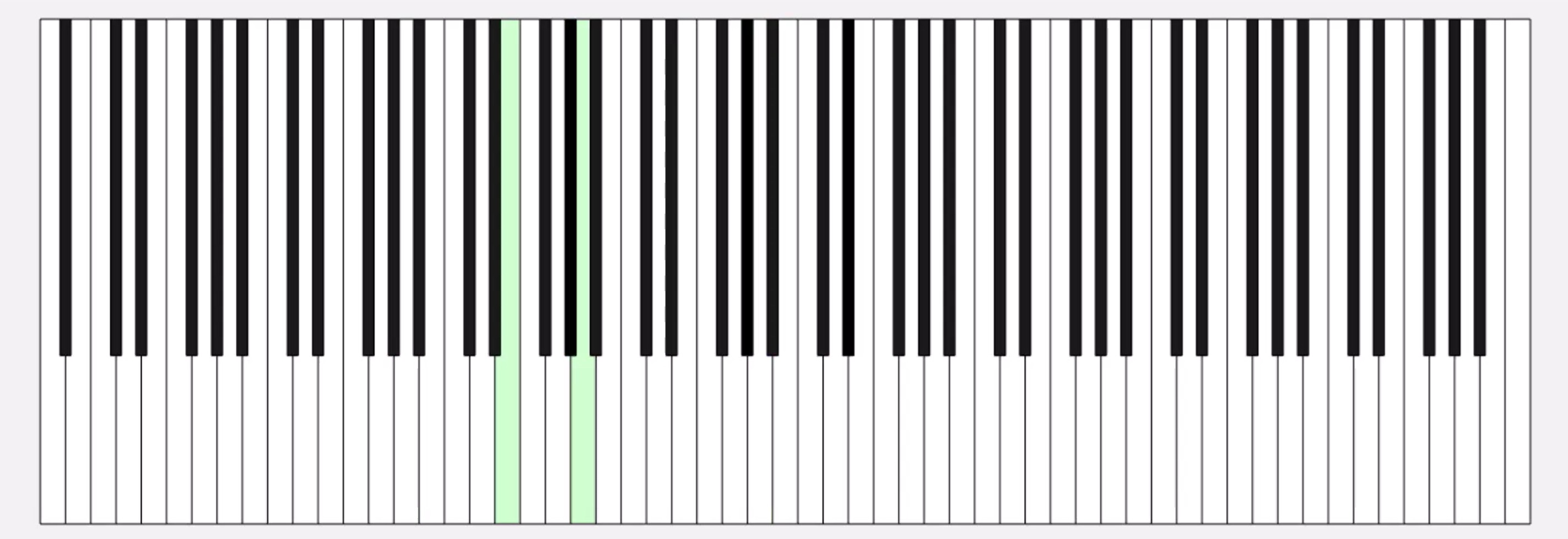
私はMIDIデータからピアノの演奏動画を作るプログラムで、ディクショナリを使いました。音のノート番号をキーにして、patchで白と黒で鍵盤を塗りつぶしたmatlab.graphics.Graphicsデータ型を値にしたディクショナリで保存して、MIDIで鳴らされた音のノート番号からlookupでグラフのオブジェクトを取得し、FaceColorを変更してハイライトするというもの。
コード例
%% MIDIデータの.matファイルを読み取ってピアノを描画するサンプル
fig = figure('Position', [34 328 1626 524]);
ax = axes;
whiteKeyY = [0 0 150 150];
whiteKeyColor = [1 1 1];
blackKeyY = [50 50 150 150];
blackKeyColor = [0.1 0.1 0.1];
edgeColor = [0 0 0];
% ディクショナリの定義
d = configureDictionary("double", "matlab.graphics.Graphics");
% 白鍵を描画
for n = 1:9
pos = 23*7*(n-1);
d = insert(d, 21 + (n-1)*12, patch([pos+5 pos+28 pos+28 pos+5],whiteKeyY, whiteKeyColor, 'EdgeColor', edgeColor, 'UserData', 21 + (n-1)*12));
d = insert(d, 23 + (n-1)*12, patch([pos+28 pos+51 pos+51 pos+28], whiteKeyY, whiteKeyColor, 'EdgeColor', edgeColor, 'UserData', 23 + (n-1)*12));
d = insert(d, 24 + (n-1)*12, patch([pos+51 pos+74 pos+74 pos+51], whiteKeyY, whiteKeyColor, 'EdgeColor', edgeColor, 'UserData', 24 + (n-1)*12));
if n < 9
d = insert(d, 26 + (n-1)*12, patch([pos+74 pos+97 pos+97 pos+74], whiteKeyY, whiteKeyColor, 'EdgeColor', edgeColor, 'UserData', 26 + (n-1)*12));
d = insert(d, 28 + (n-1)*12, patch([pos+97 pos+120 pos+120 pos+97], whiteKeyY, whiteKeyColor, 'EdgeColor', edgeColor, 'UserData', 28 + (n-1)*12));
d = insert(d, 29 + (n-1)*12, patch([pos+120 pos+143 pos+143 pos+120], whiteKeyY, whiteKeyColor, 'EdgeColor', edgeColor, 'UserData', 29 + (n-1)*12));
d = insert(d, 31 + (n-1)*12, patch([pos+143 pos+166 pos+166 pos+143], whiteKeyY, whiteKeyColor, 'EdgeColor', edgeColor, 'UserData', 31 + (n-1)*12));
end
end
% 黒鍵を描画。白鍵の上になるようにループを分けています
for n = 1:9
pos = 23*7*(n-1);
d = insert(d, 22 + (n-1)*12, patch([pos+23 pos+33 pos+33 pos+23], blackKeyY, blackKeyColor, 'EdgeColor', [0 0 0], 'UserData', 22 + (n-1)*12));
if n < 9
d = insert(d, 25 + (n-1)*12, patch([pos+69 pos+79 pos+79 pos+69], blackKeyY, blackKeyColor, 'EdgeColor', [0 0 0], 'UserData', 25 + (n-1)*12));
d = insert(d, 27 + (n-1)*12, patch([pos+92 pos+102 pos+102 pos+92], blackKeyY, blackKeyColor, 'EdgeColor', [0 0 0], 'UserData', 27 + (n-1)*12));
d = insert(d, 30 + (n-1)*12, patch([pos+138 pos+148 pos+148 pos+138], blackKeyY, blackKeyColor, 'EdgeColor', [0 0 0], 'UserData', 30 + (n-1)*12));
d = insert(d, 32 + (n-1)*12, patch([pos+161 pos+171 pos+171 pos+161], blackKeyY, blackKeyColor, 'EdgeColor', [0 0 0], 'UserData', 32 + (n-1)*12));
end
end
xticklabels({})
yticklabels({})
xlim([5 1362])
drawnow
%% MIDI音源の.matファイルを読み込み
matData = load('fur-elise.mat');
msg = matData.receivedMessages;
eventTimes = [msg.Timestamp] - msg(1).Timestamp;
n = 1;
numNotes = 0;
lastNote = 0;
highlightedCircles = cell(1, 127);
% 音が鳴った鍵盤だけハイライトする
tic
while toc < max(eventTimes)
if toc > eventTimes(n)
thisMsg = msg(n);
if thisMsg.Type == "NoteOn"
numNotes = numNotes + 1;
lastNote = thisMsg.Note;
thisPatch = lookup(d, thisMsg.Note);
thisPatch.FaceColor = '#CCFFCC';
drawnow
elseif thisMsg.Type == "NoteOff"
numNotes = 0;
thisPatch = lookup(d, thisMsg.Note);
[~, ~, wOrB] = calcNotePos(thisMsg.Note);
if wOrB == "w"
thisPatch.FaceColor = 'white';
else
thisPatch.FaceColor = 'black';
end
drawnow
end
n = n+1;
end
end
%% サブ関数
function [pianoPos, centerPos, wOrB] = calcNotePos(note)
tempVar = idivide(int64(note), int64(12)); % 12で割った商
pos = 23*7*(tempVar-1);
switch mod(note, 12)
case 0 % C
pianoPos = pos + 62.5;
centerPos = 30;
wOrB = "w";
case 2 % D
pianoPos = pos + 85.5;
centerPos = 30;
wOrB = "w";
case 4 % E
pianoPos = pos + 108.5;
centerPos = 30;
wOrB = "w";
case 5 % F
pianoPos = pos + 131.5;
centerPos = 30;
wOrB = "w";
case 7 % G
pianoPos = pos + 154.5;
centerPos = 30;
wOrB = "w";
case 9 % A
pianoPos = pos + 177.5;
centerPos = 30;
wOrB = "w";
case 11 % B
pianoPos = pos + 200.5;
centerPos = 30;
wOrB = "w";
case 1 % C#
pianoPos = pos + 69;
centerPos = 100;
wOrB = "b";
case 3 % D#
pianoPos = pos + 92;
centerPos = 100;
wOrB = "b";
case 6 % F#
pianoPos = pos + 138;
centerPos = 100;
wOrB = "b";
case 8 % G#
pianoPos = pos + 161;
centerPos = 100;
wOrB = "b";
case 10 % A#
pianoPos = pos + 184;
centerPos = 100;
wOrB = "b";
end
end
皆さんはディクショナリを使ってますか? もし使っていたら、どういう活用をしているか、聞かせてください!
どの方法を使う事が多いですか?他によく使う方法があれば教えてくださいー。
方法①
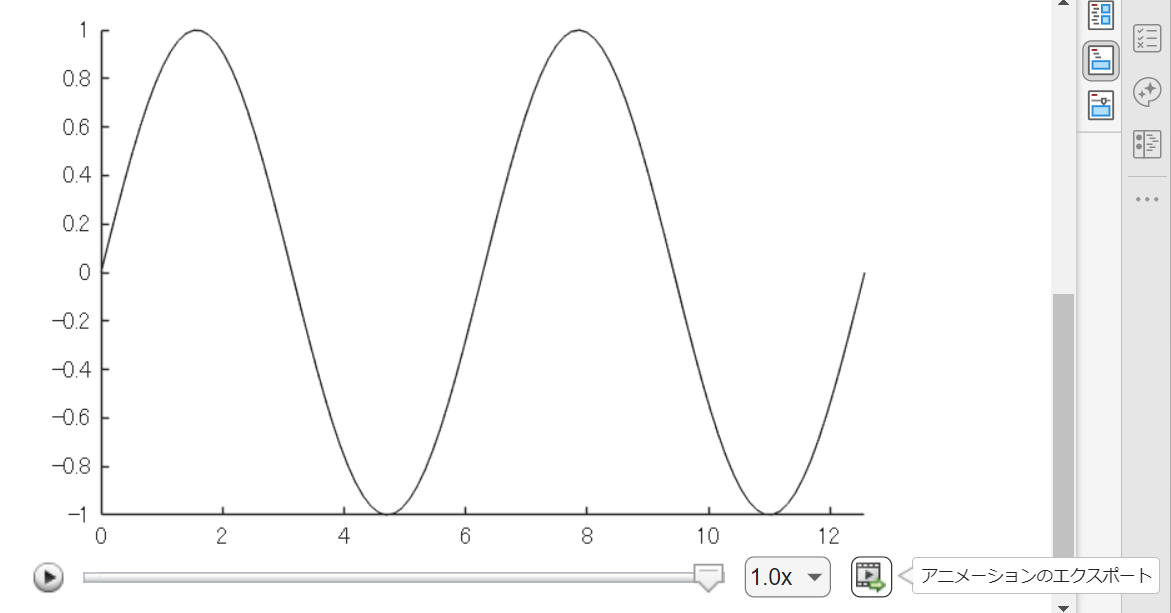
Livescript 上で for ループ内で描画を編集させて描いた動画は「アニメーションのエクスポート」から動画ファイルに出力するのが一番簡単ですね。再生速度やら細かい設定ができない点は要注意。
方法②
exportgraphics 関数で "Append" オプション指定で実現できるようになった(R2022a から)のでこれも便利ですね。
N = 100;
x = linspace(0,4*pi,N);
y = sin(x);
filename = 'animation_sample.gif'; % Specify the output file name
if exist(filename,'file')
delete(filename)
end
h = animatedline;
axis([0,4*pi,-1,1]) % x軸の表示範囲を固定
for k = 1:length(x)
addpoints(h,x(k),y(k)); % ループでデータを追加
exportgraphics(gca,filename,"Append",true)
end
方法③
R2021b 以前のバージョンだとこんな感じ。
各ループで画面キャプチャして、imwrite で動画ファイルにフレーム追加していくイメージです。"DelayTime" を使って細かい指定ができるので、必要に応じて今でも利用します。
for k = 1:length(x)
addpoints(h,x(k),y(k)); % ループでデータを追加
drawnow % グラフアップデート
frame = getframe(gcf); % Figure 画面をムービーフレーム(構造体)としてキャプチャ
tmp = frame2im(frame); % 画像に変更
[A,map] = rgb2ind(tmp,256); % RGB -> インデックス画像に
if k == 1 % 新規 gif ファイル作成
imwrite(A,map,filename,'gif','LoopCount',Inf,'DelayTime',0.2);
else % 以降、画像をアペンド
imwrite(A,map,filename,'gif','WriteMode','append','DelayTime',0.2);
end
end
これからは生成AIでコードを1から書くという事が減ってくるのかと思いますが,皆さんがMATLABのコードを書く時に意識しているご自身のルールのようなものがあれば教えてください.
MATLAB言語は柔軟に書けますが,自然と個人個人のルールというものが出来上がってきているのでは,と思います.
私はParameter, Valueペアの引数がある関数はそれぞれのペアを新しい行に書く,というのをよくやります.
h = plot(x, y, "ro-", ...
"LineWidth", 2, ...
"MarkerSize", 10, ...
"MarkerFaceColor", "g");
Parameter=Valueでも同じです.
h = plot(x, y, "ro-", ...
LineWidth = 2, ...
MarkerSize = 10, ...
MarkerFaceColor = "g");
また,一時期は "=" を揃えることもやってました(今はやってませんが).
h = plot(x, y, "ro-", ...
LineWidth = 2, ...
MarkerSize = 10, ...
MarkerFaceColor = "g");
皆さんにはどのようなルールがありますか?

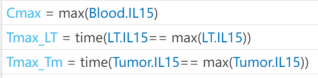
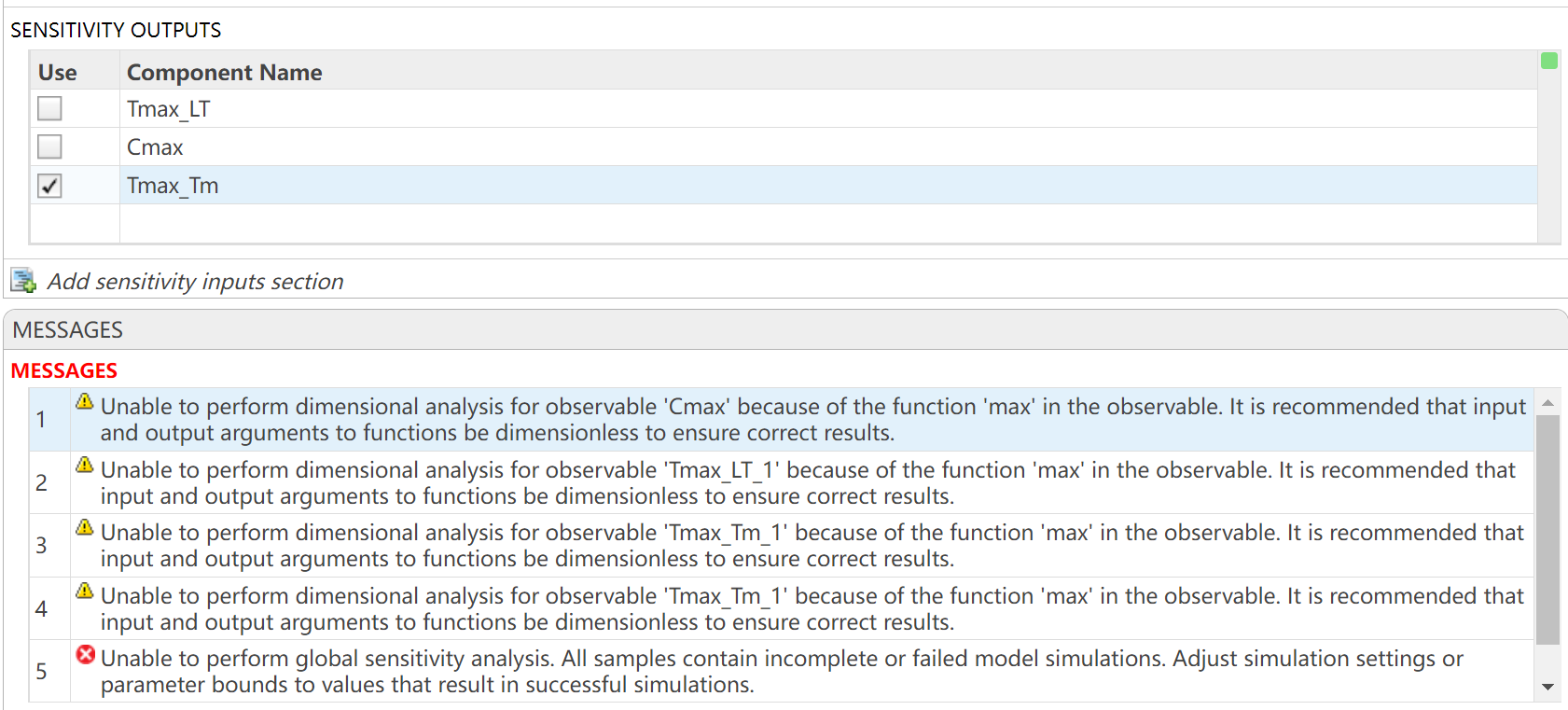
I want to observe the time (Tmax) to reach maximum drug concentration (Cmax) in my model. I have set up the OBSERVABLES as follows (figure1): Cmax = max(Blood.lL15); Tmax_LT = time(Conc_lL15_LT_nm == max(Conc_lL15_LT_nm)); Tmax_Tm = time(Conc_lL15_Tumor_nm == max(Conc_lL15_Tumor_nm)); After running the Sobol indices program for global sensitivity analysis, with inputs being some parameters and their ranges, the output for Cmax works, but there are some prompts, as shown in figure2. Additionally, when outputting Tmax, the program does not run successfully and reports some errors, as shown in figure2. How can I resolve the errors when outputting Tmax?
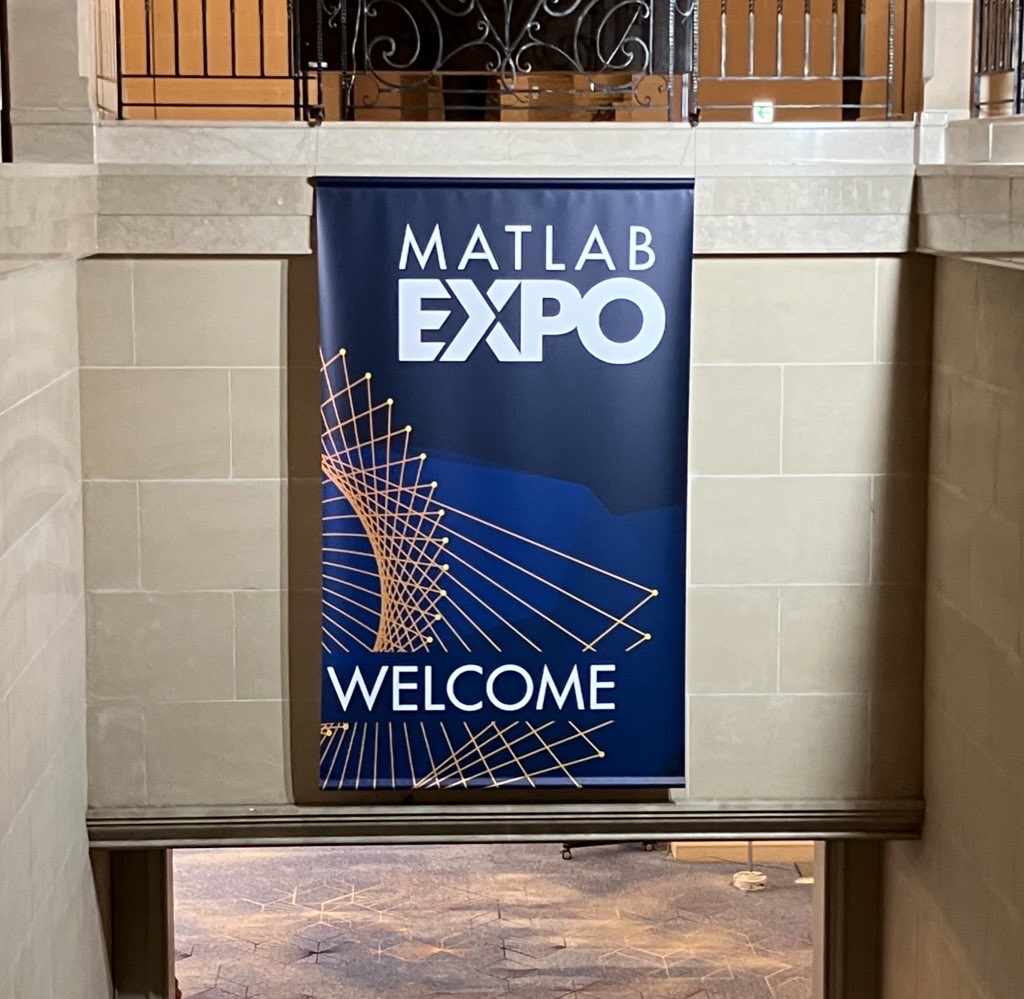
昨日 5/29 にお台場で MATLAB EXPO が開催されました。ご参加くださった方々ありがとうございました!
私は AI 関連のデモ展示で解説員としても立っておりましたが、立ち寄ってくださる方が絶えず、ずっと喋り続けてました。また、講演後に「さっきのすごくね?」という会話が漏れ聞こえてきたのがハイライト。
参加されたみなさま、印象に残ったこと・気になった講演・ポスター・デモ・新機能等あったら教えてください!(次回に向けて運営面での感想も)