Signals
R2026bSignals transmit data between two blocks in a simulation. The data could be the calculated output of a block, or simply a message. The value of signals are calculated at all points during the simulation time. You can display the signal data and properties during and after simulation, see the real-time values on a block diagram, or you can log the values as variables in the workspace. Also, you can export the signals to a file or to a workspace to investigate further.
You can control the mathematical behavior of a model by specifying signal characteristics such as numeric data type, initial value, and value range. For more information, see Signal Basics.
Blocks
 | Signal Specification | Specify desired dimensions, sample time, data type, numeric type, and other attributes of signal |
 | IC | Set initial value of signal |
 | Probe | Output signal attributes, including width, dimensionality, sample time, and complex signal flag |
 | Rate Transition | Handle transfer of data between blocks operating at different rates |
 | Signal Editor | Display, create, edit, and switch interchangeable scenarios |
 | Weighted Sample Time | Support calculations involving sample time |
 | Width | Output width of input vector |
 | Bus to Vector | Convert virtual bus to vector |
 | Signal Conversion | Convert signal to new type without altering signal values |
Functions
Objects
sltrace.Graph | Signal path traced using sltrace function |
Tools
| Signal Properties | View and edit signal properties |
| Instrumentation Properties | View and edit logging and visualization properties for logged signal |
| Property Inspector | Edit parameters and properties for any Simulink model element |
| Model Data Editor | Inspect and edit data items (signals, parameters, and states) in a table that you can sort, group, and filter |
| Component Interface View | Display component interfaces to trace port connections and author ports |
Model Settings
Topics
Get Started with Signals
- Signal Basics
Create, configure, identify, and test signals. - Signal Types
Learn about different types of signals, such as control signals and composite signals. - Signal Groups
Test or debug models by creating interchangeable groups of signal data.
Signal Properties
- Investigate Signal Values
Initialize, access, and view the values that signals have during a simulation run. - Specify Signal Ranges
Specify the minimum and maximum value that a signal can attain during simulation. Fully specify your design and optimize data types and the generated code by specifying the minimum and maximum value that a signal can attain during simulation. - Determine Signal Dimensions
Inspect and control signal dimensionality. - How Simulink Propagates Signal Properties in a Model
Inspect how Simulink® propagates signal properties in a model. - Initialize Signals and Discrete States
Some systems contain signals and states whose initial values you must specify, for example, the starting position and velocity of a bouncing ball. - Configure Signals as Test Points
Use test points to exclude signal lines from optimizations which enables you to access the simulation data. - Specify Common Set of Signal Properties as Value Type
Create a reusable value type for common signal properties, such as the application-specific signal properties of wind velocity.
Display Signal Properties
- Highlight Signal Sources and Destinations
Trace a signal to its source or destination while debugging or exploring a model. - View Signal Values Using Port Value Labels
View signal values in the block diagram during simulation to understand, analyze, and debug your model. - Display Signal Attributes
Improve model readability by displaying signal attributes, such as data types and dimensions, in the block diagram. - Programmatically Specify Block Parameters and Properties
To write scripts that modify block behavior, determine the programmatic names and supported values of block parameters and properties. - Determine Port Signal Attributes Programmatically
Determine block port signal attributes programmatically in a compiled model. - Signal Label Propagation
Name a signal to identify and access it more easily. Take advantage of signal label propagation to reduce the effort of naming a signal that crosses system boundaries. - Trace Connections and Author Ports Using Component Interface View
Display component interfaces to trace port connections and author ports.
Variable-Size Signals
- Variable-Size Signal Basics
Create a variable-size signal whose size and values can change during a simulation. - Inspect Variable-Size Signals on Simulink Models
Inspect example models that show how to use variable-size signals. - Unbounded Variable-Size Signals
Model unknown size data using dynamic arrays.
Related Information
Featured Examples
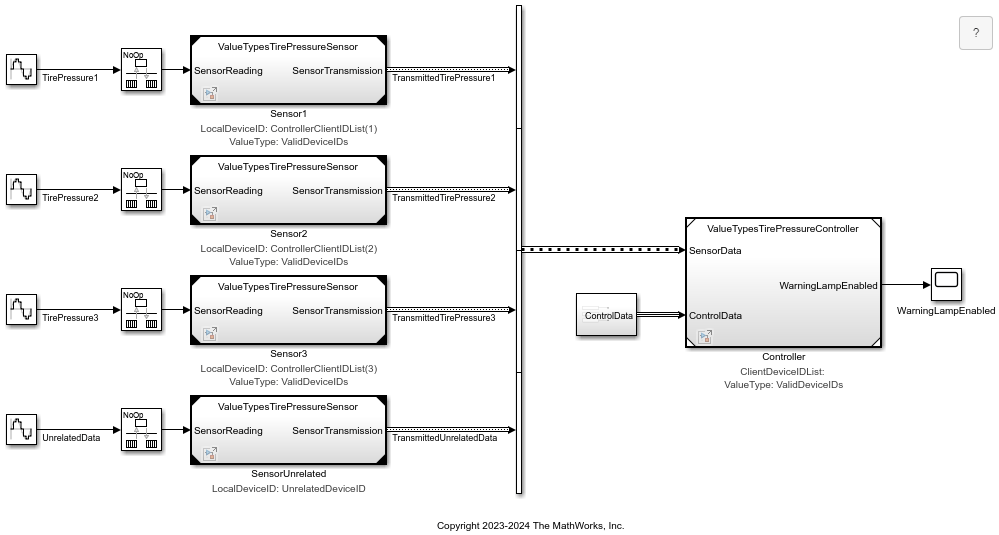
Value Types at Component Interfaces
Assign a meaningful name to a set of properties at an interface and reuse that set of properties with value types.
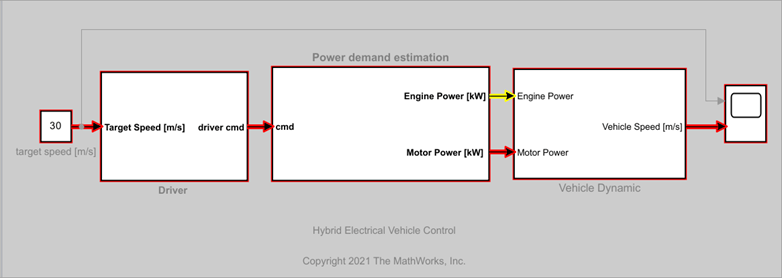
Find Shortest Control Path in Simulink Model
How to find the shortest control path for a hybrid electrical vehicle using Signal Tracing Command-line API.
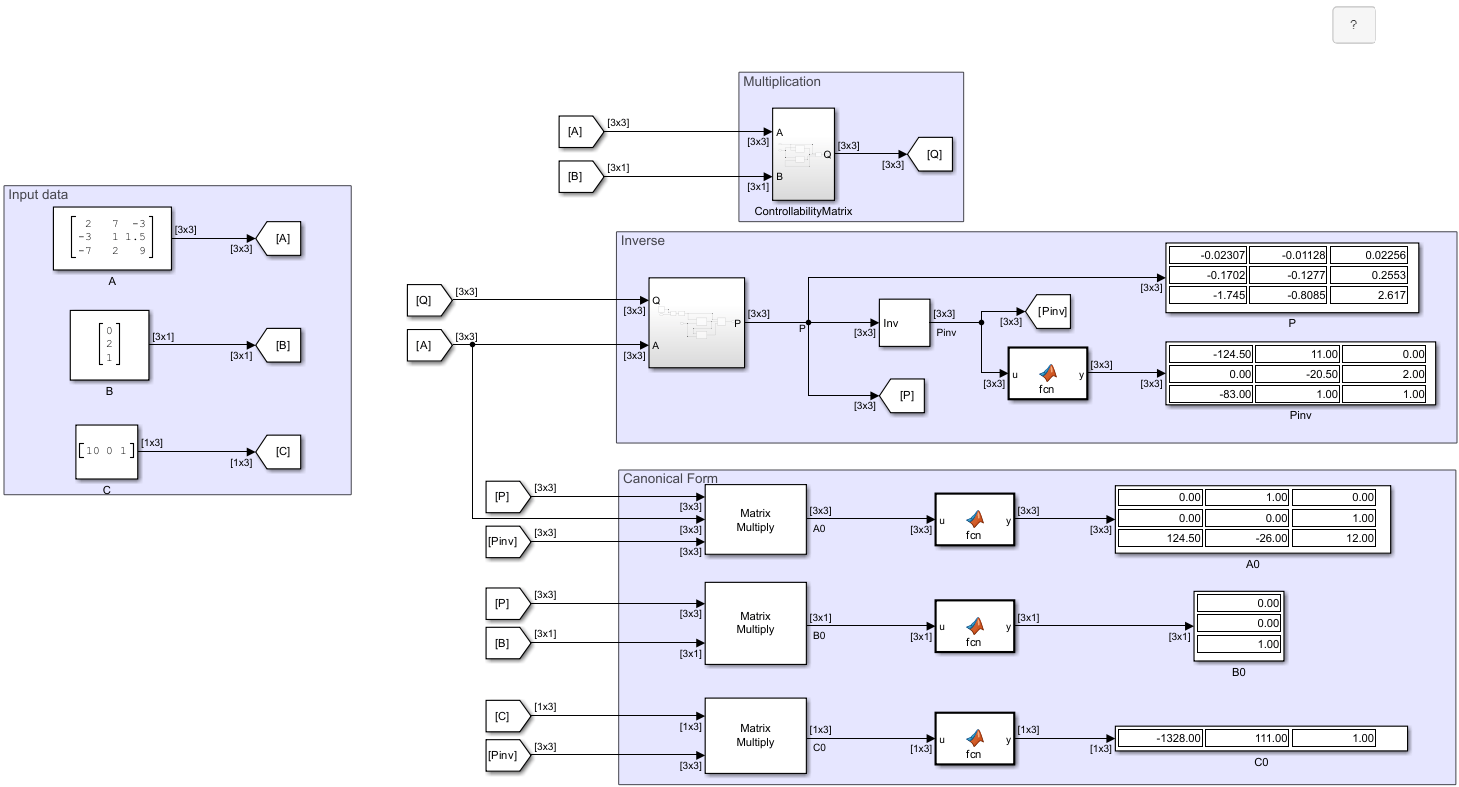
Arithmetic Operations on Matrix Signals
Perform arithmetic operations on signals carrying matrix and vector data.
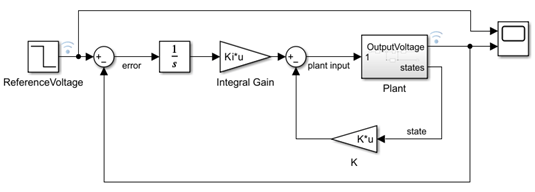
Model Feedback Control System
A feedback control system model that uses vector and matrix representation of Simulink signals for different components of the feedback system.
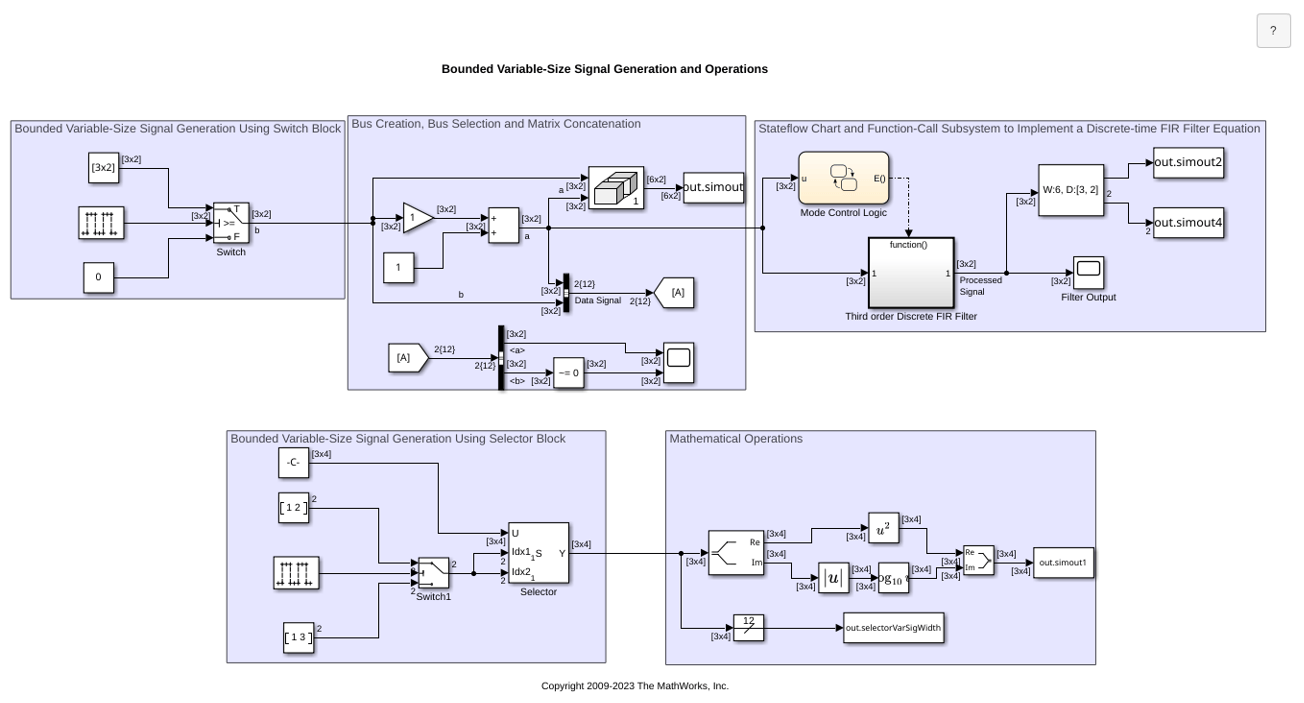
Bounded Variable-Size Signal Basic Operations
Generate bounded variable-size signals and illustrates some of the operations using those signals. In this example, you generate variable-size signals using the Selector block and the Switch block. The signals are used in math operations, bus creation, bus selection, matrix concatenation and to implement a discrete filter equation.
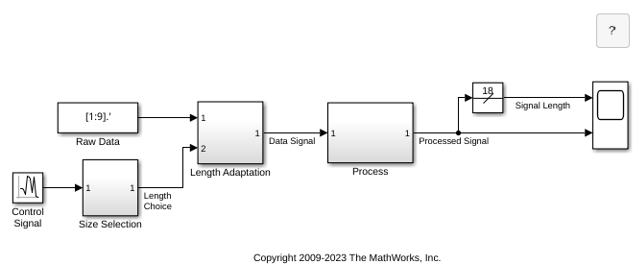
Variable-Size Signal Length Adaptation
Model showing how to change the length of a signal over time.
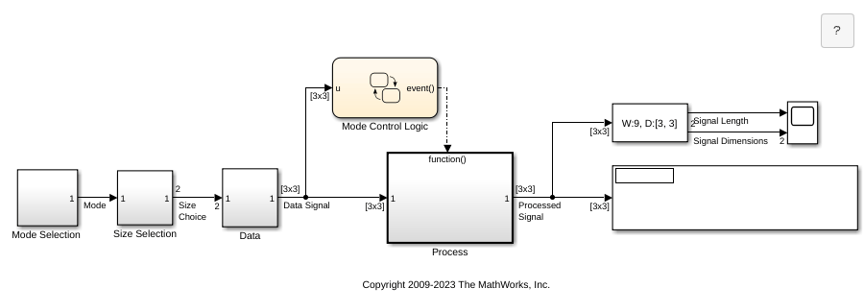
Multimode Variable-Size Signal
Use different operation modes to correspond to different signal sizes.
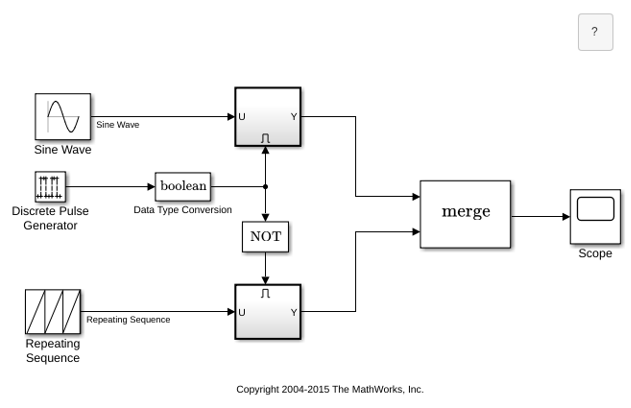
Merge Signals
Use conditionally executed subsystems and the Merge block to combine two inputs into a single output.
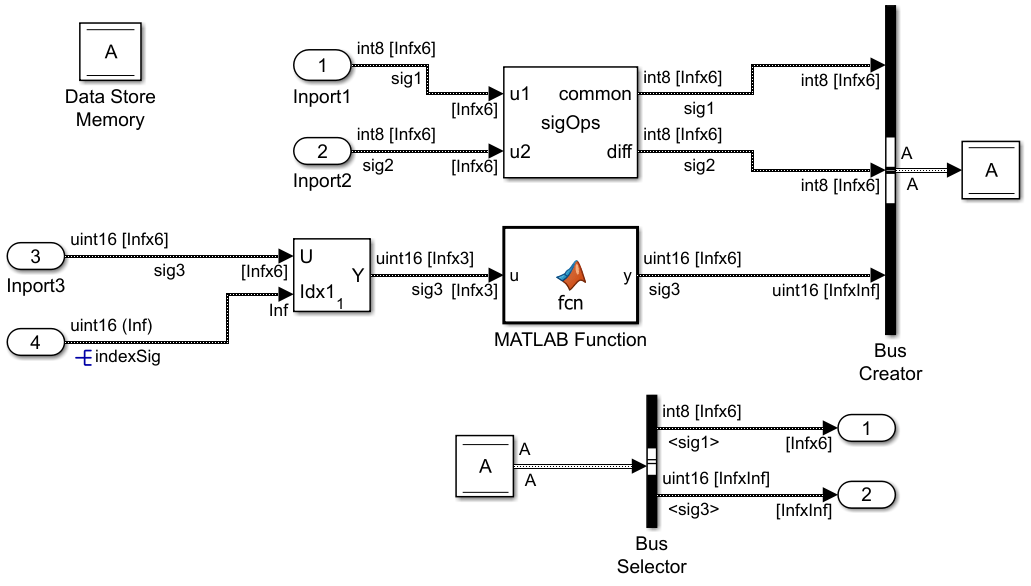
Unbounded Variable-Size Signal Basic Operations
Use unbounded variable-size signals in Simulink® modeling. For more information about the general concept of unbounded variable-size signals, see Unbounded Variable-Size Signal.
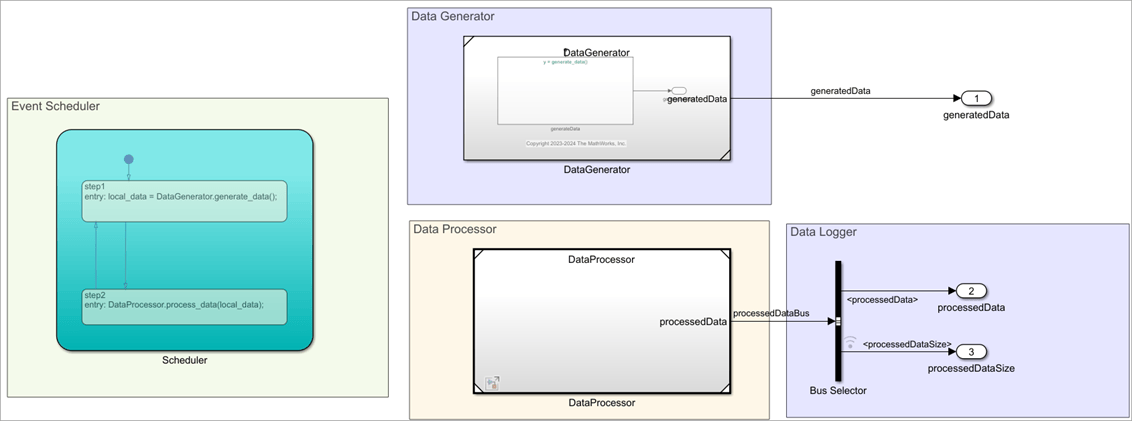
Use Unbounded Variable-Size Signals between Model Components
Use unbounded variable-size signals to handle unbounded-size data between different model components. The example also shows how to prepare the model for C++ code generation.

